Data Change History
Article Type: How-To / Reference Audience: Application Administrators, Developers, Compliance Officers Module: Fuuz Platform - Data Management Applies to Versions: 2024.12+
1. Overview
Data Change History provides comprehensive field-level audit tracking for all data modifications within Fuuz applications. When enabled on a data model, every change to every opted-in field is captured with before/after values, timestamps, user attribution, and detailed trace information identifying the source of the change (screen, flow, integration, gateway, or scheduled job). This view-only audit trail supports regulatory compliance, troubleshooting, data quality investigations, and forensic analysis. Change history is stored in live database with configurable retention periods and automatic purging, enabling organizations to balance audit requirements against storage costs and system performance.
Important: Data Change capture impacts system performance and storage. Enable it responsibly on transaction and master data models only — NOT on high-volume historical tables like tag historians, time-series data, or audit logs. Every record written to a DC-enabled model generates an additional DC record, effectively doubling write operations. Configure appropriate retention periods to manage storage costs.
2. Architecture & Data Flow
Definitions
- Data Change (DC) Capture: Opt-in feature at the data model level that automatically records all field modifications with before/after values and metadata.
- Retention Period: Number of days that change history records are preserved before automatic deletion, configured per data model.
- Field-Level Tracking: Granular capture of individual field changes, enabling selective inclusion/exclusion of specific fields within a data model.
- Trace Information: Metadata identifying the source of a change including screen details, data flow execution, integration process, gateway device, or scheduled job.
- Change Attribution: User identification showing who initiated the change, either through direct action or as the account under which automated processes executed.
- Before/After Comparison: Side-by-side JSON representation of field values immediately prior to and following a modification.
- Master Data: Relatively stable reference data like products, customers, locations that benefit from change tracking.
- Transaction Data: Business event records like orders, shipments, work orders where change history supports audit requirements.
- Historical Data: Time-series or accumulating datasets like tag historians or measurement logs that should NOT have DC enabled due to volume.
Components
- Filter Panel: Record Type, Records, Changed At, Changed By filters for query refinement
- Change History Table: Tabular view of matching changes with record identifier, change description, timestamp, and user
- Change Detail Panel: Comprehensive before/after field comparison with expandable sections
- Before/After View: Side-by-side JSON documents with color-coded change indicators
- Trace And Metadata Section: Detailed source information for troubleshooting and forensic analysis
3. Use Cases
- Regulatory Compliance: Maintain required audit trails for FDA, ISO, SOX, or industry-specific regulations requiring evidence of data modifications with user attribution and timestamps.
- Quality Investigation: Investigate when and how product specifications, inspection results, or quality parameters were modified during non-conformance investigations.
- Data Integrity Forensics: Determine who changed critical financial, inventory, or production data and what the original values were.
- Troubleshooting Production Issues: Trace data anomalies back to specific changes, identify the flow or integration that made incorrect updates.
- User Training Validation: Review changes made by new users to verify correct data entry procedures and identify training gaps.
- Process Verification: Confirm that automated Data Flows and integrations are modifying data as designed by examining actual before/after values.
- Security Incident Response: Investigate unauthorized or suspicious data modifications, identify compromised accounts or processes.
- Master Data Governance: Track all modifications to critical reference data like customer records, product definitions, or bill of materials.
4. Screen Details
The Data Changes screen is available at:
/app/[tenant]/admin/data-management/data-changes 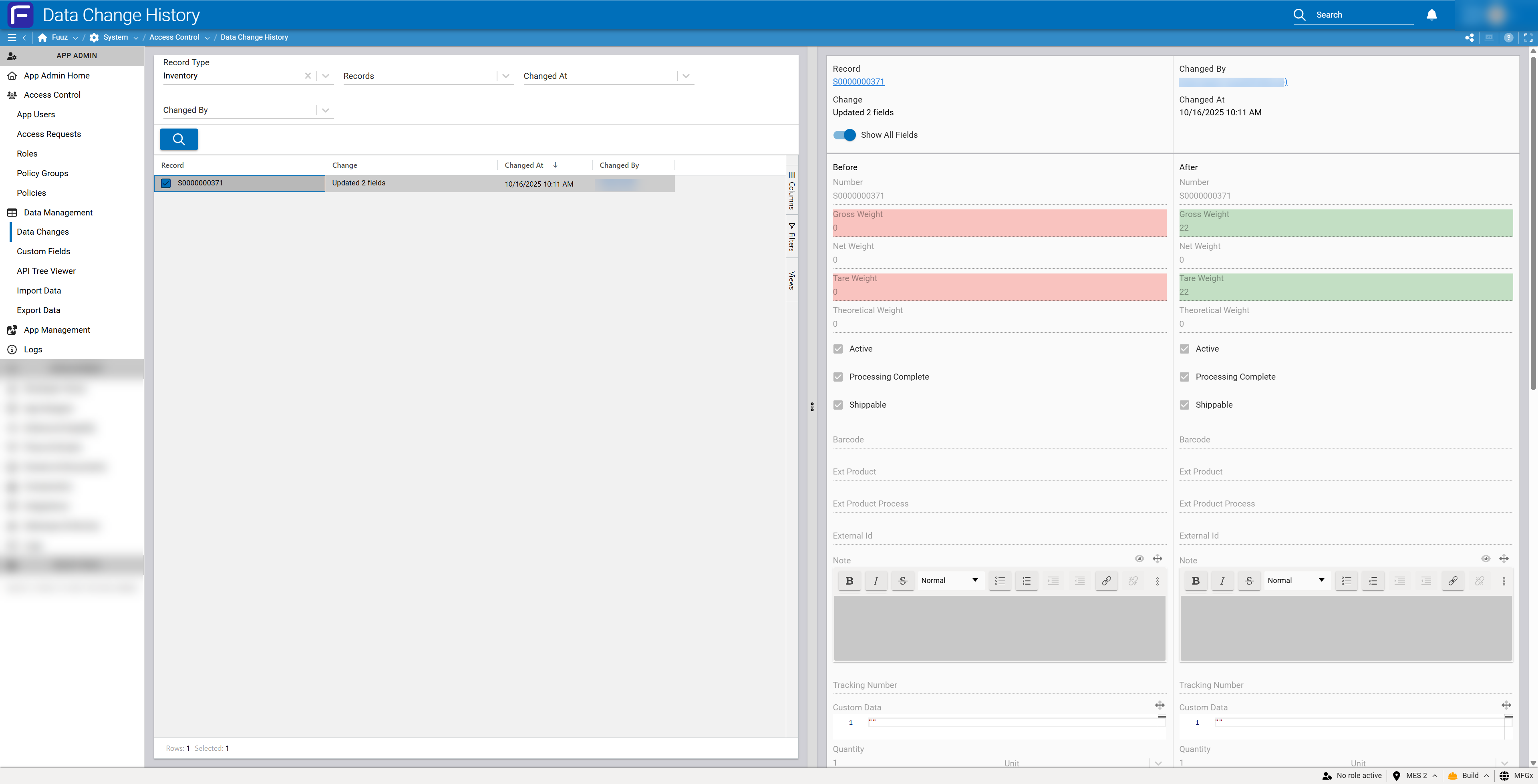
Filter Panel
Record Type (Required)
- Purpose: Selects the data model to query for changes
- Selection: Dropdown list showing all data models with DC capture enabled
- Required: Must be selected before any changes will display
- Availability: Only models with active DC capture appear in this list
Records (Optional)
- Purpose: Filters to specific record(s) within the selected data model
- Selection Method: Search by record ID or data model label field (e.g., serial number, order number, product code)
- Multiple Selection: Can select multiple records to view their changes together
- Leave Empty: If no records selected, shows changes across all records in the data model (within time range)
Changed At (Optional)
Relative date picker offering preset time ranges:
| Time Range Option | Description |
|---|---|
| This Minute | Current 60-second window |
| This Hour | Current hour |
| Today | Midnight to current time |
| This Week | Sunday through current time |
| This Month | First of month through current time |
| This Year | January 1 through current time |
| Yesterday | Full previous day |
| Previous Minute | The 60 seconds before current minute |
| Previous Hour | The hour before current hour |
| Previous Day | Same as Yesterday |
| Previous Week | Full previous Sunday-Saturday week |
| Previous Month | Full previous calendar month |
| Custom | Specify exact start and end dates/times |
Query Limits: How far back you can query is limited by the data model's configured retention period. Attempting to query beyond the retention period will return no results as those records have been automatically purged.
Changed By (Optional)
- Purpose: Filters changes to those made by specific users
- User Selection: Dropdown or search of all users in the system
- System Changes: Can filter to system-initiated changes (scheduled jobs, automated processes)
- Multiple Users: Can select multiple users to see combined changes
Change History Table
Tabular display of all changes matching the current filters:
| Column | Description |
|---|---|
| Record | Record identifier (ID or label field value) |
| Change | Summary description (e.g., "Updated 2 fields") — this count is always accurate |
| Changed At | Timestamp of modification (date and time) |
| Changed By | User who made the change, or "System" for scheduled/automated jobs |
Click any row to display detailed change information in the Change Detail Panel.
Change Detail Panel
Right-side panel displaying comprehensive change details when a row is selected:
Header Information
- Record: Full record identifier with hyperlink to view record details
- Changed By: User attribution with hyperlink to user profile
- Change: Change description
- Changed At: Full timestamp with date and time
Show All Fields Toggle
- Toggle On: Displays all fields in the data model with their before/after values
- Toggle Off (Default): Displays only fields that actually changed
- Use Case: Turn on to see complete record state at time of change; keep off for quick identification of what changed
Before / After Comparison View
Side-by-side JSON document display showing field values before and after the change:
- Left Panel (Before): Field values immediately prior to modification, with red background highlighting on changed fields
- Right Panel (After): Field values following modification, with green background highlighting on changed fields
- Color Coding: Red indicates removed/changed values, green indicates added/new values
- Expandable Fields: Click individual fields to expand and view detailed values
- Rich Text Tracking: Rich text fields display with full formatting preserved in change history
- Complex Data: Nested objects and arrays displayed as JSON structures for detailed inspection
- Boolean Values: Displayed as true/false
- Null Values: Empty or undefined fields shown explicitly
JSON Document Toggle
Expandable section at top of comparison view:
- Click to expand and view complete before/after JSON documents
- Useful for copying data for external analysis or record reconstruction
- Includes all fields regardless of "Show All Fields" toggle state
Trace And Metadata
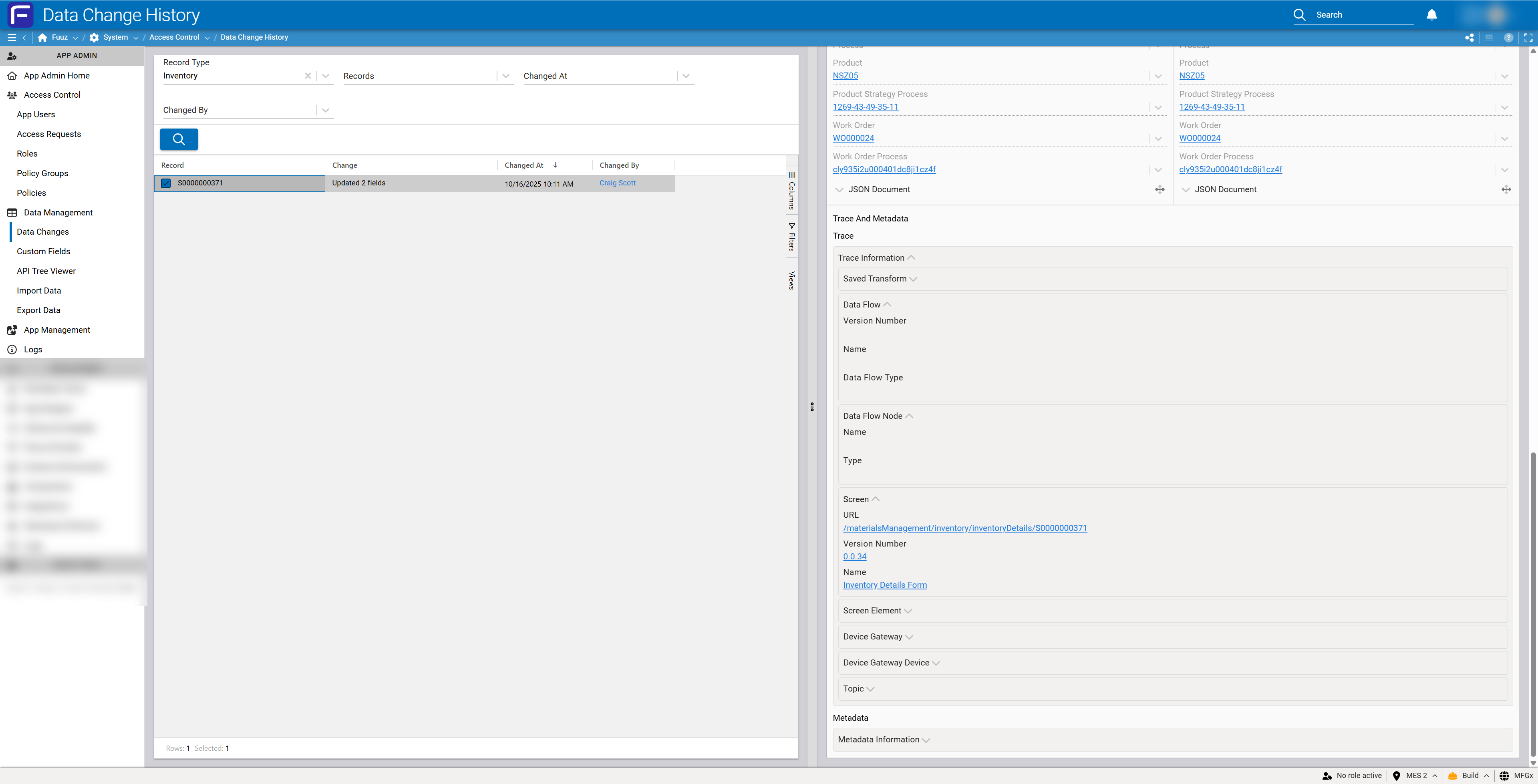
Expandable section below the Before/After view providing detailed source information for troubleshooting and forensic analysis:
Trace Section
Identifies where the change originated within Fuuz:
Trace Information:
- High-level categorization of change source (Saved Transform, Screen Update, Integration, etc.)
Data Flow (if change originated from Data Flow):
- Version Number: Specific version of Data Flow that executed
- Name: Data Flow name with hyperlink to flow definition
- Data Flow Type: Classification of flow (Transform, Integration, Scheduled, etc.)
Data Flow Node (specific node within flow):
- Name: Node identifier within the flow
- Type: Node type (Update, Insert, Transform, etc.)
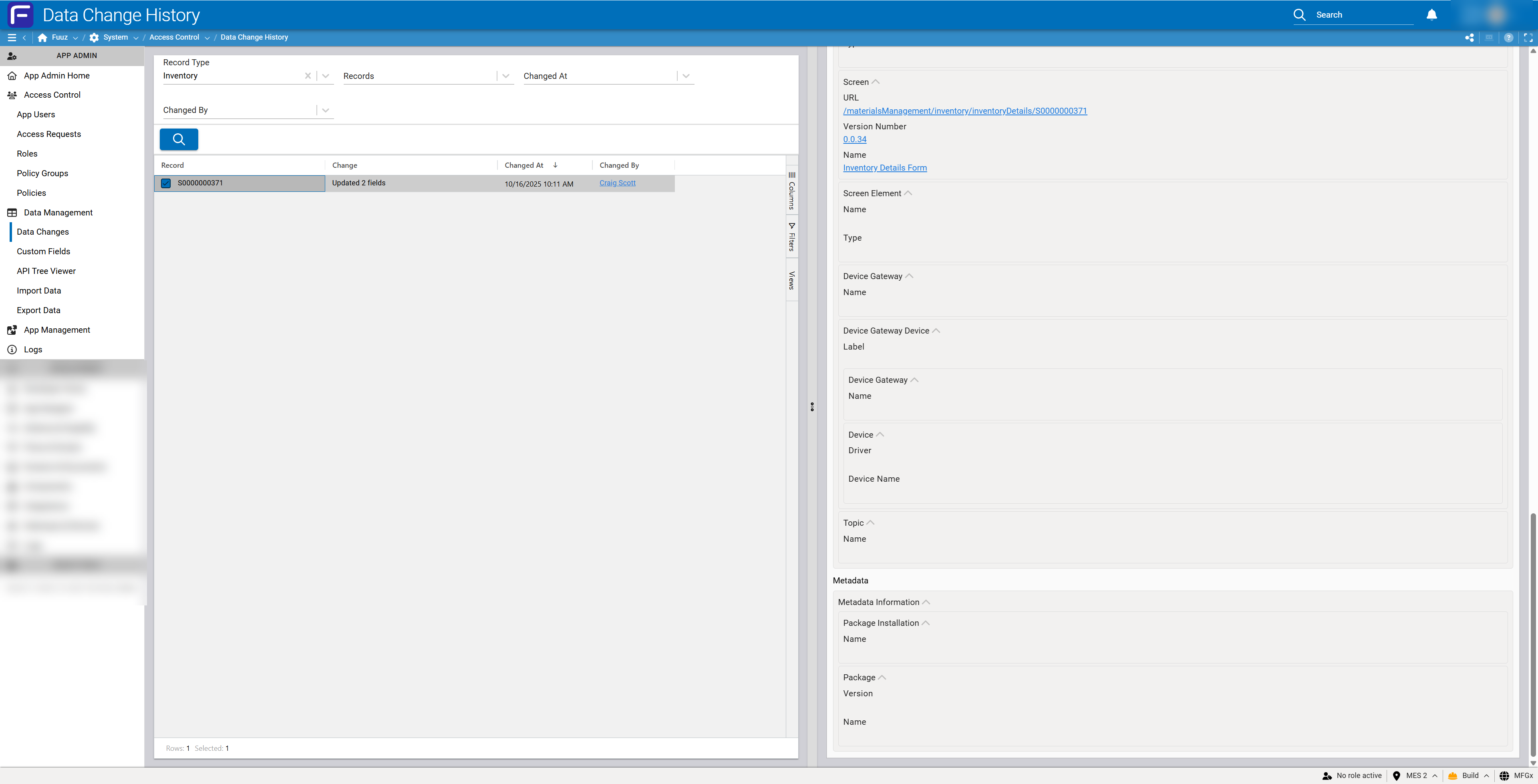
Screen (if change originated from user screen interaction):
- URL: Complete screen path with hyperlink to open screen
- Version Number: Specific version of screen definition active at time of change
- Name: Screen name
- Screen Element: Specific UI component user interacted with (button, form field, action)
Edge Gateway (if change originated from an IoT device or Edge Gateway):
- Name: Gateway instance name
- Device Label: Specific device identification
- Edge Gateway Name: Gateway configuration name
- Device Driver: Driver type processing device data
- Device Name: Physical or logical device name
- Topic Name: MQTT or messaging topic if applicable
Metadata Section
Additional contextual information:
Metadata Information:
- General metadata about the change transaction
Package Installation (if change related to package deployment):
- Name: Package installation identifier
- Package Version: Specific package version
- Package Name: Package name
Note:Troubleshooting Value — Trace And Metadata information is critical for debugging. When investigating production issues, this section tells you exactly which flow version, screen version, or gateway configuration made a change, enabling precise problem isolation.
5. Technical Details
Enabling Data Change Capture
Data Change capture is configured at the data model level by developers:
Configuration Process
- Open the Schema & GraphQL designer (or App Designer) and go to Data Models
- Select data model to enable DC capture
- Enable "Data Change Capture" checkbox
- Configure retention period (in days)
- Select specific fields to include (default: all fields)
- Deploy schema changes
Field-Level Selection
- Default Behavior: When DC capture enabled, all fields in model are included
- Selective Inclusion: Developers can choose specific fields to track
- Use Case: Exclude large BLOB fields, computed fields, or non-critical metadata to reduce storage
- Per-Field Control: Each field has individual enable/disable toggle
Restrictions
- No Technical Restrictions: DC capture can be enabled on any data model
- System Models: Can enable DC on Fuuz system models if needed
- Custom Models: Can enable DC on all customer-created data models
Retention & Storage Management
Retention Period Configuration
- Unit: Days
- Typical Value: 90 days for most transaction data
- Per-Model Setting: Each data model can have different retention period
- Example Values:
- Work Orders: 90 days
- Inventory: 7-10 years (2555-3650 days) for long-term audit
- Product Master: 20 years (7300 days) for regulatory compliance
- Quality Records: 7 years (2555 days) for FDA requirements
Automatic Purging
- Enforcement: Automatic — system purges expired records without manual intervention
- Deletion Type: Hard delete — records are permanently removed
- No Archive: Records are not archived; they are deleted
- Schedule: Purge operations run on system maintenance schedule
Storage Considerations
- Storage Cost: Long retention periods increase storage requirements and potentially platform edition costs
- Edition Impact: Very large DC datasets may require upgrading to higher platform edition for additional storage
- Multiple Applications: Storage compounds across all applications in enterprise
- Best Practice: Set retention periods as short as possible while meeting audit/compliance requirements
Important: Do not enable DC capture on everything forever. Configure retention periods responsibly based on actual business and regulatory requirements. Excessive DC capture can lead to storage costs and system performance degradation.
Performance Impact
Write Operation Impact
- Double Write: Every write to DC-enabled model generates two database writes (one for data, one for change history)
- Transaction Overhead: Additional transaction processing time for DC record creation
- High-Volume Impact: Enabling DC on high-volume collections can cause noticeable performance degradation
Models to Avoid
DO NOT enable DC capture on:
- Tag Historians: Time-series sensor data with high write frequency
- Measurement Logs: Continuous data collection from devices
- Event Logs: System event tracking tables
- Audit Logs: Tables already serving historical tracking purpose
- Session Data: Temporary or ephemeral data
- Cache Tables: Performance optimization tables
Rationale: These tables already capture historical data or have extremely high write volumes. Enabling DC would be redundant and would unnecessarily inflate storage while degrading write performance.
Recommended Models
Enable DC capture on:
- Transaction Data: Orders, shipments, work orders, production runs
- Master Data: Products, customers, suppliers, BOMs, locations
- Inventory: Stock levels, serial number tracking, lot management
- Quality Records: Inspections, non-conformances, corrective actions
- Configuration Data: Equipment settings, process parameters
Query Performance
- Live Database: Change history queries execute against live operational database
- Filtering Required: Always apply appropriate filters (Record Type, time range) to limit result set
- No Special Optimization: No need for advanced query strategies beyond normal filtering
- High-Volume Caution: Querying DC history on very high-volume models without filters may be slow
User Attribution
Direct User Changes
- Changes made through screens show the logged-in user who performed the action
- User attribution is pulled from authentication session
Data Flow and Integration Changes
- Triggered Flows: Changes show the user who triggered the flow (e.g., clicked button that launched flow)
- Scheduled Jobs: Changes show "System" as the user since no human initiated the action
- Trace Details: Trace And Metadata section provides complete flow/integration details regardless of user attribution
API Key Attribution
- User-Linked Keys: API keys are linked to specific user accounts
- Attribution: Changes made via API show the user account associated with the API key
- Best Practice: Create dedicated service accounts for API integrations rather than using personal user accounts
Importance of Individual Authentication
Critical: Always require individual user authentication. Avoid shared credentials or generic login accounts. Using shared accounts results in DC records showing generic users like "admin" or "operator" rather than the actual person who made the change, severely limiting audit and troubleshooting capabilities.
Export & Reporting
Export Capabilities
- Universal Export: All data in Fuuz can be exported including change history
- Formats: Excel, CSV, JSON
- Content: Exports include before/after values, timestamps, user attribution, and trace information
- Access: Use standard Export Data functionality in Data Management menu
Custom Reports
- API Explorer: Build custom GraphQL queries to retrieve specific DC records
- Screen Designer: Create custom screens displaying change history with filters and visualizations
- Compliance Reports: Build screens summarizing changes by user, time period, or data model for compliance reviews
- Dashboard Integration: Incorporate change metrics into dashboards (e.g., changes per day, most active users)
Comparing Multiple Records
- Single View Limitation: Change Detail Panel displays one change at a time
- Multi-Tab Workaround: Open multiple browser tabs to compare changes across different records simultaneously
- Export for Analysis: Export change history to spreadsheet for side-by-side comparison of multiple records
Field-Specific Filtering
- Not Available in UI: Cannot filter to show only changes to specific fields (e.g., "show me only Gross Weight changes")
- Workaround: Use API Explorer to write custom GraphQL queries filtering on specific field changes
- Screen Builder Option: Create custom screens with field-specific change filters for frequently-needed queries
6. Resources
7. Troubleshooting
- Issue: Data model does not appear in Record Type dropdown • Cause: DC capture not enabled for that model • Fix: Contact developer to enable DC capture in data model configuration; remember to configure retention period and select fields
- Issue: No changes showing for date range • Cause: Query exceeds retention period, or no changes in that timeframe • Fix: Verify retention period hasn't expired for selected timeframe; try broader date range; confirm records were actually modified during selected period
- Issue: Changed By shows generic user like "admin" • Cause: Shared credentials or generic accounts being used • Fix: Enforce individual user authentication; discontinue use of shared login accounts; create individual user accounts for all personnel
- Issue: Cannot see who triggered Data Flow change • Cause: Looking at wrong section • Fix: Check Trace And Metadata section for Data Flow details including flow name, version, and trigger context; Changed By shows either triggering user or "System" for scheduled jobs
- Issue: Some fields missing from Before/After view • Cause: "Show All Fields" toggle is off • Fix: Enable "Show All Fields" toggle to display all fields; or fields may not be included in DC capture configuration
- Issue: Rich text formatting not showing in change history • Cause: Viewing raw JSON • Fix: Rich text IS tracked with full formatting; expand the field to see formatted content; or use JSON Document view for complete raw data
- Issue: Query is very slow • Cause: Querying high-volume model without sufficient filters • Fix: Apply more restrictive filters; specify records, shorter time range, or specific user; consider if DC should even be enabled on this high-volume model
- Issue: Need to compare changes across multiple records • Cause: UI only shows one change at a time • Fix: Open multiple browser tabs with different changes selected; or export change history to Excel for side-by-side comparison
- Issue: Cannot filter to specific field changes • Cause: UI doesn't support field-specific filtering • Fix: Use API Explorer to write custom GraphQL query filtering on specific field names; or build custom screen with field-specific filters
- Issue: Storage costs increasing dramatically • Cause: DC enabled on too many models or overly long retention periods • Fix: Audit which models have DC enabled; disable on non-critical or high-volume historical tables; reduce retention periods where possible; prioritize transaction and master data only
- Issue: System performance degraded after enabling DC • Cause: DC enabled on high-volume collection • Fix: Disable DC on the high-volume model; every write generates two database operations; assess if audit requirements truly justify performance impact
- Issue: Screen URL in trace section returns 404 • Cause: Screen version has changed or been deleted since change occurred • Fix: Version number in trace shows which screen version was active; screen may have been updated or removed; contact developers if historical screen version needed for investigation
- Issue: Complex nested data difficult to read in Before/After view • Cause: Complex JSON structures • Fix: Expand individual fields for detailed view; use JSON Document toggle to see complete formatted JSON; or export to external JSON viewer/editor
8. Revision History
| Version | Date | Editor | Description |
|---|---|---|---|
| 1.0 | 2024-12-26 | Fuuz Documentation Team | Initial Release |