API Tree Browser
Article Type: Concept Audience: App Admins, Developers, Power Users Module: Data Management Applies to Versions: All Versions
1. Overview
The API Tree Browser is a powerful visualization tool that provides real-time access to data stored in both application-specific and system data models. It enables rapid data discovery without writing GraphQL queries or building complex joins, allowing users to instantly see how data is linked together across models. The tool visualizes the Fuuz GraphQL API while simultaneously displaying actual record data, making it invaluable for troubleshooting, understanding data relationships, and exploring schema structure.
Note: The API Tree Browser provides instant access to real-time data without requiring API knowledge or query writing skills. Not all fields visible in the API Tree Browser necessarily appear in user interface screens, making this tool essential for comprehensive data visibility.
2. Architecture & Data Flow
Key Concepts
- System Models: Platform-provided data models included in the Fuuz platform (e.g., Roles, Users, Policies, Data Models). These form the foundation of the platform's functionality.
- Custom Models: Application-specific data models created as part of your app (e.g., Assets, Work Orders, Inventory, custom business objects). These extend the platform for your specific use cases.
- Data Change Models: Special models that capture before-and-after states for every CRUD operation performed on primary data models. Generated automatically when data change tracking is enabled on the parent model.
- GraphQL API Visualization: The tree browser provides a navigable representation of the Fuuz GraphQL API schema with live data integration.
- Real-Time Data Access: All data displayed reflects the current state of the database with automatic pagination (5 records at a time by default).
Data Model Types
| Model Type | Description | Examples |
|---|---|---|
| System Models | Platform-provided models included in Fuuz. Data change tracking enabled by default. | User, Role, Policy, AccessControlPolicy, Application |
| Custom Models | Application-specific models created by developers. Data change tracking enabled by default but can be disabled. | Alarm, Asset, WorkOrder, Inventory, Product |
| Data Change Models | Audit trail models capturing before/after states for each CRUD operation. Only exist when enabled on the parent model. | AlarmDataChange, AssetDataChange, UserDataChange |
Special Metadata Fields
Every data model includes special underscore-prefixed fields that provide enterprise traceability and visibility:
_trace: Tracks when, where, how, and sometimes why data was changed. Provides complete audit trail for compliance and debugging._metadata: Contains system-generated metadata about the record including versioning and context information._customFields: Object containing all custom fields added to the data model (see Custom Fields).
Standard System Fields
Most models include these standard fields:
id: Unique identifier for the recordname: Human-readable name or labelcreatedat: Timestamp when record was createdupdatedat: Timestamp when record was last modifiedcreatedByUser: Reference to user who created the recordupdatedByUser: Reference to user who last modified the record
Note: Model-specific fields vary by data model. For example, an Alarm model contains fields like maintenance, management, material, production, quality, shipment, and system, which are attributes specific to alarm classification and routing.
3. Use Cases
- Rapid Data Discovery: Quickly explore available data without writing GraphQL queries or understanding complex API syntax. See real-time data across all models instantly.
- Understanding Data Relationships: Visualize how inventory links to products, how work orders relate to assets, or how users connect to roles without building joins or studying documentation.
- Troubleshooting User Issues: When investigating reported problems, access actual record data in real-time to verify field values, check relationships, and understand current state.
- Pre-Development Schema Exploration: Before building screens or dashboards, understand available fields, data types, and model structure to plan UI components effectively.
- API Integration Planning: Explore the GraphQL API structure with live data examples to plan external integrations or understand available query paths.
- Data Quality Verification: Spot-check data quality, validate that automation is working correctly, or verify that import processes populated fields as expected.
- Training and Knowledge Transfer: Help new developers or admins understand the data model structure with real examples rather than abstract schema documentation.
- Custom Fields Verification: Quickly verify that custom fields are properly configured and containing expected data without navigating to individual screens.
Tip: The API Tree Browser is especially valuable when not all fields are exposed in the standard UI. This provides complete data visibility beyond what screens typically display.
4. Screen Details
The API Tree Viewer is accessed via App Admin > Data Management > API Tree Viewer.
Left Panel Controls
View Filters (Toggles):
- System Models? Toggle to show/hide platform-provided models (User, Role, Policy, etc.)
- Custom Models? Toggle to show/hide application-specific models
- Data Change Models? Toggle to show/hide audit trail models that track data changes
- Collapse Filters by Default? Toggle to reduce the filter UI section for a more dense data view
Sort Order Options:
- Alphabetical (A-Z)
- Custom versus System
- By Module Group and Module
Model Statistics:
- Total Data Models count (e.g., 618)
- System Models count (e.g., 139)
- Custom Models count (e.g., 255)
- Total Data Change Models count (e.g., 224)
- System Data Change count (e.g., 88)
- Custom Data Change count (e.g., 136)
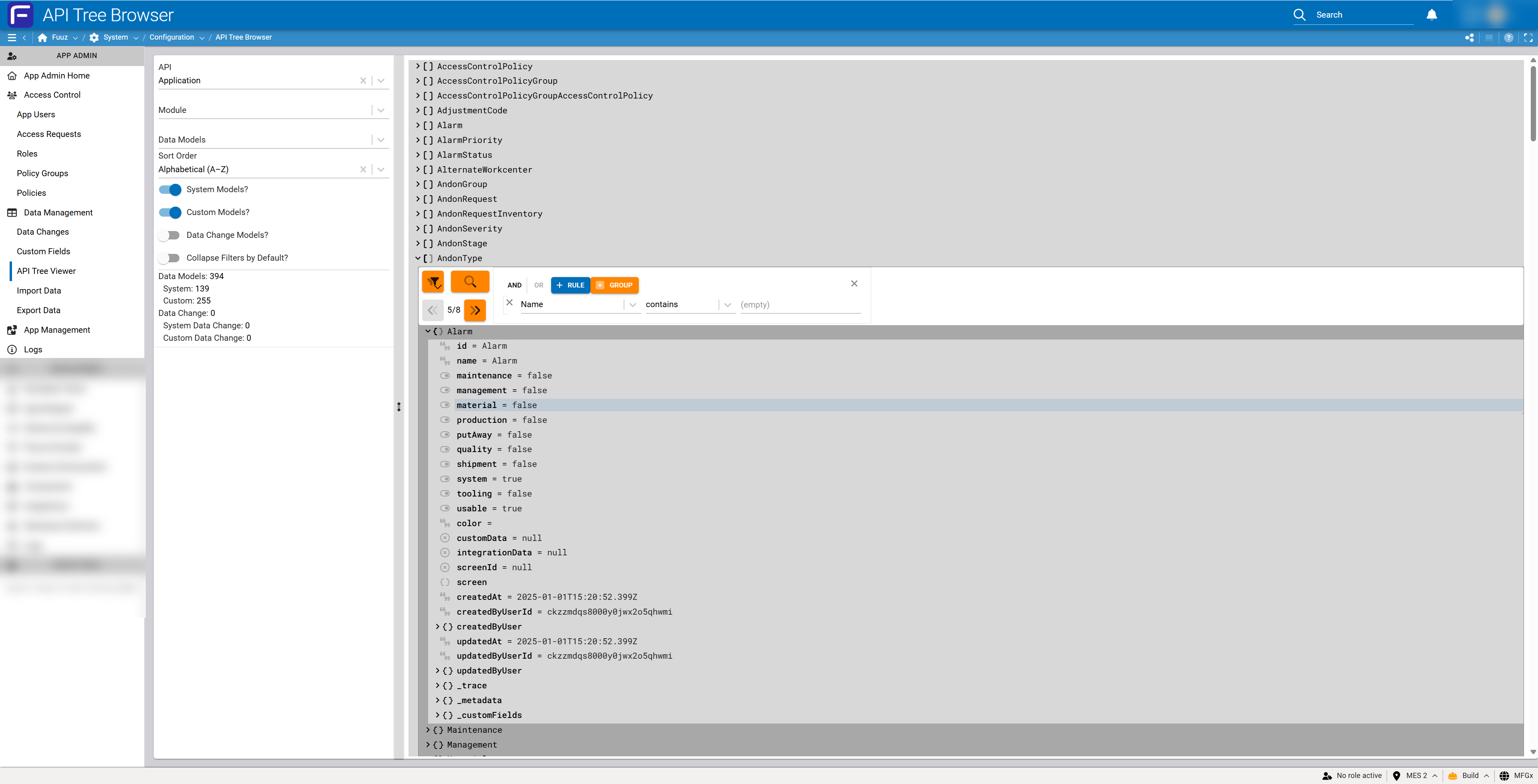
Query Builder Interface
The query builder allows sophisticated data filtering without writing code:
Query Builder Controls:
- RULE Button: Add a new filter rule to query specific fields
- GROUP Button: Create nested filter groups for complex queries
- AND/OR Operators: Combine multiple rules using logical operators
- Field Selector: Choose any field from the selected model (e.g., Name, id, createdAt)
- Operator Selector: Choose comparison operators (contains, equals, greater than, etc.)
- Value Input: Enter the value to filter by
Query Capabilities:
- Filter by any field within the selected model
- Query across related models via the custom ORM layer
- Build multi-condition queries with AND/OR logic
- Results automatically paginate (5 records per page)
- Result count displayed after query execution
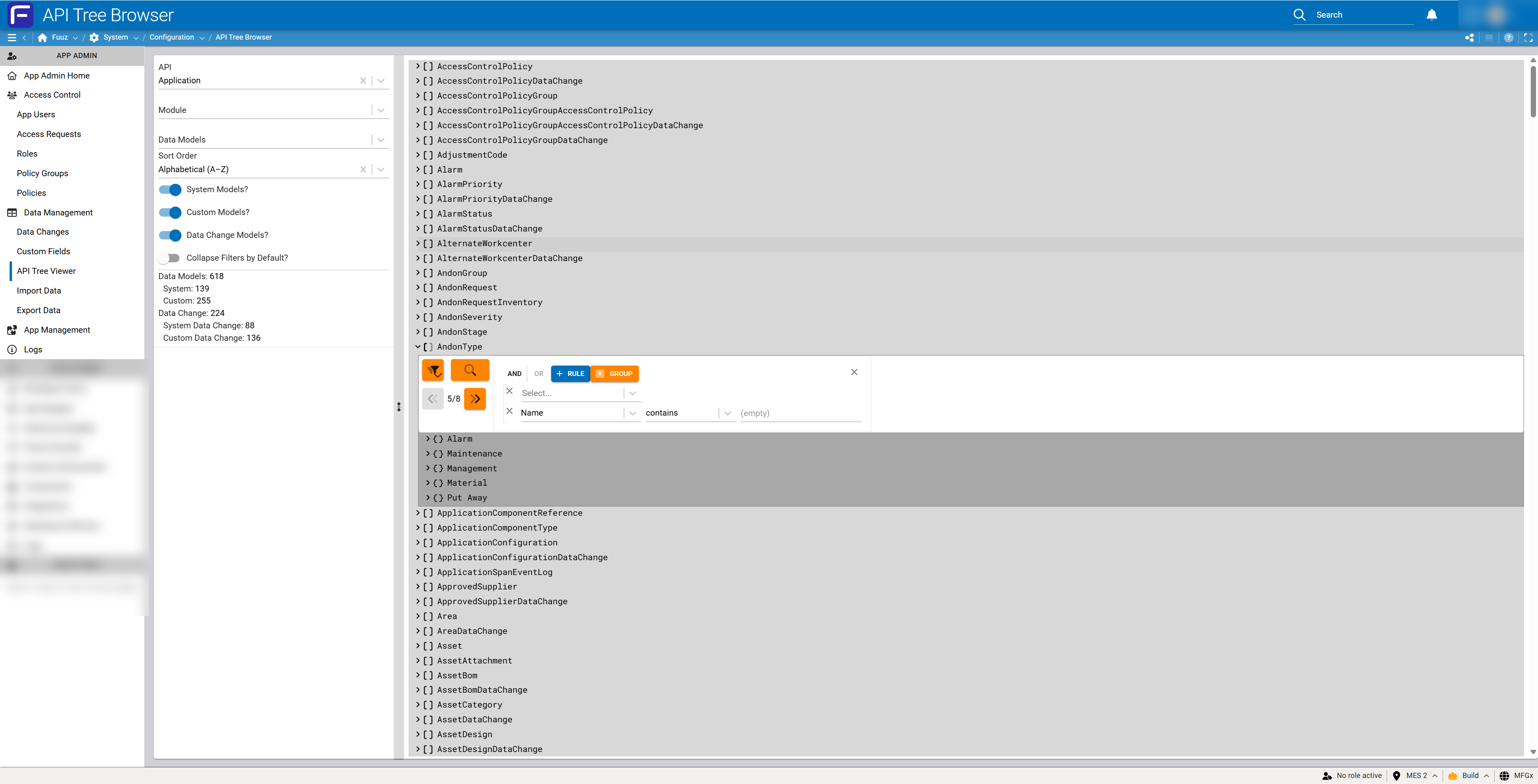
Tree View Interaction
Three-Level Hierarchy:
- Model Level: Click a model name to expand and view records within that model
- Record Level: Click an individual record to expand and view all fields and values
- Field Level: View field names, data types, and current values for the selected record
Field Display Information:
- Field name
- Field type (text, boolean, integer, date, reference, etc.)
- Current value
- Null indicators for empty fields
- Expandable relationship fields showing referenced records
- Special objects (
_trace,_metadata,_customFields) with nested structure
5. Technical Details
Access Control
- App Admin Access Type: Full access to API Tree Browser
- Developer Access Type: Full access to API Tree Browser
- Web Access with RBAC: Users with Web Access type can view the API Tree Browser if granted a custom access control policy with appropriate permissions
- Data-Level Security: Users only see records they have permission to access based on role-based access control policies
GraphQL Integration
- API Visualization: The tree browser provides a navigable view of the Fuuz GraphQL API schema
- Real-Time Data: All displayed data reflects current database state with no caching
- No Query Writing Required: Access data without GraphQL knowledge or API Explorer usage
- Custom ORM Layer: Supports querying across related models through Fuuz's object-relational mapping
- Auto-Generated Documentation: Schema structure visible through tree navigation (full API documentation available in API Explorer)
Data Change Tracking
- Enablement: Data change models are created when developers enable data change tracking in the Schema Designer
- System Models: Have data change tracking enabled by default
- Custom Models: Have data change tracking enabled by default but can be disabled
- Capture Scope: Data change models capture before and after states for every CRUD operation (Create, Read, Update, Delete)
- Toggle Visibility: When not interested in change history, toggle off Data Change Models to focus on current state
Functional Limitations
- Read-Only View: The API Tree Browser is for viewing data only; no create, update, or delete actions available
- No Export Function: Cannot export or copy model definitions directly from this view
- No Schema Modification: Cannot modify field definitions, add fields, or change model structure
- Pagination: Results automatically paginate at 5 records per page (not configurable)
- Component Linkage: To see which screens or flows use a particular model, use the Application Component Linkage Report
Performance Characteristics
- Real-Time Queries: All queries execute against live database with no caching
- Automatic Pagination: Limits query results to prevent performance issues
- Efficient for Spot Checks: Optimized for quick data verification rather than bulk data analysis
- Large Datasets: For extensive data analysis, consider using API Explorer with custom queries or data export tools
6. Resources
- Fuuz Industrial Operations Platform
- Related Article: Data Model Custom Fields (understanding
_customFieldsobject) - Related Article: Schema & GraphQL Designer (enabling data change tracking)
- Related Article: API Explorer (writing custom GraphQL queries)
- Related Article: Access Control Policies (configuring RBAC for Web Access users)
- Related Article: Application Component Linkage Report (finding model usage in screens and flows)
7. Troubleshooting
Cannot Access API Tree Browser
Symptom: API Tree Viewer menu option not visible or accessible.
Cause: User lacks appropriate access type or custom RBAC permissions.
Resolution:
- Verify user has App Admin or Developer access type, or
- If user has Web Access type, create a custom access control policy granting permission to the API Tree Browser resource
- Assign the policy to the user's role
- User may need to log out and back in for permission changes to take effect
Model Not Visible in Tree
Symptom: Expected data model does not appear in the tree view.
Cause: Model type filter toggle is disabled, or user lacks permission to view the model.
Resolution:
- Check that appropriate toggles are enabled: System Models?, Custom Models?, or Data Change Models?
- Try different sort order options to locate the model
- Verify user has read permissions for the data model through their assigned roles
- If looking for a Data Change model, verify that data change tracking is enabled on the parent model in Schema Designer
No Records Returned from Query
Symptom: Query returns zero results when data is expected to exist.
Cause: Query filters too restrictive, RBAC limiting visible records, or no matching data exists.
Resolution:
- Remove or loosen query rules to see if records appear
- Verify the correct field name is selected in the query builder
- Check that user has permission to view records in this model based on role policies
- Try expanding the model without filters to see if any records exist
- Verify data actually exists in this model by checking relevant screens or using API Explorer
Custom Fields Not Showing Data
Symptom: _customFields object is empty or null.
Cause: No custom fields defined for the model, or custom fields have not been populated with data.
Resolution:
- Open the Custom Fields screen under Data Management to verify custom fields are defined for this model
- Check that custom fields are enabled with "Show On Forms" or "Show On Tables"
- Verify that screens include custom fields layout element or custom field table columns
- Check if data has been entered into custom fields for the selected record
Cannot See Related Model Data
Symptom: Referenced fields show only IDs rather than expanding to show related record details.
Cause: Related record may not exist, or user lacks permission to view the referenced model.
Resolution:
- Click the expansion arrow on the reference field to load related record details
- Verify user has read permissions for the referenced data model
- Check that the referenced record still exists (may have been deleted)
- If reference field is null, the relationship has not been established for this record
Too Many Models to Navigate
Symptom: Hundreds of models make finding specific models difficult.
Cause: Large applications have many models; default view shows all enabled types.
Resolution:
- Toggle off Data Change Models if not needed (can eliminate hundreds of models from view)
- Use sort order "By Module Group and Module" to organize models by functional area
- Toggle between System Models and Custom Models to focus on relevant model type
- Use browser's Find function (Ctrl+F or Cmd+F) to search for specific model names
Data Change Model Missing
Symptom: Expected data change model does not exist for a custom model.
Cause: Data change tracking has been disabled for the model in Schema Designer.
Resolution:
- Open the Schema & GraphQL designer
- Locate the data model in question
- Check the "Enable Data Change Tracking" checkbox
- Save and deploy the schema changes
- The data change model will be created and begin tracking future changes
Important: Enabling data change tracking only captures changes made after enablement. Historical changes before enabling cannot be retroactively tracked.
8. Revision History
| Version | Date | Editor | Description |
|---|---|---|---|
| 1.0 | 2024-12-26 | Fuuz Documentation Team | Initial Release |