Data Management Overview
Article Type: Concept Audience: Application Administrators, Enterprise Administrators Module: Fuuz Platform - Data Management Applies to Versions: 2024.12+
1. Overview
Data Management provides Application Administrators and Enterprise Administrators with essential tools for maintaining, auditing, and managing operational data within their Fuuz applications. This suite of five integrated capabilities enables administrators to track data changes, extend data models with custom fields, visualize data structures, and perform bulk data operations without requiring developer intervention. Data Management functions are available in both the Enterprise Administrator interface and within individual Application Administrator menus, though each instance is scoped to a specific application's data models and schema. These tools support critical administrative workflows including data migration between environments, audit compliance, system troubleshooting, and flexible data model extensions.
Note: Scope — All Data Management functions apply only to the current active application's data models, including both custom data models and Fuuz system models. To work with data across multiple applications, administrators can build custom integration apps that create a unified namespace (UNS) across sites, organizations, divisions, or the entire enterprise using Data Flows and cross-application queries.
2. Architecture & Data Flow
Definitions
- Data Model: A defined schema structure representing entities within the Fuuz application, such as Inventory, Orders, Products, or custom business objects.
- System Model: Built-in Fuuz data models that support platform functionality, such as Users, Roles, or Configuration entities.
- Data Change Capture: Opt-in feature for data models that enables automatic tracking of all field-level modifications with before/after values.
- Custom Field: User-defined fields (similar to User-Defined Types or UDTs) that extend existing data models without modifying the core schema, stored as metadata on records.
- First-Class Field: Native fields defined in the data model schema by developers, providing full type enforcement and schema validation.
- API Tree: Hierarchical visualization of the GraphQL data structure showing all available data models, relationships, and query capabilities within the application.
- Bulk Import: Mass data insertion from CSV files into Fuuz data models with validation and relationship handling.
- Bulk Export: Mass data extraction from Fuuz data models to CSV or JSON formats, supporting complex queries with nested and relational data.
- Unified Namespace (UNS): Pattern for creating cross-application data integration by building custom apps that query data across multiple Fuuz applications within an enterprise.
Components
- Data Changes: Audit trail interface displaying field-level change history for opted-in data models with filtering by record type, specific records, time range, and user
- Custom Fields: Management interface for creating and maintaining user-defined fields that extend data models without schema modifications
- API Tree Viewer: Semantic browser providing visual navigation through the application's complete GraphQL data structure
- Import Data: CSV bulk import tool with validation, relationship handling, and support for massive data loads
- Export Data: Flexible data extraction tool supporting CSV and JSON formats with GraphQL query capabilities and background processing
Access Requirements
All Data Management functions require administrator-level access:
- Access Type: Application Administrator or Enterprise Administrator
- RBAC Permissions: Users must have appropriate role-based access control permissions for the specific data models they wish to view, import, or export
- Application Scope: Administrators only see and manage data for applications to which they have been granted access
Important: While Data Management interfaces appear in both Enterprise Administrator and Application Administrator menus with identical functionality, each is scoped to the specific application context. Enterprise Administrators accessing Data Management must select a specific application; they are not viewing cross-application data in a single interface.
3. Use Cases
- Audit Compliance: Track all data modifications with field-level change history including before/after values, timestamps, and user attribution for regulatory compliance and internal auditing.
- Troubleshooting Data Issues: Investigate when and how specific records were modified, identifying the user and exact changes made to diagnose production issues or data quality problems.
- Environment Data Migration: Export data from production environment, import into build or QA environments for testing with real-world data volumes and scenarios.
- System Integration: Export Fuuz data to CSV/JSON for integration with external systems, ERP, data warehouses, or business intelligence tools.
- Mass Data Updates: Export data to spreadsheet, perform bulk modifications offline, re-import updated data with validation ensuring data integrity.
- Customer-Specific Fields: Extend standard data models with custom fields for unique business requirements without waiting for schema changes or risking upgrade compatibility issues.
- Initial Data Load: Bulk import historical data from legacy systems during Fuuz implementation or migration projects.
- Data Structure Understanding: Use API Tree Viewer to explore available data models, understand relationships, and discover query capabilities without writing code.
- Unified Namespace Creation: Build custom integration apps that query across multiple Fuuz applications to create enterprise-wide data visibility across sites, divisions, or the entire organization.
- Automated Data Synchronization: Schedule exports via Data Flows to automatically synchronize Fuuz data with external systems or data lakes.
4. Screen Details
The Data Management menu is available at:
/app/[tenant]/admin/data-management
Data Changes
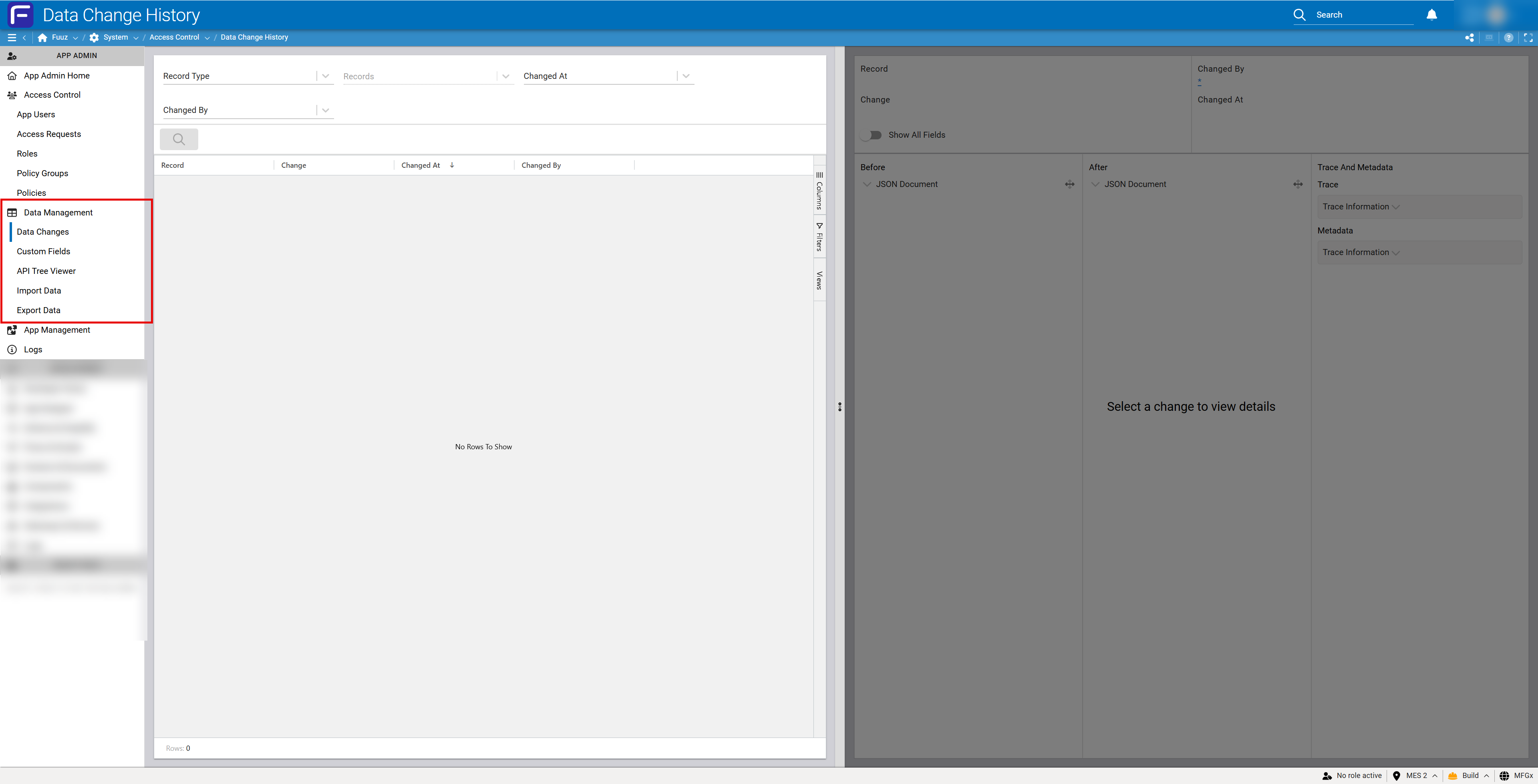
View-only audit trail displaying field-level change history for all data models that have opted into data change capture.
Filter Panel
| Filter | Required | Description |
|---|---|---|
| Record Type | Yes | The data model to query for changes (e.g., Inventory, Orders, Products) |
| Records | No | Specific record(s) within the data model (e.g., specific serial number in Inventory model) |
| Changed At | No | Relative date picker to view changes within a specific time range |
| Changed By | No | Filter to records changed by specific users |
Change History Table
Displays matching changes with columns:
- Record: Identifier of the specific record that changed
- Change: Brief description of what changed
- Changed At: Timestamp of the modification
- Changed By: User who made the modification
Change Detail Panel
Selecting a change from the table displays comprehensive field-level details:
- Record: Full record identifier
- Changed By: User attribution
- Change: Change description
- Changed At: Timestamp
- Show All Fields: Toggle to display all fields or only changed fields
- Before/After View: Side-by-side JSON documents showing:
- Before: Complete field values prior to change
- After: Complete field values after change
- Field-level comparison highlighting exact modifications
- Trace And Metadata: Additional context including:
- Trace: System trace information for debugging
- Trace Information: Detailed execution context
- Metadata: Additional change metadata
Data Change Capture Configuration
- Opt-In Model: Data models must explicitly enable data change capture to appear in this interface
- Retention Period: Change history retention is customer-configurable per data model
- All Change Sources: Tracks modifications made via UI, API, Data Flows, Integrations, and any other data manipulation mechanism
- User Attribution Importance: Proper user authentication is critical for accurate "Changed By" tracking; avoid generic access credentials
Note: Data Changes is a view-only audit trail. Changes cannot be reverted from this interface. It serves purely for investigation, compliance, and troubleshooting purposes. To restore previous values, administrators must manually update the records through standard data management interfaces or APIs.
Custom Fields
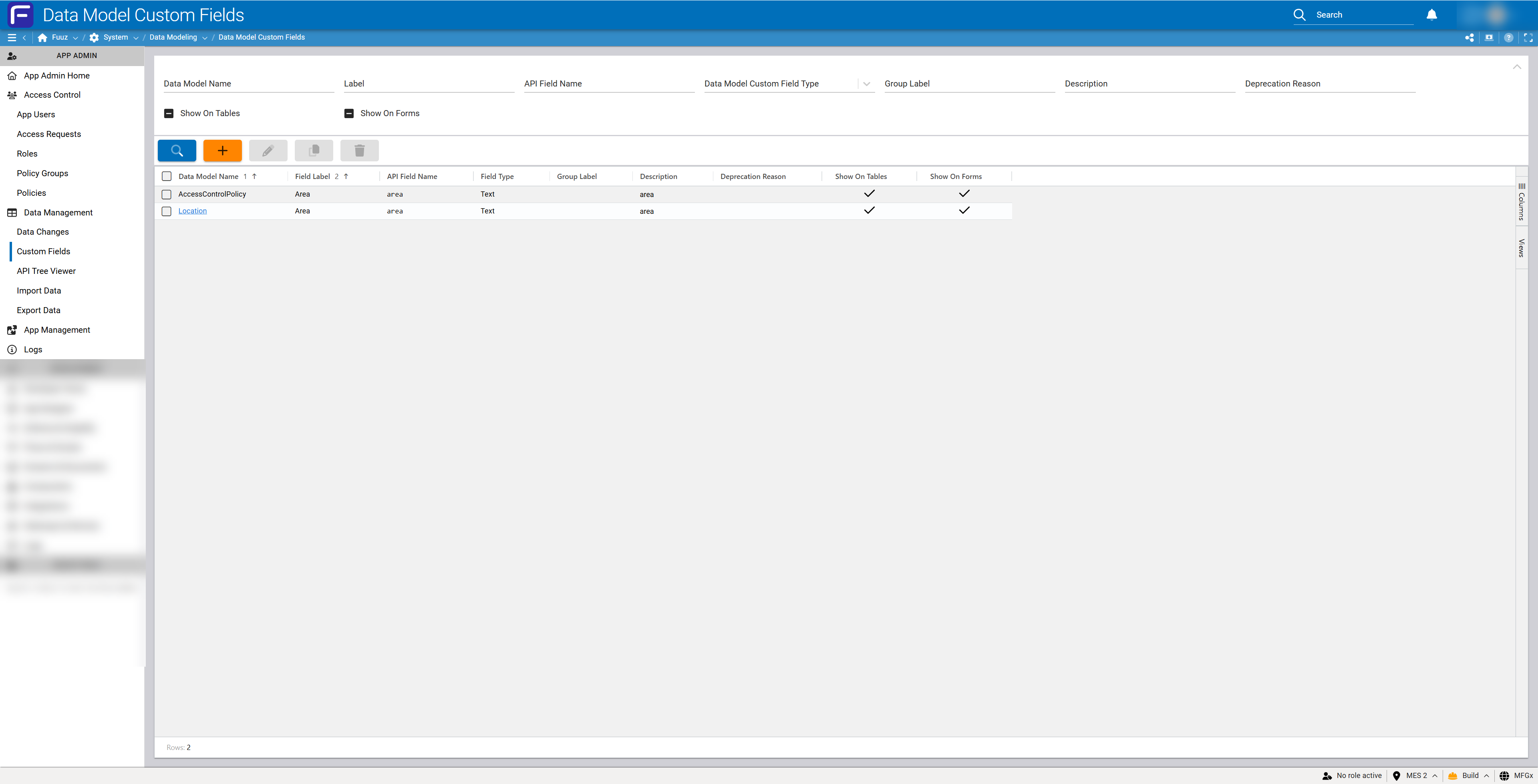
User-defined field management interface enabling administrators to extend data models without schema modifications, similar to User-Defined Types (UDTs) in traditional systems.
Custom Fields vs First-Class Fields
| Aspect | Custom Fields | First-Class Fields |
|---|---|---|
| Who Creates | Application Administrators | Developers |
| Schema Impact | No schema changes required | Requires schema definition updates |
| Storage | Stored as metadata on records | Native database fields |
| Upgrade Risk | No upgrade concerns | May require migration during upgrades |
| API Access | Queryable via GraphQL API | Queryable via GraphQL API |
| UI Integration | Appears on forms/tables if UI elements included in design | Automatically available in schema-driven UI components |
When to Use Custom Fields
- Customer-Specific Requirements: Unique fields needed only for specific customers or use cases
- Rapid Deployment: Need to extend data models quickly without waiting for schema changes and deployment cycles
- Upgrade Protection: Want to ensure custom modifications survive platform upgrades without migration concerns
- Admin Autonomy: Enable administrators to manage data structure without developer involvement
- Testing Extensions: Prototype new fields before committing to first-class schema changes
Developer Option
Developers have the option to create custom fields through this same interface, but they can also update data models directly to add first-class fields. The choice depends on the use case: custom fields for flexibility and upgrade safety, first-class fields for core schema requirements with full type enforcement.
API Tree Viewer
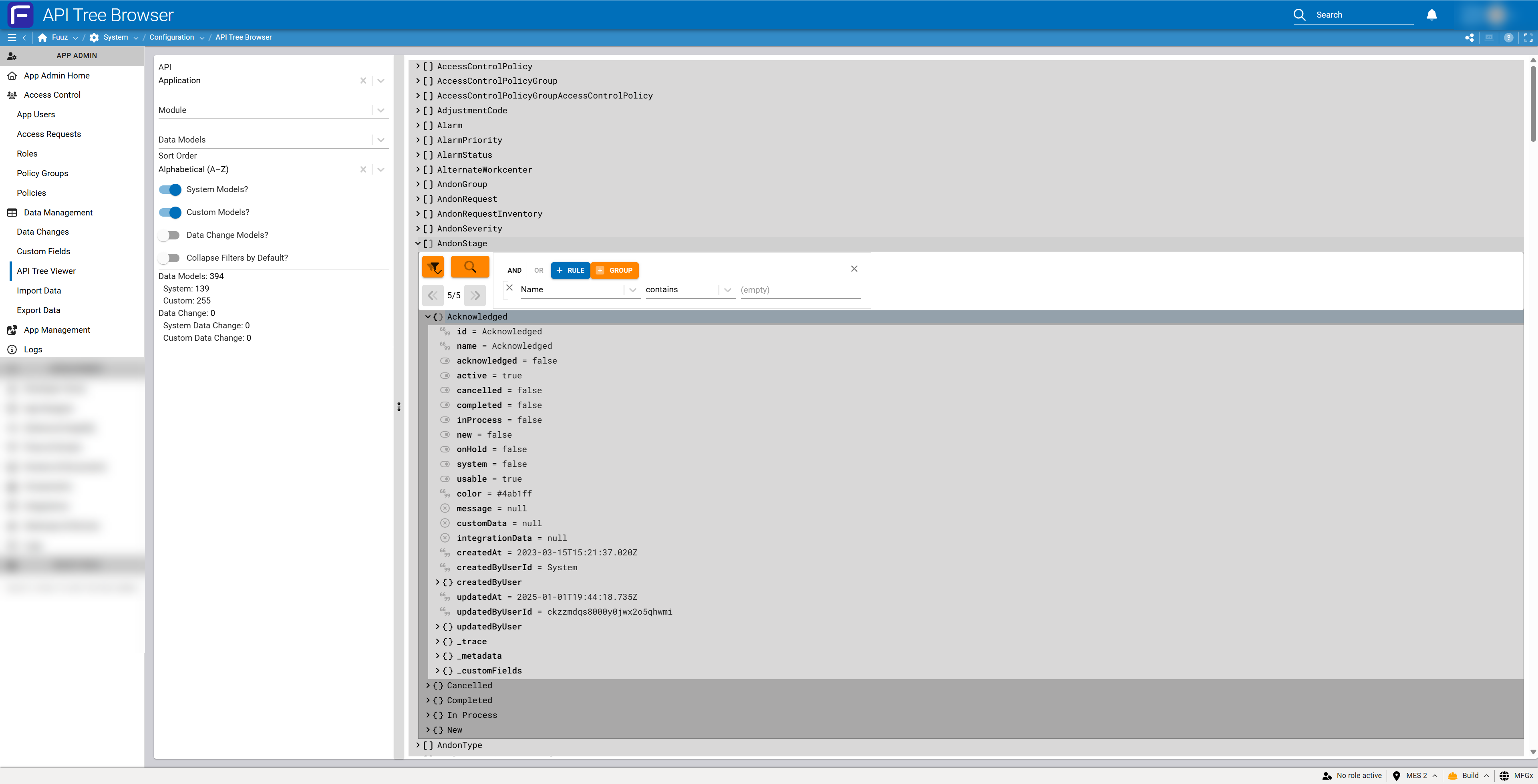
Semantic browser providing visual navigation through the application's complete GraphQL data structure without writing queries.
Purpose and Capabilities
- Data Visualization: Browse all system data persisted in Fuuz for the application in a hierarchical tree structure
- GraphQL Data Graph: Visual representation of GraphQL schema showing data models, relationships, and available queries
- No Query Writing: Navigate data structures without writing GraphQL queries or code
- Customizable Views: Adjust query parameters within the viewer to search for specific records of interest
- Discovery Tool: Explore available data models, understand relationships, and discover query capabilities
API Tree Viewer vs API Explorer
| Tool | Location | Primary Purpose |
|---|---|---|
| API Tree Viewer | Data Management (App Admin) | Visual data browsing and structure exploration |
| API Explorer | Developer Menu | Writing and testing GraphQL queries and mutations |
Use API Tree Viewer for understanding data structure and relationships. Use API Explorer (in Developer menu) for writing complex queries, testing mutations, and developing integrations.
Import Data
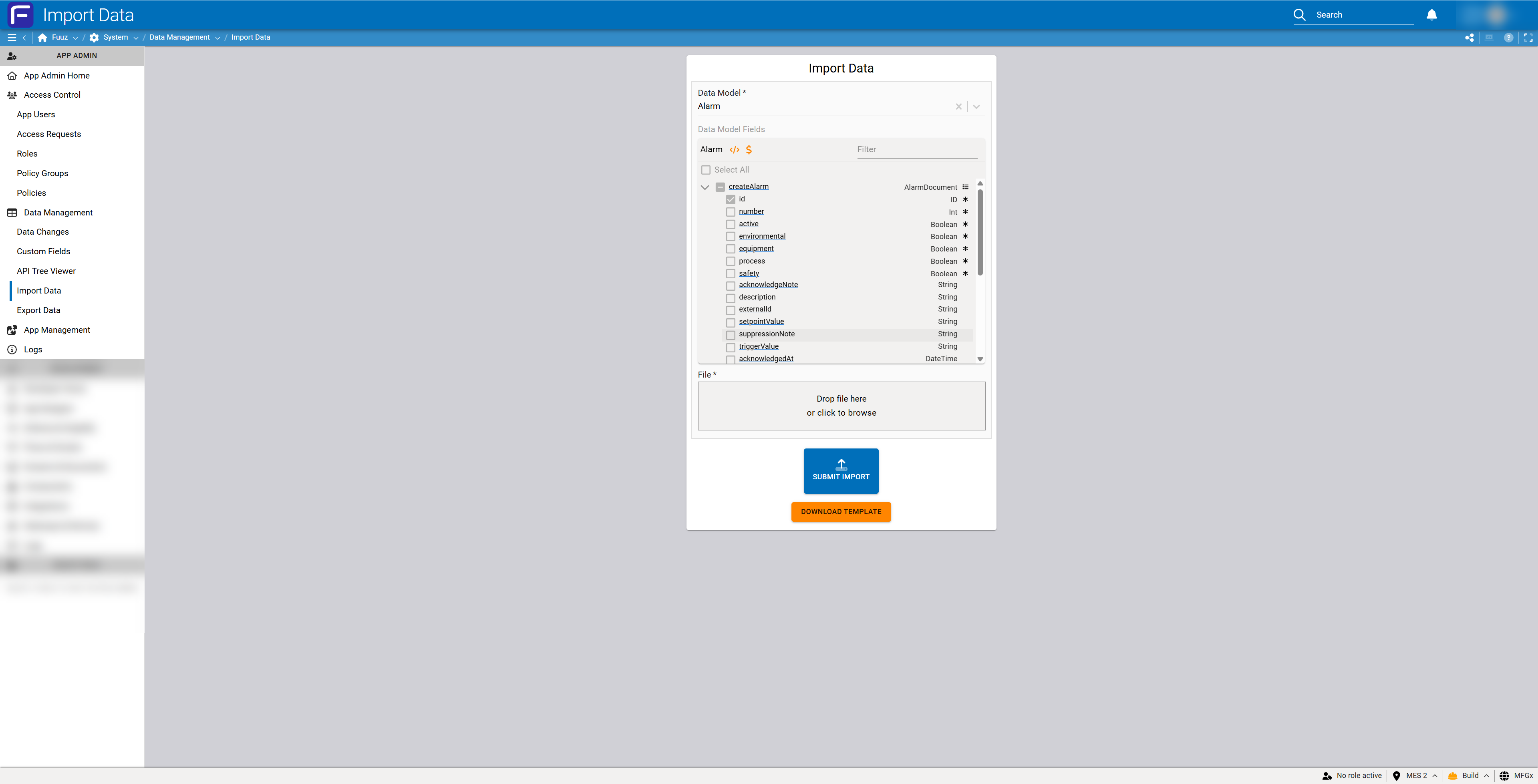
Bulk data insertion tool supporting massive imports from CSV files with validation and relationship handling.
Import Capabilities
- File Format: CSV (Comma-Separated Values)
- Target Models: Import into any data model in the application
- Scale: Supports massive bulk imports with no practical record limits
- Validation: All data validated against GraphQL API and data model definitions during import
- Relationships: Handles parent/child relationships between data models when parent/child relation keys are provided in CSV
- Manual Execution: Imports are initiated manually through the interface
- Automation Option: Can be scheduled and automated using Data Flows for recurring import requirements
Relationship Handling
To import data with relationships:
- Include parent record keys in child record CSV
- Ensure parent records are imported before or simultaneously with child records
- Use proper foreign key field names matching data model relationship definitions
- Validation will fail if relationship keys reference non-existent parent records
Export Data
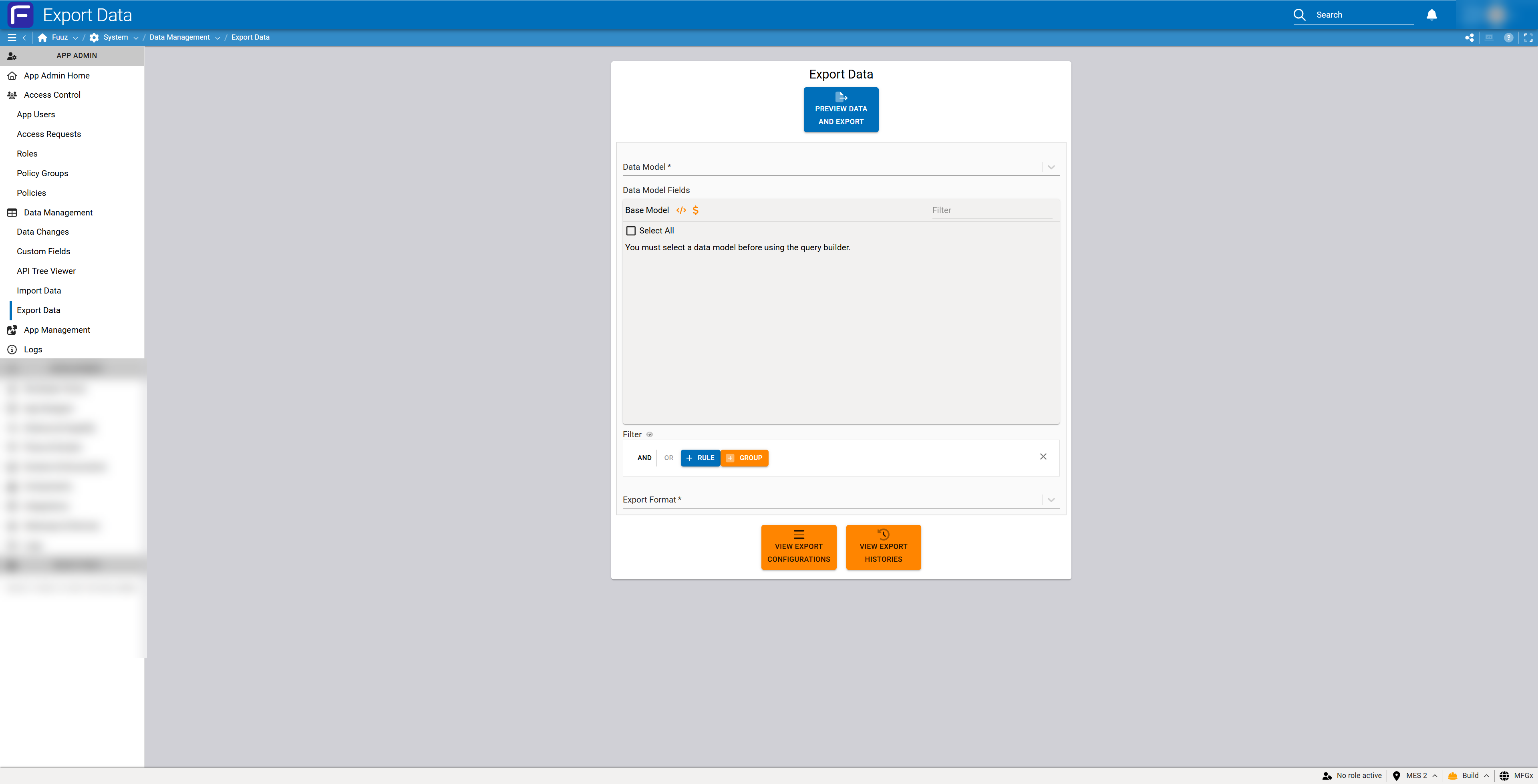
Flexible data extraction tool supporting multiple formats with GraphQL query capabilities and background processing for large exports.
Export Capabilities
- File Formats:
- CSV: Flat tabular format suitable for spreadsheet applications
- JSON: Hierarchical format supporting nested and relational data structures
- Source Models: Export from any data model with appropriate permissions
- Filtering: Apply filters to export specific subsets of data
- No Record Limits: Exports run in background and notify when complete, supporting unlimited record volumes
- GraphQL Queries: For JSON exports, can include full GraphQL query syntax with nested objects and related data
- Relational Data: Export parent and child records together in single JSON export with proper hierarchical structure
- Scheduling: Exports can be scheduled and automated via export data configuration options
- Data Flow Integration: Automated exports can be configured in Data Flows for recurring synchronization
Background Processing
Large exports are processed in the background:
- User initiates export and can continue working in Fuuz
- System processes export asynchronously
- User receives notification when export is ready for download
- Download link provided in notification or export history
5. Technical Details
Cross-Application Data Integration
Data Management tools are scoped to individual applications. To work with data across multiple Fuuz applications, administrators can build custom integration apps that create a Unified Namespace (UNS).
Unified Namespace Pattern
- Custom Integration App: Build a dedicated Fuuz app that serves as an integration layer
- Cross-App Queries: Use Data Flows to query data from multiple source applications
- Data Modeling: Create data models in the integration app that aggregate or federate data from source apps
- Data Mapping: Use Data Flow mapping capabilities to transform and harmonize data from different sources
- Enterprise Scope: Create UNS across sites, organizations, divisions, or entire enterprise
Access Requirements for Cross-App Integration
- Administrator Access: Must have admin access to all source applications being queried
- RBAC Permissions: Must have proper role-based permissions to query data from source applications
- Network Connectivity: Integration app must have network access to source application APIs
Implementation Ease
While called a "custom app," building UNS integrations is straightforward:
- Data Flows provide built-in tools for cross-application queries
- Visual data modeling and mapping capabilities eliminate complex coding
- Pre-built connectors and query templates accelerate development
- Meets exact business needs with flexible data transformation
Environment Data Movement
Import and Export tools enable data migration between Fuuz environments:
Production to Build/QA
- Export production data to CSV or JSON
- Download export file
- Login to build or QA environment
- Import the file into corresponding data models
- Test with real-world data volumes and relationships
Permissions Required
- Must have admin access to both source and target environments
- Must have proper RBAC permissions for data models being exported/imported
- Export and import operations both require appropriate data access permissions
Data Validation
All import operations validate data against the application's GraphQL API and data model definitions:
- Field Type Validation: Ensures data types match field definitions (string, number, date, etc.)
- Required Fields: Verifies all required fields are present and non-null
- Relationship Validation: Confirms foreign keys reference existing parent records
- Custom Validation Rules: Applies any custom validation logic defined in data model
- Error Reporting: Provides detailed error messages for validation failures
- Transaction Safety: Failed imports do not partially modify data; entire import succeeds or fails atomically
Performance Considerations
- Large Imports: Massive bulk imports are supported but may take considerable time; plan accordingly for production windows
- Background Exports: Large exports automatically run in background to avoid blocking user interface
- Filtering: Apply filters to export only necessary data, reducing file size and processing time
- Scheduled Operations: Use off-peak hours for large import/export operations to minimize impact on system performance
6. Resources
7. Troubleshooting
- Issue: Data model does not appear in Data Changes • Cause: Data change capture not enabled for that model • Fix: Enable data change capture in data model configuration; contact developers if unable to enable
- Issue: Change history shows "No Rows To Show" • Cause: No changes in selected time range, or retention period expired • Fix: Adjust "Changed At" filter to expand time range; verify retention period hasn't expired for older changes
- Issue: Cannot see who made changes, shows generic user • Cause: Changes made using generic or shared credentials • Fix: Enforce individual user authentication; avoid shared API keys or generic login accounts for accurate audit trail
- Issue: Custom fields not appearing on screens • Cause: UI elements for custom fields not included in screen design • Fix: Edit screens to add custom field UI elements; ensure custom field component is available in screen designer
- Issue: Cannot query custom fields via API • Cause: Custom fields are queryable but may require specific syntax • Fix: Verify custom field name; check API Explorer for proper query syntax; ensure permissions allow custom field access
- Issue: API Tree Viewer not showing data model • Cause: Data model may not have any records, or permissions restrict access • Fix: Verify data model contains records; check RBAC permissions for model access
- Issue: Import fails with validation error • Cause: CSV data doesn't match data model field types or missing required fields • Fix: Review error message for specific field issues; verify CSV column headers match field names; ensure required fields are populated; validate data types
- Issue: Import fails with relationship error • Cause: Foreign keys reference non-existent parent records • Fix: Ensure parent records are imported first; verify parent record keys are correct in CSV; check relationship field names match data model
- Issue: Export never completes or no notification received • Cause: Very large export still processing, or notification system issue • Fix: Check export history for status; wait longer for large exports; verify notification preferences; contact administrator if export appears stuck
- Issue: Cannot export nested/relational data in CSV • Cause: CSV format is flat and cannot represent hierarchical data • Fix: Use JSON export format for nested and relational data; or export related models separately in multiple CSV files
- Issue: Export file too large to download • Cause: Exporting too many records without filtering • Fix: Apply filters to reduce record count; export in batches using date ranges or other criteria; consider using automated export to transfer file directly to external system
- Issue: Cannot see Data Management menu • Cause: User lacks Application Administrator or Enterprise Administrator access type • Fix: Contact Enterprise Administrator to grant appropriate access type
- Issue: Need to access data across multiple applications • Cause: Data Management is scoped to single application • Fix: Build custom integration app using Data Flows to query across applications; ensure admin access to all source applications; configure proper RBAC permissions
8. Revision History
| Version | Date | Editor | Description |
|---|---|---|---|
| 1.0 | 2024-12-26 | Fuuz Documentation Team | Initial Release |