Application Settings
Article Type: Concept Audience: App Administrators, Application Designers Module: App Management Applies to Versions: All Versions
1. Overview
Application Settings provide a standardized configuration system for controlling application-wide behaviors including date and time formatting, number display, localization, and visual theme preferences. These settings operate on a three-tier inheritance model that allows App Administrators to define default values, assign role-specific configurations, and override individual user preferences when necessary.
Note: Settings are scoped per application and per environment. Each custom application maintains its own independent settings configuration, and settings do not automatically replicate across build, QA, and production environments unless explicitly migrated via packages.
2. Architecture & Data Flow
Definitions
- Default Value: The application-level setting that applies to all users unless overridden by Role or User settings. Set by App Administrators.
- Role Setting Values: Configuration values assigned to specific roles that override the Default Value for users operating within that role context.
- User Setting Values: Individual user preferences that take precedence over both Role and Default settings. Users can modify their own settings via the Avatar menu > Profile link.
- Setting Input Type: The data type constraint for the setting value (Boolean, String, Color, List).
- List Values: Predefined options available for List-type settings, determined by Fuuz for each specific setting.
Inheritance Hierarchy
Settings follow a strict precedence order where more specific configurations override general ones:
- User Setting Values (Highest Priority) - Individual user's personal preferences
- Role Setting Values (Medium Priority) - Configuration inherited from the user's active role
- Default Value (Lowest Priority) - Application-wide baseline configuration
Important: When a user switches between roles, Role Setting Values dynamically apply based on the currently active role. User Setting Values always take precedence regardless of role context.
Setting Scope
- Per Application: Each custom application maintains independent settings configurations
- Per Environment: Settings exist separately in build, QA, and production environments
- Per User Per App: User and Role settings are unique to each application and not shared across applications
- Migration: Settings can be included in packages and migrated between environments if desired
3. Available Settings
The following settings are available in all Fuuz applications. These settings are predefined by Fuuz and cannot be added to or removed, though all values are customizable by App Administrators.
| Setting Name | Type | Description | Default Value |
|---|---|---|---|
| Always Display Time Zones | Boolean | Controls whether time zone identifiers are always displayed on dates. When false, time zone identifiers only display when the date's time zone differs from the system time zone. System time zone is determined by the Time Zone setting or user's device time zone when Time Zone setting is not set. | false |
| Date Format | String | Default format string for date display fields, columns, and inputs. Format strings use Moment.js format syntax. Default format provides a short date string that automatically changes depending on Locale setting or user's device locale. | "L" |
| Date & Time Format | String | Default format string for dateTime display fields, columns, and inputs. Format strings use Moment.js format syntax. Default format provides a short date and time string that automatically changes depending on Locale setting or user's device locale. | "L LT" |
| Float Format | String | Default format string for number display fields, columns, and inputs. Format strings use Numeral.js format syntax. Default format provides a number string with thousands and decimal separators that automatically change depending on Locale setting or user's device locale, with maximum 8 digits of decimal precision. | "0,0.[00000000]" |
| Integer Format | String | Default format string for integer display fields, columns, and inputs. Format strings use Numeral.js format syntax. Default format provides an integer string with thousands separators that automatically change depending on Locale setting or user's device locale. | "0,0" |
| Locale | String | A locale to apply to Fuuz, overriding the user's browser locale. Affects date formatting, number formatting, and application language. | null |
| Logo Image Source URL | String | The URL to a logo that is branded upon a Fuuz webpage. | "" |
| Primary Color | Color | The Primary Color of the theme. | "#006FBA" |
| Secondary Color | Color | The Secondary Color of the theme. | "#709CBA" |
| Theme Mode | List | What theme mode to use for the user interface. | "System" |
| Time Format | String | Default format string for time display fields, columns, and inputs. Format strings use Moment.js format syntax. Default format provides a short time string that automatically changes depending on Locale setting or user's device locale. | "LT" |
| Time Zone | List | A default IANA time zone identifier to apply to dates and times in Fuuz. When not set, dates and times are displayed in a user's device time zone. | null |
Note: List-type settings have predefined options available in Fuuz. To view available list values for a specific setting, refer to the current setting list values in the Fuuz application interface.
4. Use Cases
- Global Date Format Standardization: Set a consistent date format across the entire application for all users by configuring the Default Value of Date Format setting.
- Role-Based Regional Formatting: Configure different date, time, and number formats for users in different geographic regions by assigning Locale and format settings to regional roles.
- Department-Specific Branding: Apply different Primary and Secondary Colors to roles representing different departments or business units, providing visual distinction in the interface.
- Timezone Management for Shift Workers: Set Time Zone settings at the role level for shift workers who need to view data in specific timezones regardless of their device location.
- User Preference Recovery: Clear or override a user's setting values when they report issues with their personal preferences preventing proper application functionality.
- Multi-Tenant Consistency: Maintain consistent formatting across multiple tenant applications by including settings in packages and migrating them between environments.
5. Screen Details
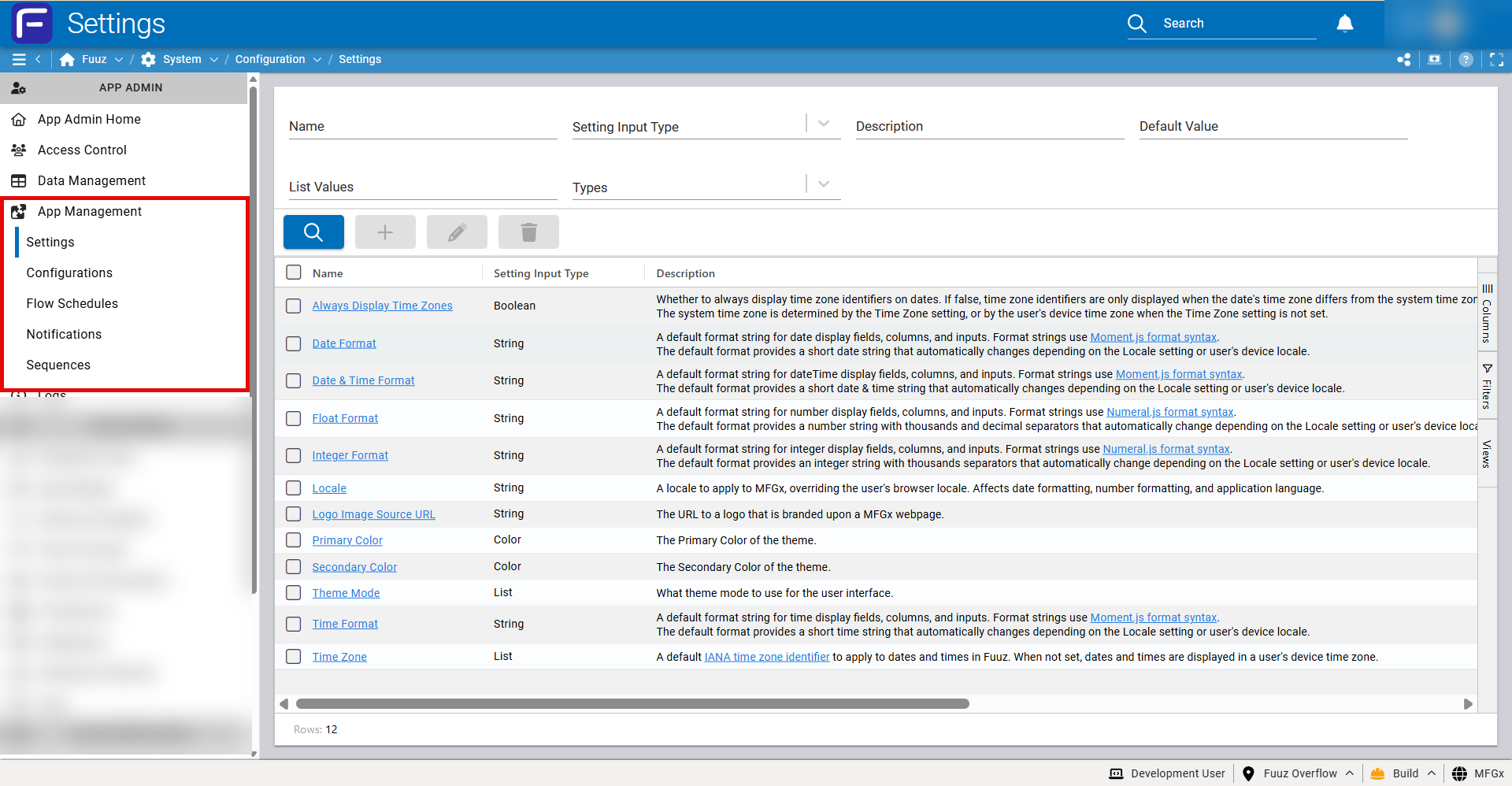
The Settings screen is accessed via App Management > Settings in the App Admin menu section.
Settings Table
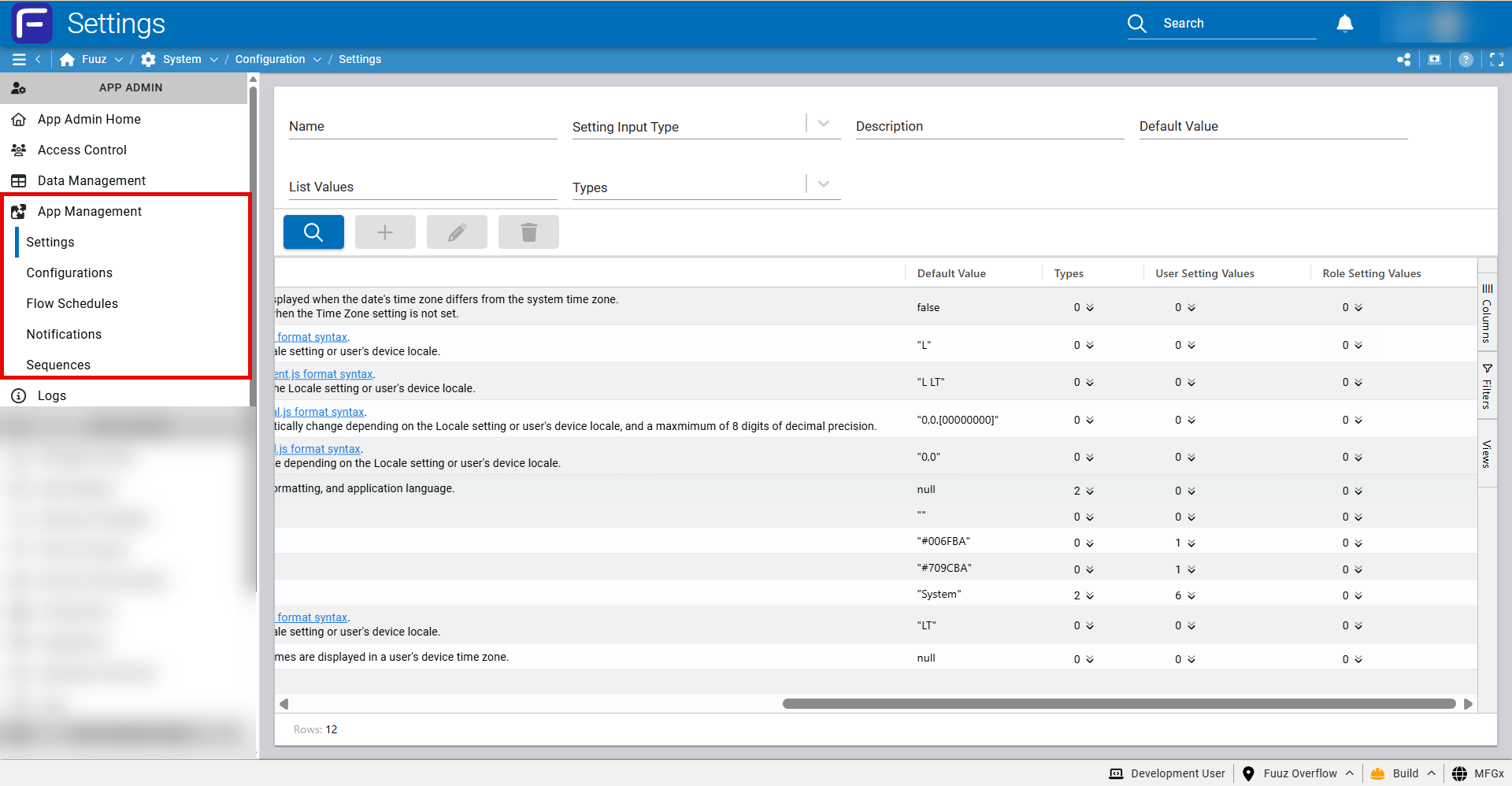
The main table displays all available settings with the following columns:
- Name: The setting identifier (clickable link to setting details)
- Setting Input Type: Data type constraint (Boolean, String, Color, List)
- Description: Explanation of the setting's purpose and behavior, including links to format syntax documentation
- Default Value: The application-wide baseline value
- User Setting Values: Count of users with custom values for this setting
- Role Setting Values: Count of roles with custom values for this setting
Setting Detail View
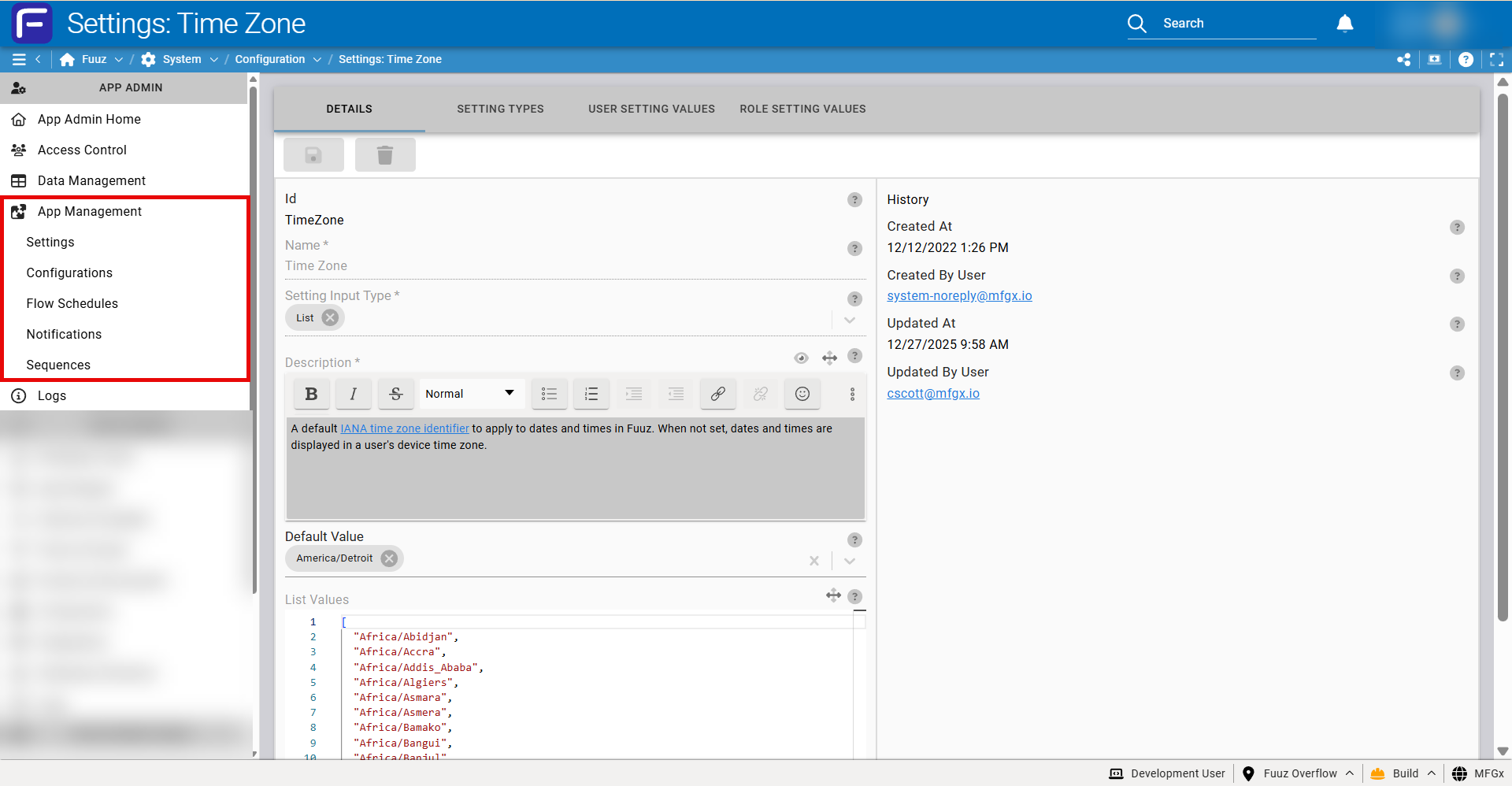
Clicking on a setting name opens the detail view showing:
- Default Value: Editable field for the application-wide setting
- Types: Deprecated column, values can be ignored
- User Setting Values: Count of individual users with custom values (expandable to view and modify specific users)
- Role Setting Values: Count of roles with custom values (expandable to view and modify specific roles)
Example form:
Available Actions
- Search: Filter settings by name or description
- Edit Default Value: Modify the application-wide baseline setting
- Set Role Value: Assign a setting value to a specific role
- Clear User Value: Remove a user's custom setting, reverting them to role or default value
- Override User Value: Set a specific value for a user's setting, overriding their personal preference
End User Access
End users can modify their own User Setting Values by:
- Clicking their Avatar icon in the top-right corner
- Selecting Profile from the dropdown menu
- Navigating to the settings section within their profile
- Modifying desired setting values
6. Technical Details
Format String Libraries
Settings use industry-standard formatting libraries:
- Date, Time, DateTime Formats: Use Moment.js format syntax. Refer to Moment.js documentation for valid format tokens.
- Float and Integer Formats: Use Numeral.js format syntax. Refer to Numeral.js documentation for valid format patterns.
Setting Usage in Applications
Settings are automatically applied throughout the Fuuz platform:
- Screen Configurations: Date, time, and number fields automatically format according to relevant settings
- Data Flows: Format settings influence data transformation and display operations
- Web Flows: Settings are accessible and influence response formatting
- Custom Fields: Field display respects format settings automatically
- Reports and Documents: Export and document generation honor format preferences
Custom Configuration Logic
While users cannot create new settings in the Settings interface, App Administrators and Developers can implement custom configuration logic using:
- App Configurations: Define custom key-value pairs for application-specific settings not covered by the standard settings
- Custom Data Models: Create configuration data models to store complex application-specific preferences
- Web Flows: Implement dynamic configuration retrieval and application logic
7. Resources
- Moment.js Format Documentation
- Numeral.js Format Documentation
- IANA Time Zone Database
- Related KB articles: App Configurations (for custom settings logic), Role Management, App User Management
8. Troubleshooting
- Issue: Date formats not applying consistently across users • Cause: Users have individual User Setting Values that override the Default Value • Fix: Review User Setting Values for the Date Format setting. Clear user values if company-wide standardization is required, or communicate to users how to modify their personal preferences via Profile settings.
- Issue: User reports dates showing in wrong timezone • Cause: Time Zone setting may be configured at role or user level, overriding their device timezone • Fix: Check the Time Zone setting for the user's Role Setting Values and User Setting Values. Clear values to allow device timezone to apply, or set appropriate timezone for their location.
- Issue: Numbers displaying with incorrect decimal precision • Cause: Float Format setting uses incorrect Numeral.js format string • Fix: Review Float Format Default Value and validate against Numeral.js format syntax. The default
"0,0.[00000000]"provides up to 8 decimal places. Adjust the number of zeros in brackets to control precision. - Issue: Role-based settings not applying when user switches roles • Cause: User has User Setting Values that override Role Setting Values • Fix: User Setting Values always take precedence over Role Setting Values. Clear the user's custom values if role-based configuration should apply, or document that users need to clear their own settings via Profile.
- Issue: User cannot modify their own settings in Profile • Cause: User may not have proper access permissions or the setting may be administratively locked • Fix: Verify user has Web Access and appropriate permissions. Check if settings have been administratively overridden with specific values that prevent user modification.
- Issue: Settings not consistent across build, QA, and production environments • Cause: Settings are scoped per environment and do not automatically replicate • Fix: Include settings in migration packages to transfer between environments, or manually configure settings in each environment to match desired values.
- Issue: Invalid format string causing display errors • Cause: Format string does not follow Moment.js or Numeral.js syntax • Fix: Validate format strings against the appropriate library documentation. Test format strings with sample data before applying to production settings. Revert to default format if errors persist.
- Issue: Theme colors not applying to entire application • Cause: Some screens or components may have hardcoded colors that override theme settings • Fix: Theme settings control the base application theme but some custom screens or components may define their own colors. Review screen configurations in App Designer to modify hardcoded color values.
- Issue: Locale setting not affecting number or date display • Cause: User's browser locale may be overriding the Locale setting, or format strings may be explicitly defined preventing locale-based formatting • Fix: Verify Locale setting value is a valid locale identifier. Ensure format strings use locale-aware tokens (like
"L"for dates) rather than explicit formats. Clear browser cache and refresh the application. - Issue: Multiple users need settings reset to defaults • Cause: Users have individual User Setting Values that need to be cleared • Fix: Use the Settings screen to view all users with custom values for a specific setting. Select users and clear their values in bulk to revert them to role or default values.
Best Practices
- Document Format Changes: When modifying Default Values for format settings, document the change and communicate to users, as it may affect existing reports and exports.
- Test Format Strings: Always test custom format strings with sample data before applying to production to ensure they display correctly across different data scenarios.
- Use Role Settings for Standardization: When multiple users need the same configuration, use Role Setting Values rather than setting individual User Setting Values.
- Preserve User Preferences: Avoid clearing User Setting Values unless necessary, as users have taken time to configure their preferences.
- Include in Migration Packages: When promoting applications between environments, include settings in migration packages to maintain consistency.
- Leverage Locale-Aware Formats: Use locale-aware format tokens (like
"L"for dates) rather than explicit formats to automatically adapt to user locales.
9. Revision History
| Version | Date | Editor | Description |
|---|---|---|---|
| 1.0 | 2024-12-27 | Fuuz Documentation Team | Initial Release |