Data Model Custom Fields
Article Type: Concept Audience: App Admins, Application Designers, Partners Module: Data Management Applies to Versions: All Versions
1. Overview
Data Model Custom Fields allow App Admins and authorized users to extend any data model in the Fuuz platform with additional fields on-the-fly, without requiring a full application deployment cycle. Custom fields automatically appear on forms and tables when configured properly, enabling users to capture unique asset attributes, product specifications, or additional metadata for reporting purposes.
Note: Custom fields provide flexibility for individual sites to maintain site-specific attributes without affecting enterprise-wide data models. They do not automatically sync across environments (Build, QA, Production), giving you complete control over field deployment.
2. Architecture & Data Flow
Key Concepts
- Data Model Extension: Custom fields extend existing data models without modifying the core application schema or requiring deployment progression through Build, QA, and Production environments.
- Environment Isolation: Custom fields do not sync automatically across tenants or environments. This allows site-specific customization while maintaining enterprise data model integrity.
- API Field Name: A unique system identifier in lowerCamelCase format used by the API to reference the field, separate from the user-facing label.
- Group Label: Optional hierarchical grouping mechanism for organizing related custom fields on forms and tables.
- Deprecation Tracking: Custom fields can be marked as deprecated with a reason, providing audit trail for field lifecycle management.
Components
- Custom Field Definition: Includes field type, label, API field name, description, and display options
- Field Types: Date, Date & Time, Decimal, Integer, Markdown, Text, Time, True/False
- Display Controls: Show On Tables and Show On Forms checkboxes control visibility
- Screen Integration: Custom fields layout element in App Designer for forms; custom field table columns for tables
- API Integration: Custom fields automatically included in API responses
Data Flow
- App Admin creates custom field definition on the Custom Fields screen under Data Management
- Custom field is associated with one or more data models
- Developer updates screen designs to include custom fields layout element (forms) or custom field table columns (tables)
- Custom field becomes available for data entry and display on all records of the associated data model
- Custom field data is stored with the record and automatically included in API responses
3. Use Cases
- Asset-Specific Attributes: Add badge numbers to user records, serial numbers to equipment, or maintenance history flags to assets without modifying core data models.
- Product Customization: Extend product records with color attributes for painted parts, material specifications, or supplier-specific identifiers.
- Master Data Extension: Enhance customer, vendor, or location records with site-specific attributes like regional codes, custom identifiers, or classification tags.
- Time-Sensitive Data: Add expiration dates to customer sales orders, warranty end dates to products, or certification expiry dates to employee records.
- Reporting Metadata: Capture additional classification, categorization, or tracking fields needed for custom reports and analytics without waiting for application updates.
Tip: Master data models (such as Users, Assets, Customers, Products, Locations) are most commonly extended with custom fields. Consider whether the field needs to be enterprise-wide or site-specific before deciding between core data model changes and custom fields.
4. Screen Details
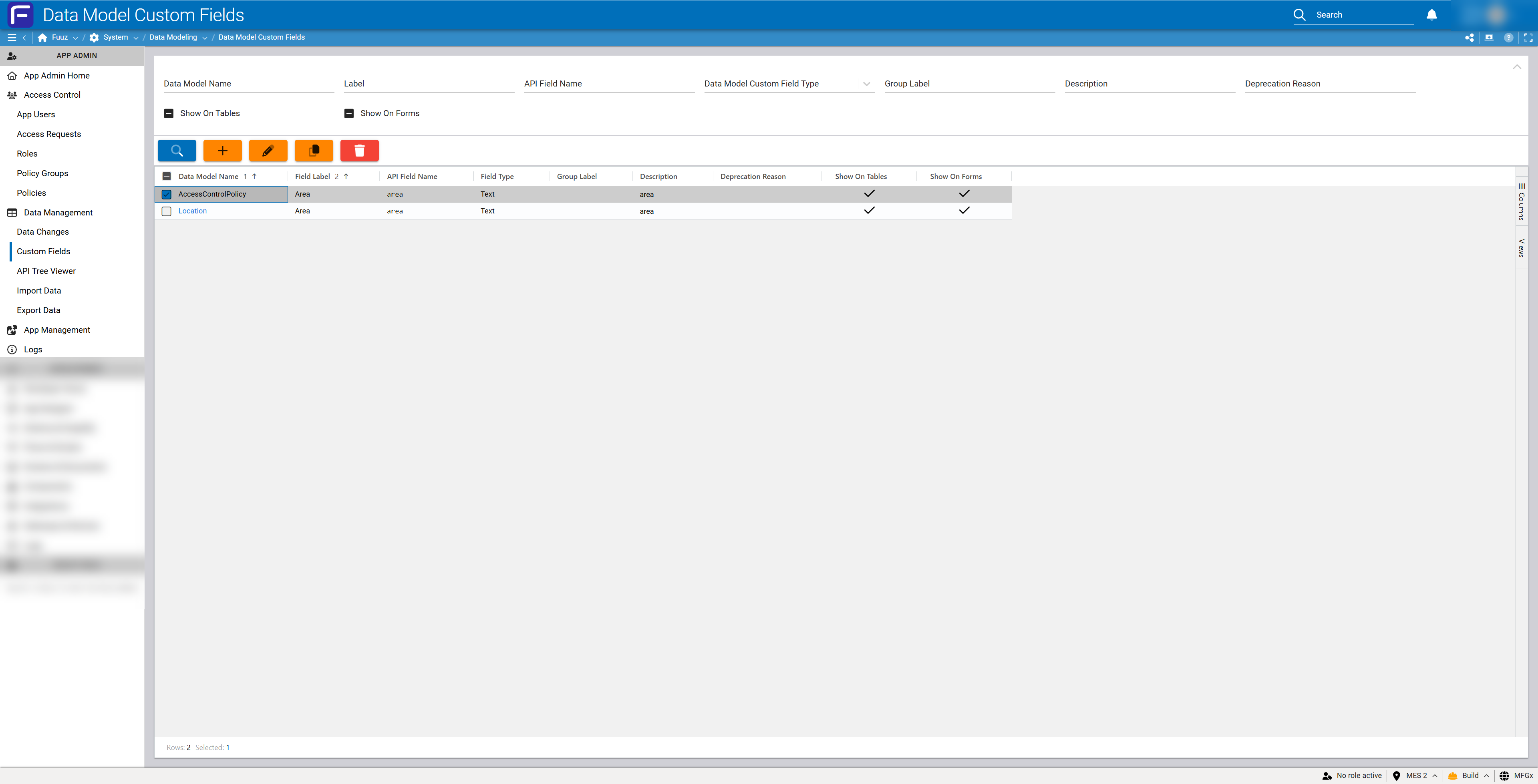
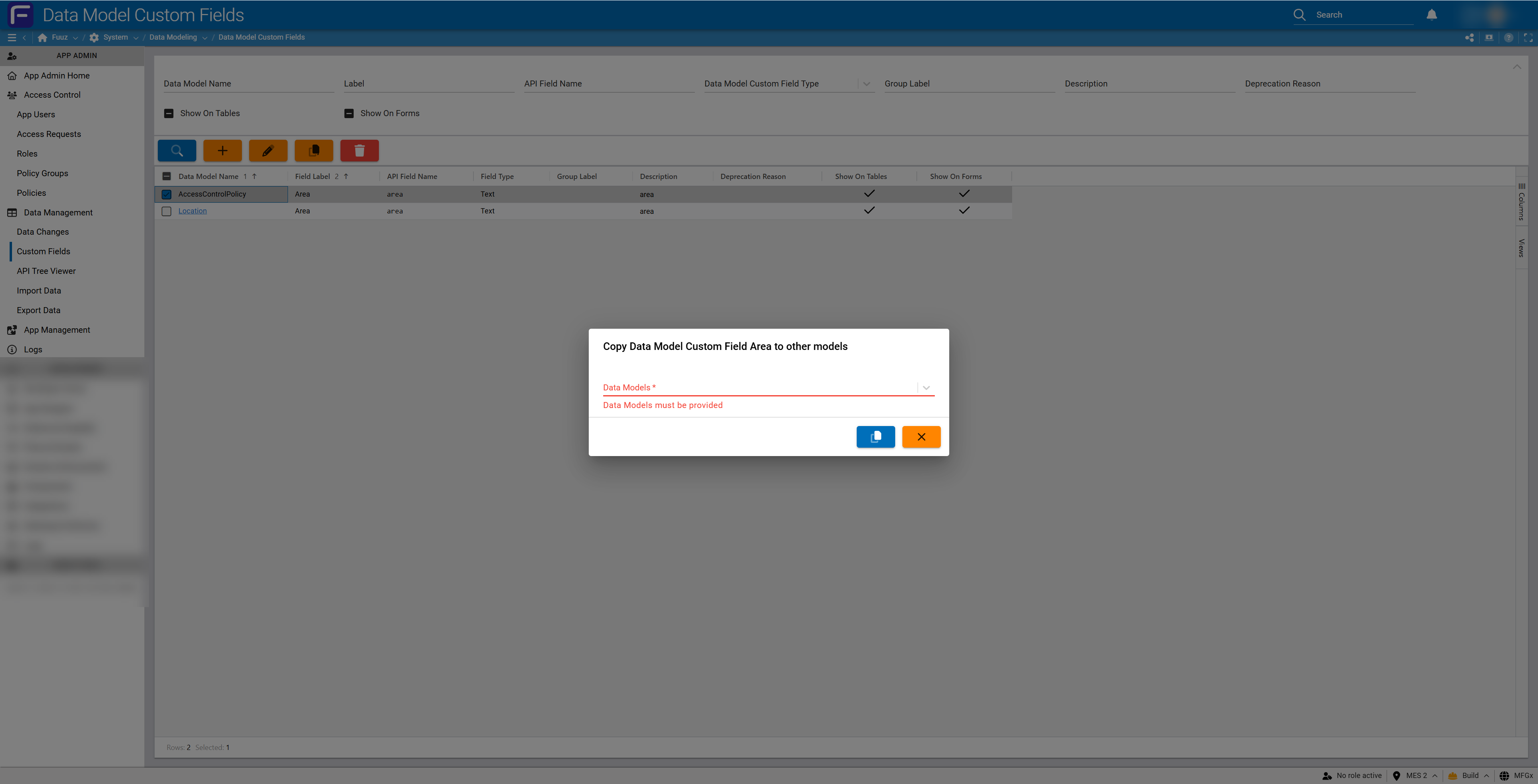
The Custom Fields screen is accessed via App Admin > Data Management > Custom Fields.
List View
- Filters: Data Model Name, Show On Tables (checkbox), Show On Forms (checkbox)
- Table Columns: Data Model Name, Label, API Field Name, Data Model Custom Field Type, Group Label, Description, Deprecation Reason, Show On Tables, Show On Forms
- Actions: Search (magnifying glass), Add New (plus icon), Edit (pencil icon), Copy to Other Models (copy icon), Delete (trash icon)
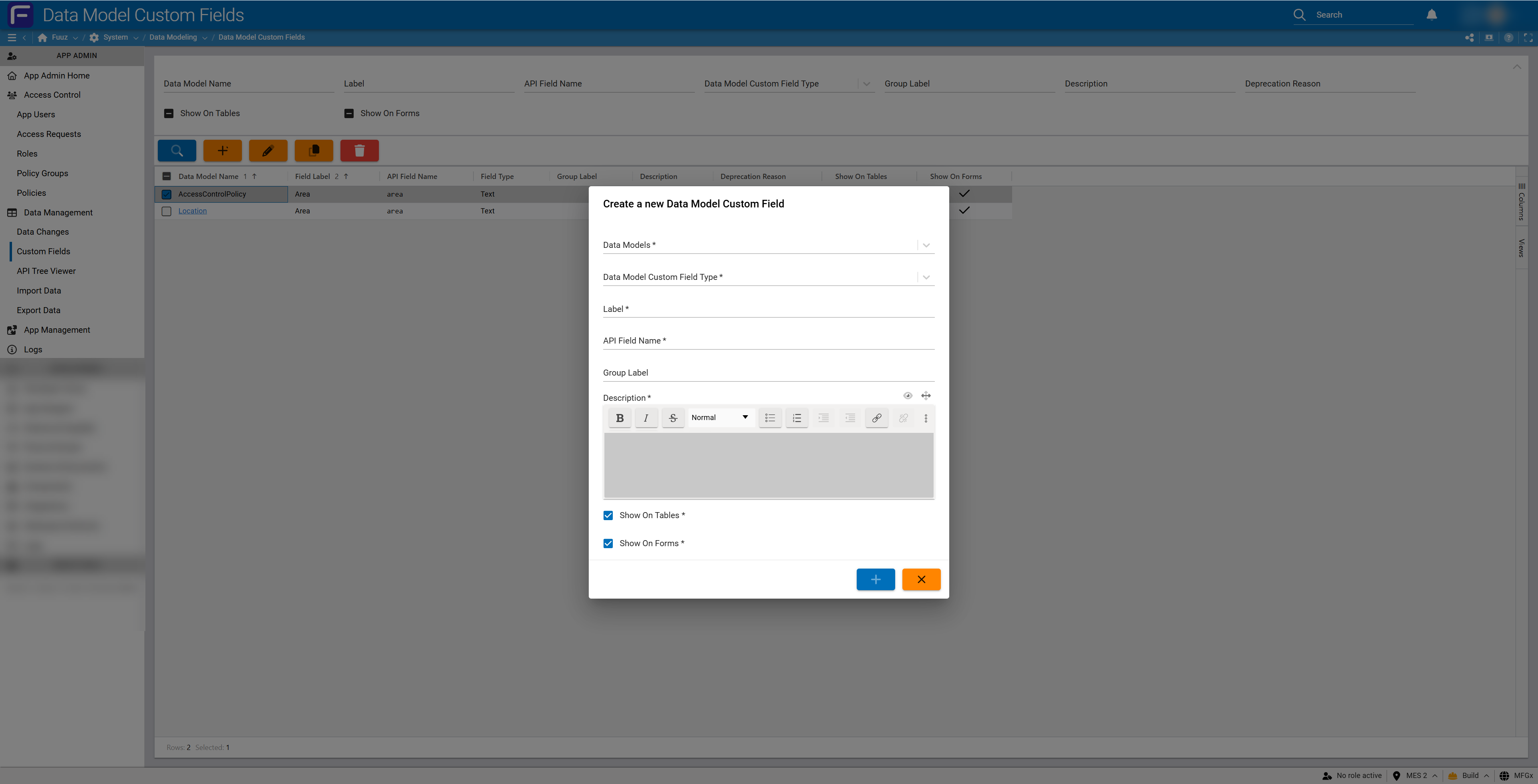
Create/Edit Form
Required Fields:
- Data Models: Select one or more data models to extend with this custom field (required)
- Data Model Custom Field Type: Select from available field types (required)
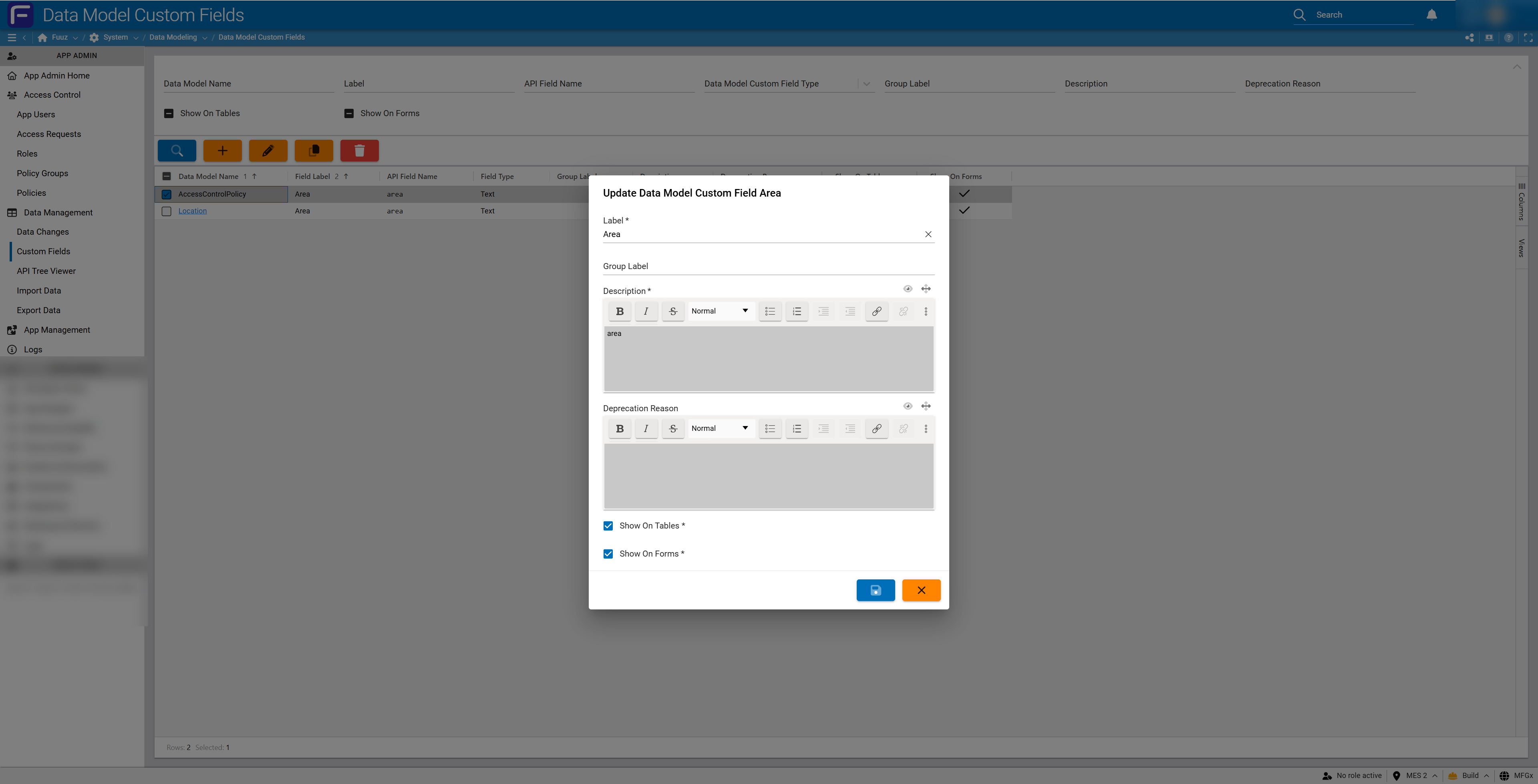
- Label: User-facing field name displayed on forms and tables (required)
- API Field Name: Unique identifier in lowerCamelCase format (required)
- Description: Rich text field for documenting field purpose and usage (required)
Optional Fields:
- Group Label: Organize related custom fields into hierarchical groups
- Deprecation Reason: Rich text field to document why a field was deprecated
Display Options:
- Show On Tables: Checked by default — makes field available as table column (must still add column in screen design)
- Show On Forms: Checked by default — makes field available in custom fields section on forms (must still add custom fields layout element in screen design)
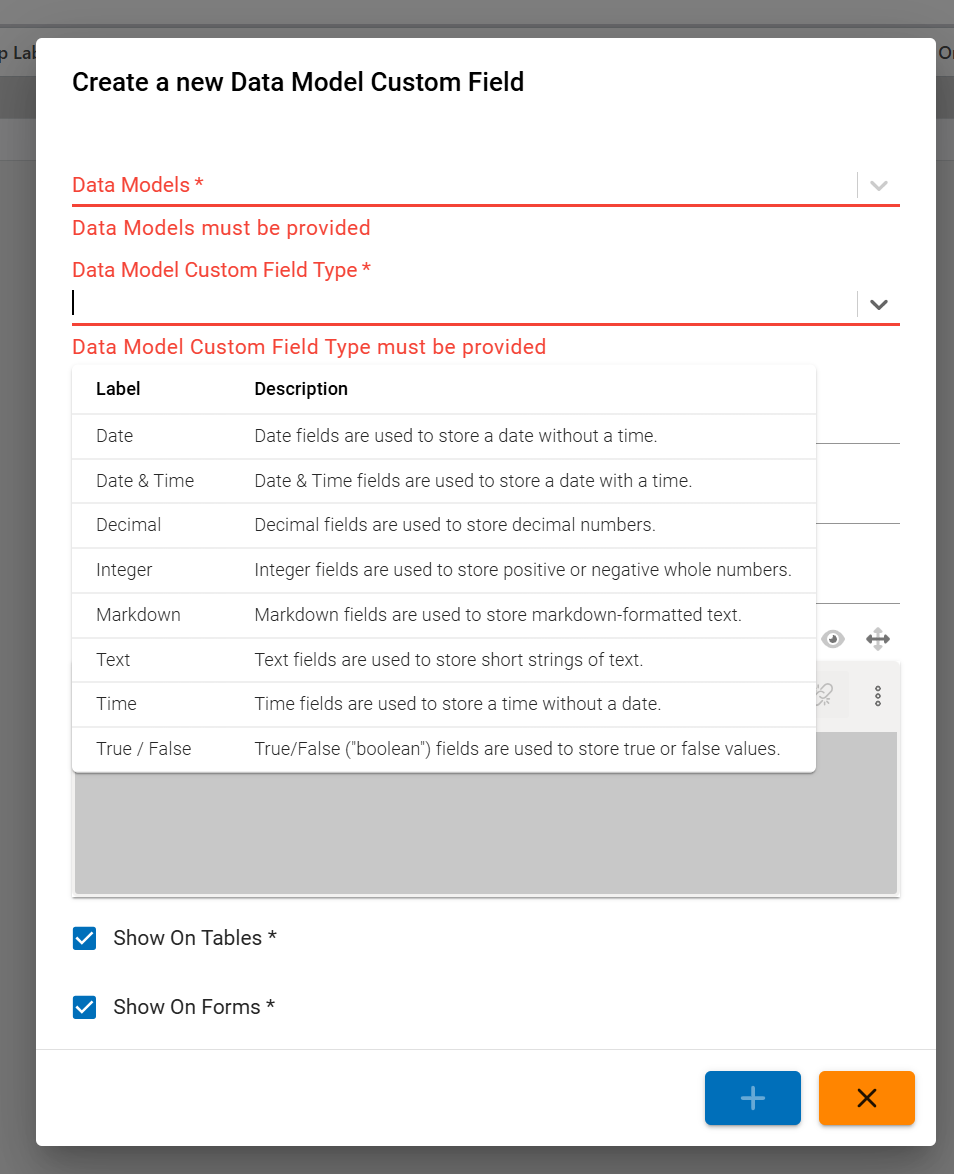
Available Field Types
| Field Type | Description |
|---|---|
| Date | Date fields are used to store a date without a time. |
| Date & Time | Date & Time fields are used to store a date with a time. |
| Decimal | Decimal fields are used to store decimal numbers. |
| Integer | Integer fields are used to store positive or negative whole numbers. |
| Markdown | Markdown fields are used to store markdown-formatted text. |
| Text | Text fields are used to store short strings of text. |
| Time | Time fields are used to store a time without a date. |
| True / False | True/False ("boolean") fields are used to store true or false values. |
5. Technical Details
Access Control
- App Admin Access Type: Full access to create, read, update, and delete custom fields
- Developer Access Type: No access to custom fields management by default
- Web Access with Custom Policy: Users with Web Access type can manage custom fields if granted a custom access control policy with permissions to the Custom Fields resource
Important: Access types (App Admin, Developer, Web Access) and roles do not automatically update across tenants or environments. Administrators must ensure continuity between all tenants and environments if desired.
Environment & Deployment
- No Automatic Sync: Custom fields do not automatically sync across Build, QA, and Production environments
- Site-Specific Customization: Each tenant and environment maintains independent custom field definitions
- Optional Packaging: Custom fields can be packaged as part of application deployments to harmonize across environments when needed
- No Version Dependency: Custom fields are not affected by application version updates or enhancements
API Integration
- Automatic Inclusion: Custom fields are automatically included in API responses for their associated data models
- Field Reference: Use the API Field Name (lowerCamelCase) to reference custom fields in API calls
- No Performance Impact: Adding custom fields does not affect API response times or query performance
- Type Validation: Custom field values are validated according to their field type
Naming Conventions
- API Field Name Format: Must be lowerCamelCase (e.g.,
badgeNumber,paintColor,expirationDate) - Uniqueness: API Field Names should be unique across all custom fields for clarity, though not technically enforced
- Label Format: Labels can use any format and are displayed to end users on forms and tables
System Limitations
- No Field Limit: There is no limit to the number of custom fields that can be created per data model
- System Model Restrictions: Very few system models restrict custom field additions; most data models can be extended
- Universal Display: Custom fields appear on every record of the associated data model; conditional display requires schema and screen transforms
6. Resources
- Fuuz Industrial Operations Platform
- Related Article: App Designer — Screens & Documents (adding custom fields layout element to forms)
- Related Article: App Designer — Table Columns (adding custom field columns to tables)
- Related Article: Access Control — Policies (creating custom access policies for Web Access users)
- Related Article: GraphQL Filters (filtering records by custom field values)
7. Troubleshooting
Custom Fields Not Appearing on Forms
Symptom: Custom field is created but does not appear on the form.
Cause: The custom fields layout element has not been added to the form screen design, or "Show On Forms" is not checked.
Resolution:
- Verify that "Show On Forms" is checked on the custom field definition
- Open App Designer > Screens & Documents
- Open the relevant form screen
- Add the Custom Fields layout element to the form if not present
- Save and redeploy the application
Custom Fields Not Appearing in Tables
Symptom: Custom field is created but does not appear as a column in tables.
Cause: The custom field table column has not been added to the screen design, or "Show On Tables" is not checked.
Resolution:
- Verify that "Show On Tables" is checked on the custom field definition
- Open App Designer > Screens & Documents
- Open the relevant table screen
- Add the custom field as a table column if not present
- Save and redeploy the application
Users Cannot Update Custom Fields
Symptom: End users cannot enter or modify custom field values.
Cause: Custom fields are not included in the screen design, or users lack permissions to the underlying data model.
Resolution:
- Verify custom fields layout element is present on the form
- Check that user roles have appropriate permissions to create/update records in the data model
- Confirm the screen has been deployed to the environment where users are working
Cannot Filter by Custom Fields
Symptom: Users need to filter records by custom field values but no filter is available.
Cause: Filters must be explicitly configured in screen designs; custom fields do not automatically generate filters.
Resolution:
- Determine if filtering by this custom field is a common use case
- Open App Designer > Screens & Documents
- Add a GraphQL filter element to the screen referencing the custom field's API Field Name
- Save and redeploy the application
API Field Name Validation Error
Symptom: Error when creating custom field with specific API Field Name.
Cause: API Field Name does not follow lowerCamelCase naming convention.
Resolution:
- Ensure API Field Name starts with a lowercase letter
- Use camelCase for multi-word field names (e.g.,
badgeNumbernotBadgeNumberorbadge_number) - Avoid spaces, special characters, or underscores in API Field Names
Data Type Validation Error
Symptom: Error when entering data into custom field.
Cause: Entered value does not match the custom field's data type.
Resolution:
- Verify the custom field type matches the intended data (e.g., Integer field for whole numbers, Date field for dates)
- Enter data in the format appropriate for the field type
- If field type is incorrect, consider creating a new custom field with the correct type and deprecating the old field
8. Revision History
| Version | Date | Editor | Description |
|---|---|---|---|
| 1.0 | 2024-12-26 | Fuuz Documentation Team | Initial Release |