Notification Channels
Article Type: Concept Audience: System Administrators, Solution Architects Module: System Configuration / Notifications Applies to Versions: All Versions
1. Overview
Scope: This is the canonical Notification Channels reference. For a quick admin overview see Notifications; for the data flow nodes that send/receive notifications see Notification Nodes.
Notification Channels provide a centralized system for configuring and managing automated email notifications within the Fuuz platform. They enable your applications to send structured, branded email alerts when specific events occur, such as system errors, status changes, or process completions. By creating notification channels, you can establish reusable communication pathways that deliver consistent, well-formatted notifications to designated recipients.
Note: Notification Channels are scoped per application and per environment. Each channel defines its own input schema, email template, binding key, and recipient list.
2. Architecture & Data Flow
Definitions
- Notification Channel: Parent entity that associates a specific event type with email notification configuration, input schema validation, and recipient management.
- Input Schema: JSON Schema definition at the channel level that validates payload data, ensuring consistent parameter structure for all notifications sent through the channel.
- Email Template: JSONata expression that transforms input data into formatted HTML email content with dynamic subject lines and body content.
- Payload Data: JSON object passed to the notification channel when triggered, containing parameters, configuration values, or contextual information about the event.
- Binding Key: Unique identifier following hierarchical naming convention used by applications to target specific channels when triggering notifications.
- Recipient: User, role, or email address that will receive notifications sent through a channel.
Components
- Channel Definition: Name, description, input schema, binding key, and send email toggle
- Email Template Engine: JSONata processor that transforms payload data into formatted email content
- Payload Validator: JSON Schema validation engine ensuring data conforms to channel input schema
- Recipient Manager: System managing delivery to users, roles, and custom email addresses
- Notification Router: Message broker that routes notifications to appropriate channels via binding keys
Data Flow
The notification process follows this sequence:
- Event Occurs: Application detects condition requiring notification (e.g., printer error, low inventory)
- Data Collection: Application gathers relevant data matching the channel's input schema structure
- Channel Invocation: Application sends payload data to channel using its binding key
- Schema Validation: System validates payload against input schema, rejecting invalid data
- Template Processing: Email template transforms validated input data into formatted content
- Recipient Resolution: System resolves all configured recipients (users, roles, email addresses)
- Email Delivery: Formatted email sent to all resolved recipients
Important: The binding key serves as the notification channel's unique identifier. Applications must use the exact binding key (case-sensitive) shown in the channel's details to successfully trigger notifications.
3. Use Cases
- Equipment Error Alerts: Notify maintenance teams immediately when production equipment encounters errors, including printer failures, PLC communication issues, or sensor malfunctions.
- Integration Failure Notifications: Alert IT teams when ERP consumption posting fails, EDI orders cannot be processed, or API connections are lost.
- Quality Control Alerts: Notify supervisors when products fail quality inspections, measurements fall outside specifications, or quarantine holds are placed.
- Inventory Threshold Warnings: Alert purchasing when inventory levels drop below reorder points, stock becomes unavailable, or expiration dates approach.
- Production Status Updates: Notify stakeholders when work orders complete, production milestones are reached, or shipments are ready.
- System Maintenance Alerts: Inform administrators about scheduled maintenance windows, system updates, or configuration changes.
- Compliance Notifications: Alert quality teams about audit requirements, certification renewals, or regulatory reporting deadlines.
- User Action Requests: Notify approvers when purchase orders need approval, change requests await review, or documents require signatures.
4. Screen Details
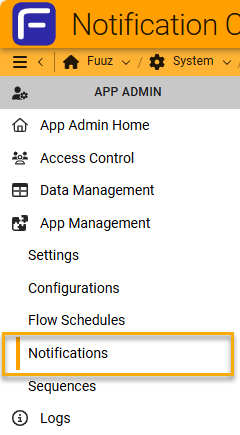
The Notification Channels screen is accessed via the App Management > Notifications section of the App Admin menu:
Main Screen
The Notification Channel list displays all configured channels:

- Name: Channel identifier
- Send Email: Checkmark indicating email delivery is enabled
- Description: Channel purpose explanation
- Binding Key: Unique identifier for application integration
- Recipients: List of configured notification recipients
Actions:
- Search: Filter channels by name or binding key
- Create: Add new notification channel
- Update: Modify existing channel configuration
- Delete: Remove channel and all configuration
Channel Detail View
Selecting a channel displays a detail view with three tabs:
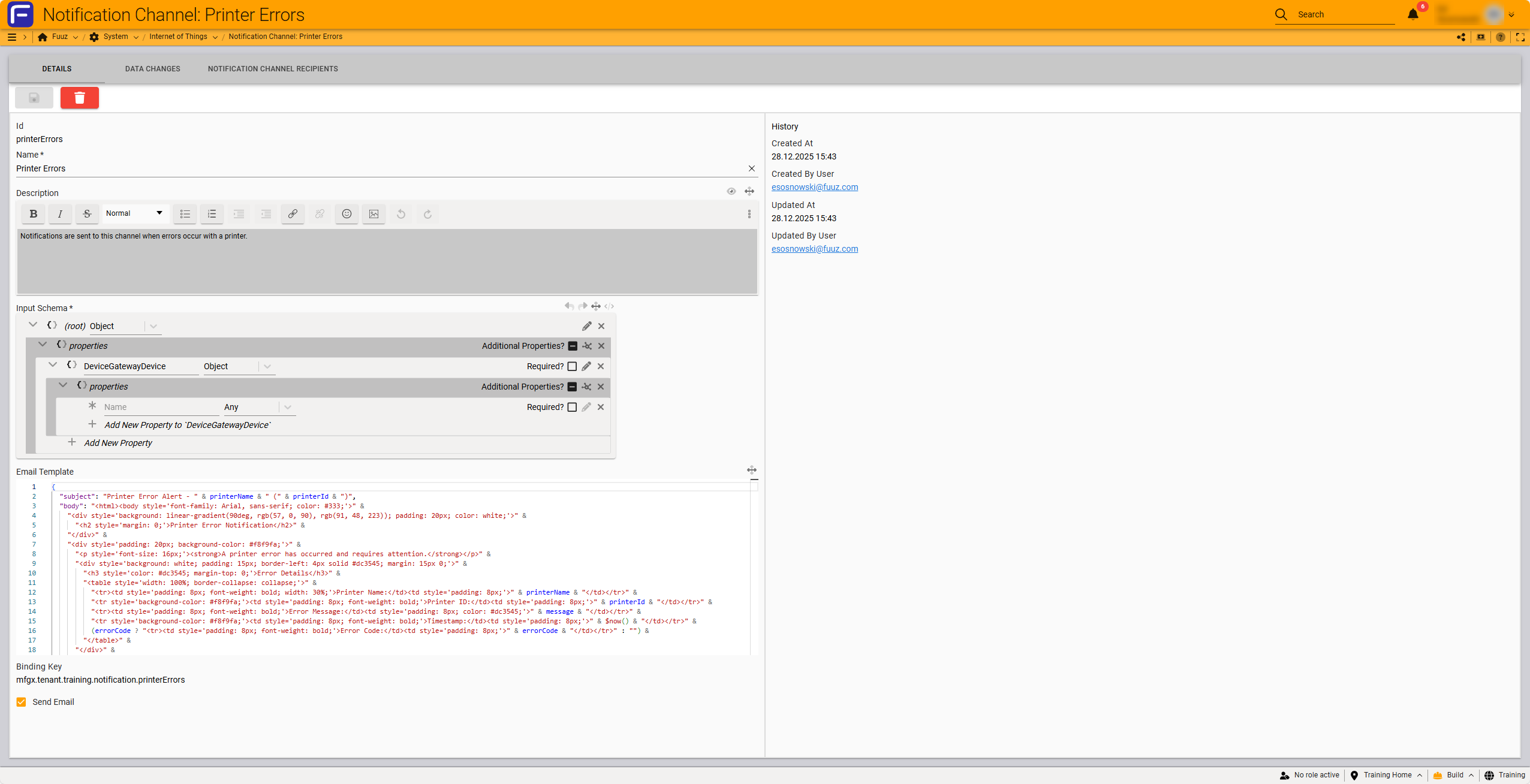
- Details Tab: Channel configuration including ID, Name, Description, Input Schema, Email Template, Binding Key, and Send Email toggle
- Data Changes Tab: Audit log showing all modifications to the channel
- Notification Channel Recipients Tab: Manage users, roles, and email addresses that receive notifications
Create Channel Form
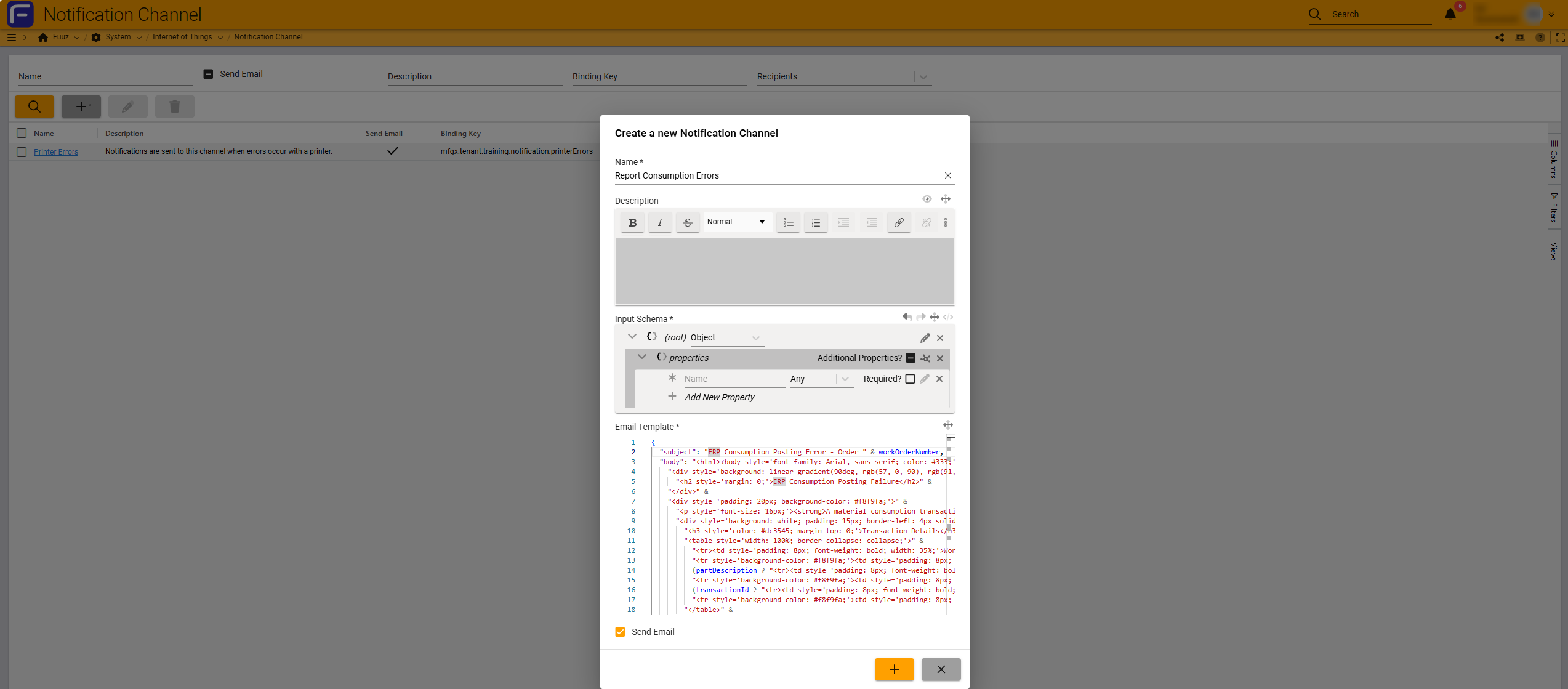
| Field | Required | Description |
|---|---|---|
| Name | ✓ | Descriptive name for the notification channel |
| Description | Markdown-formatted explanation of when notifications are sent | |
| Input Schema | ✓ | JSON Schema defining the data structure for information passed to the channel |
| Email Template | ✓ | JSONata expression that transforms input data into formatted HTML email |
| Send Email | Checkbox to enable/disable email delivery |
Add Recipients
After creating a channel, configure recipients via the Notification Channel Recipients tab:
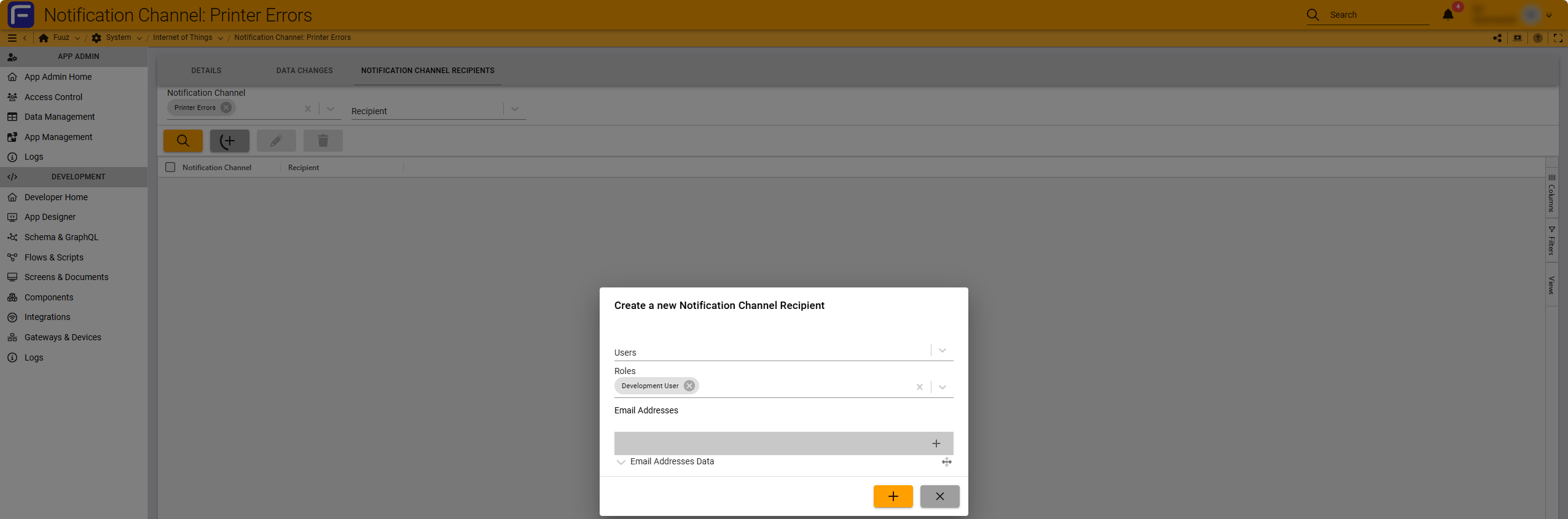
- Users: Select specific users from your organization
- Roles: Send to all users assigned to specific roles (e.g., "Maintenance Manager")
- Email Addresses: Enter custom email addresses for external contacts or distribution lists
5. Technical Details
Input Schema Structure
The Input Schema uses JSON Schema format to define expected payload structure:
{
  "type": "object",
  "properties": {
    "propertyName": {
      "type": "string|number|boolean|array|object"
    }
  },
  "required": ["propertyName"]
}
Example - Printer/Device Error Schema:
{
  "type": "object",
  "properties": {
    "deviceName": { "type": "string" },
    "deviceId": { "type": "string" },
    "message": { "type": "string" },
    "errorCode": { "type": "string" }
  },
  "required": ["deviceName", "deviceId", "message"]
}
Email Template with JSONata
Email templates use JSONata to create dynamic content. Structure templates as objects with subject and body properties:
Example - Printer Error Template:
{
  "subject": "Printer Error - " & printerName,
  "body": "<html><body>" &
    "<h2>Printer Error Notification</h2>" &
    "<p><strong>Printer:</strong> " & printerName & "</p>" &
    "<p><strong>Error:</strong> " & message & "</p>" &
    (errorCode ? "<p><strong>Code:</strong> " & errorCode & "</p>" : "") &
  "</body></html>"
}
Example - ERP Posting Error Template:
{
  "subject": "ERP Posting Error - Order " & workOrderNumber,
  "body": "<html><body>" &
    "<h2>ERP Consumption Posting Failure</h2>" &
    "<p><strong>Work Order:</strong> " & workOrderNumber & "</p>" &
    "<p><strong>Part:</strong> " & partNumber & "</p>" &
    "<p><strong>Quantity:</strong> " & quantity & " " & uom & "</p>" &
    "<p><strong>Error:</strong> " & errorMessage & "</p>" &
  "</body></html>"
}
Binding Key Format
Binding keys follow a hierarchical naming convention:
mfgx.tenant.{application}.notification.{channelName}
Examples:
mfgx.tenant.mes2.notification.printerErrorsmfgx.tenant.wms.notification.erpPostingErrorsmfgx.tenant.mes2.notification.qualityFailures
Triggering Notifications
Applications trigger notifications by publishing messages to the channel's binding key with payload data matching the input schema. The system validates the payload, processes the email template, and delivers to all configured recipients.
Device Integration
Notification channels can reference Edge Gateways through the Input Schema, enabling notifications that include device context such as equipment name, location, status, and operational data.
6. Resources
- JSONata Official Documentation
- JSON Schema Specification
- Related KB articles: Data Flows Overview, User and Role Management, System Integration Patterns
7. Troubleshooting
- Issue: No emails received • Cause: Send Email checkbox disabled or no recipients configured • Fix: Verify Send Email is enabled. Check Recipients tab has at least one configured recipient.
- Issue: Invalid payload errors • Cause: Data sent doesn't match Input Schema structure • Fix: Verify all required fields are provided. Check data types match schema definition. Test with external JSON Schema validator.
- Issue: Email template not rendering HTML • Cause: HTML not properly escaped in JSONata • Fix: Use single quotes for HTML attributes, double quotes for JSONata strings. Test template with sample payload data.
- Issue: Missing data in email • Cause: Field names in template don't match Input Schema • Fix: Verify exact property names match between schema and template. Check for typos and case sensitivity.
- Issue: Wrong binding key • Cause: Application using incorrect or outdated binding key • Fix: Copy exact binding key from channel Details tab. Binding keys are case-sensitive.
- Issue: Conditional content not working • Cause: Incorrect JSONata ternary syntax • Fix: Use ternary operator:
condition ? "true value" : "false value". Test with both present and absent optional fields.
Best Practices
- Descriptive Naming: Use clear channel names indicating purpose (e.g., "Printer Errors", "Low Inventory Alerts")
- Document Thoroughly: Use Description field to explain when notifications trigger and what data is included
- Minimal Schemas: Only include fields actually needed for the notification
- Test Templates: Verify templates with both complete and minimal data sets before production use
- Use Inline CSS: Include inline styles in HTML emails for maximum client compatibility
- Role-Based Recipients: Prefer roles over individual users for easier maintenance as team members change
- Actionable Subject Lines: Create clear subjects that help recipients prioritize (e.g., "🚨 URGENT: Production Line Down")
- Include Context: Provide timestamp, location, and equipment identifiers in notification body
- Review Recipients: Periodically audit recipient lists to ensure appropriate people receive notifications
- Document Binding Keys: Maintain master list of channels and their binding keys for development reference
8. Revision History
| Version | Date | Editor | Description |
|---|---|---|---|
| 1.0 | 2024-12-28 | Fuuz Documentation Team | Initial Release |