App Users
Article Type: Concept Audience: Application Administrators, Enterprise Administrators Module: Fuuz Platform - Access Control Applies to Versions: 2024.12+
1. Overview
The App Users page provides Application Administrators with a centralized interface to view and manage all users who have access to their specific Fuuz application tenant. This screen displays user information including email addresses, names, assigned Access Types, and active status. Application Administrators can invite new Web Access users, assign roles, manage user status, and perform bulk operations. The page serves as the primary user management hub for tenant-level administration, while Enterprise Administrators retain control over Access Type assignments and cross-tenant user visibility through the Enterprise Admin interface.
Note: The App Users page displays only users associated with the current tenant. Users may have access to multiple tenants, but that visibility is restricted to Enterprise Administrators. Access Type changes (Application Administrator, Developer) must be performed by Enterprise Administrators.
2. Architecture & Data Flow
Definitions
- App Users: The user management interface within Access Control that displays all users with access to the current application tenant.
- Tenant Access Type: The Access Type classification (Application Administrator, Developer, or Web Access) that determines which menu sections a user can access within this specific tenant.
- Active Status: Indicates whether a user account is currently active and able to authenticate to the system. Inactive users cannot log in.
- User Inactivity: Automatic deactivation of user accounts that have not logged in within a specified period, typically 90 days. This is environment-specific and applies separately to build, qa, and production.
- Account Lockout: Temporary or permanent suspension of a user account due to excessive failed login attempts or administrative action.
- User Form: A detailed view accessed by selecting a user from the table, displaying comprehensive user information across multiple tabs including authentication events, audit trails, and role assignments.
- Trace Records: Historical data and audit logs associated with user actions that prevent user accounts from being permanently deleted from the system.
- Authentication Events: Log entries recording user login attempts, successful authentications, failures, password resets, and other security-related activities.
Components
- User Table: Displays filterable list of all users with configurable columns including Email, First Name, Middle Name, Last Name, Tenant Access Type, Active status, and custom fields
- Filter Bar: Top section with filter fields for Email, First Name, Middle Name, Last Name, and Roles to quickly locate specific users
- Action Toolbar: Icons for inviting new users, editing selected users, and performing bulk operations
- Invite User Modal: Dialog for inviting new Web Access users to the tenant, requiring email address and role assignments
- User Detail Form: Multi-tab interface showing comprehensive user information, authentication history, audit trails, and role assignments
User Lifecycle Flow
- Invitation: Application Administrator invites new Web Access user, providing email and role assignments
- Access Request: System generates access request submitted to Enterprise Administrator
- Enterprise Approval: Enterprise Administrator reviews and approves request
- User Appears in List: Approved user automatically appears in the App Users table
- Email Notification: User receives welcome email with temporary link (if new to Fuuz) or access granted notification (if existing user)
- Password Setup: New users set initial password via temporary link
- Active Use: User logs in regularly to maintain active status
- Inactivity Warnings: If user doesn't login within approaching 90-day threshold, system sends multiple email warnings
- Inactivation: If user fails to login within 90 days, account is automatically deactivated
- Reactivation: Application Administrator or Enterprise Administrator can reactivate inactive accounts
3. Use Cases
- Inviting Operational Users: Quickly add new shop floor operators, warehouse personnel, or field technicians with appropriate roles for their responsibilities. Use plus addressing for users without individual email accounts.
- User Status Management: Monitor user activity, identify inactive accounts, and proactively manage user status to maintain security compliance and license utilization.
- Role Assignment: Assign and modify role-based permissions for Web Access users to control their access to specific application features, screens, flows, and data.
- Security Response: Quickly lock out or deactivate users in response to security incidents, terminations, or suspicious activity. Perform bulk lockouts when needed.
- Audit and Compliance: Review user authentication events and audit trails to investigate security incidents, verify compliance, or troubleshoot access issues.
- Password Management: Reset user passwords when users are locked out or have forgotten credentials, ensuring minimal disruption to operations.
- User Search and Filtering: Locate specific users quickly using email, name, or role filters to perform targeted administrative actions.
4. Screen Details
/app/[tenant]/admin/access-control/users
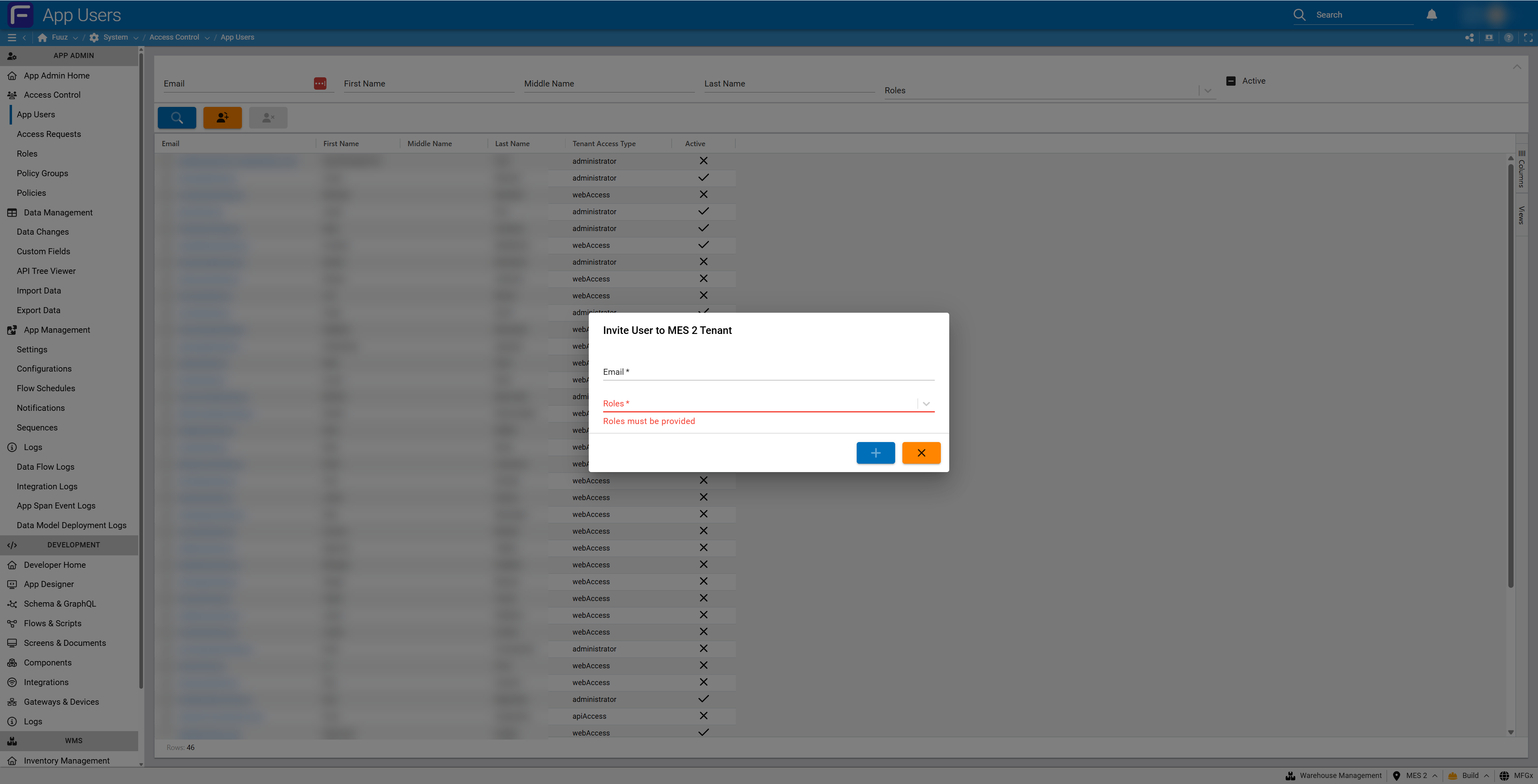
User Table Columns
The default user table displays the following columns, which can be extended with custom fields. (Note - tables / columns / filters may be updated over time - please submit a ticket if you find this information is outdated!)
| Column | Description |
|---|---|
User's email address, including plus-addressed identifiers (e.g., supervisor+operator1@company.com) |
|
| First Name | User's first name as provided during invitation |
| Middle Name | User's middle name (optional) |
| Last Name | User's last name as provided during invitation |
| Tenant Access Type | Displays "administrator", "developer", or "webAccess" indicating the user's Access Type for this tenant |
| Active | Checkmark (✓) indicates active user; X indicates inactive or locked out user |
| Custom Fields | Additional columns can be added to display custom user attributes specific to organizational needs |
Note: Role assignments are not displayed in the table view. To view which roles are assigned to a specific user, select the user row to open the user form, or navigate to the Roles page to see role-to-user mappings.
Filter & Search Capabilities
The filter bar at the top of the page allows rapid user location using the following criteria:
- Email Filter: Search by full or partial email address, including plus-addressed identifiers
- First Name Filter: Locate users by first name
- Middle Name Filter: Search middle name field
- Last Name Filter: Filter by surname
- Roles Filter: Find users assigned to specific roles (though roles themselves are not displayed in table)
- Active Status Toggle: Filter to show only active users, only inactive users, or all users
Invite User Interface
Clicking the "Invite User" action opens a modal dialog titled "Invite User to [Tenant Name]" with the following fields:
- Email: Required field for user's email address or plus-addressed identifier
- Roles: Required dropdown for selecting one or more roles to assign to the user. The validation message "Roles must be provided" appears if this field is left empty.
Important: The Invite User interface in App Users can ONLY create Web Access Type users. To invite or create Application Administrator or Developer users, the Enterprise Administrator must perform this action through the Enterprise Admin interface.
When the invitation is submitted:
- System creates an access request automatically submitted to Enterprise Administrator queue
- User will be assigned Web Access Type by default
- Selected roles will be attached to the user upon approval
- Once approved by Enterprise Administrator, user appears in the App Users table
- User receives notification email (welcome email with temporary link if new, or access granted notice if existing Fuuz user)
User Detail Form
Selecting a user row from the table opens a comprehensive user detail form with multiple tabs:
- Profile Tab: User's basic information including email, name, Access Type, and custom fields
- Roles Tab: Complete list of roles assigned to this user with ability to add or remove role assignments
- Authentication Events Tab: Historical log of login attempts, successful authentications, failed attempts, password resets, and lockout events
- Audit Trail Tab: Complete audit history of changes to the user record, role assignments, and administrative actions
- Security Tab: Options to reset password, lock/unlock account, and manage security settings
5. Technical Details
Administrative Actions Available
Application Administrators can perform the following actions on the App Users page:
| Action | Permission Level | Description |
|---|---|---|
| Invite Web Access Users | App Admin | Create invitation for new Web Access users with role assignments |
| Edit User Details | App Admin | Modify user name, custom fields, and other profile information |
| Assign/Remove Roles | App Admin | Add or remove role assignments for Web Access users |
| Deactivate/Reactivate Users | App Admin | Toggle user active status at application layer (if user is still active at enterprise level) |
| Lock Out Users | App Admin | Manually lock user accounts to prevent login, or unlock accounts that were automatically locked |
| Reset Passwords | App Admin | Initiate password reset process, sending reset link to user's email |
| Bulk Inactivation | App Admin | Select multiple users and deactivate or lock out in single operation |
| Change Access Type | Enterprise Admin Only | Modify user's Access Type (requires Enterprise Admin interface) |
| Delete Users | Not Permitted | Users cannot be deleted due to associated trace records and audit requirements |
Inactivity & Lockout Management
Fuuz implements automated security measures to manage inactive accounts and prevent unauthorized access:
Automatic Inactivity Deactivation
- Threshold: Users who do not log in within 90 days (typical configuration) are automatically deactivated
- Environment-Specific: The 90-day counter is independent for each environment (build, qa, production). Logging into one environment does not reset the inactivity timer for other environments.
- Warning Emails: Users receive multiple email warnings as they approach the 90-day threshold (typically at 75, 80, and 85 days)
- Prevention: Users can simply log in to any environment to reset the inactivity clock for that environment
- Immediate Effect: When a user is deactivated, they lose access immediately and cannot authenticate
- Reactivation: Application Administrators or Enterprise Administrators can manually reactivate deactivated accounts
Important: Do not ignore inactivity warning emails. All that is required to maintain active status is to log in before the 90-day threshold expires. If your role requires access to multiple environments, ensure you log into each environment regularly to prevent inactivation.
Failed Login Lockout
- Trigger: Excessive failed login attempts within a short time period triggers automatic account lockout
- Security Purpose: Prevents brute force password attacks and unauthorized access attempts
- Duration: Lockout may be temporary (time-based) or require administrative unlock depending on policy configuration
- Unlocking: Application Administrators can manually unlock accounts from the user detail form
Role Management Requirements
Roles are mandatory for all Web Access Type users and control granular access to application resources:
- Required Assignment: All Web Access users must have at least one role assigned or they will have no access to any application resources
- Resource Control: Even with a role assigned, users will only have access to resources (data, screens, flows, integrations) that the role explicitly grants
- Multiple Roles: Users can be assigned multiple roles, with permissions being cumulative across all assigned roles
- Role Configuration: Roles must be properly configured with appropriate permissions before being assigned to users
- Testing Roles: Application Administrators and Developers can also be assigned roles, primarily for testing purposes
Tenant Scope & Limitations
- Single Tenant View: The App Users page displays only users associated with the current tenant/application
- Cross-Tenant Users: Users may have access to multiple tenants, but Application Administrators can only see their access to the current tenant
- Enterprise Visibility: Only Enterprise Administrators can view all tenants a specific user has access to
- Environment Independence: User lists are environment-specific; users must be invited separately to build, qa, and production environments
Trace Records & Audit Requirements
User accounts cannot be permanently deleted from Fuuz due to compliance and audit requirements:
- Historical Records: All user actions create audit logs and trace records that must be preserved
- Data Integrity: Deleting users would orphan data and break referential integrity in the system
- Compliance: Many regulatory frameworks require retention of user activity logs and cannot permit deletion
- Alternative: Instead of deletion, deactivate users who should no longer have access
- Audit Trail: Authentication events, data changes, and system interactions are permanently linked to user accounts
6. Resources
7. Troubleshooting
- Issue: Invited user does not appear in App Users list • Cause: Enterprise Administrator has not yet approved the access request • Fix: Check Access Requests page for status, contact Enterprise Administrator if request is pending for extended period
- Issue: Cannot invite Application Administrator or Developer users • Cause: App Users page can only invite Web Access Type users • Fix: Contact Enterprise Administrator to create admin or developer users through Enterprise Admin interface
- Issue: User has role assigned but cannot access features • Cause: Role may not be configured to grant access to specific screens, data, flows, or integrations • Fix: Review role configuration in Roles page and ensure appropriate permissions are granted
- Issue: User locked out after failed login attempts • Cause: Automatic security lockout triggered • Fix: Select user from table, open user detail form, and unlock account from Security tab
- Issue: User deactivated despite recent login to production • Cause: Inactivity is environment-specific; user may not have logged into build or qa within 90 days • Fix: Users must log into each environment separately to maintain active status in that environment
- Issue: Cannot delete inactive user account • Cause: User deletion is not permitted due to trace records and audit requirements • Fix: Deactivate the user instead; deactivated users cannot log in but their audit history is preserved
- Issue: Cannot see which roles are assigned to user in table • Cause: Role assignments are not displayed in table view • Fix: Select the user to open detail form and view Roles tab, or navigate to Roles page to see role-to-user mappings
- Issue: Cannot change user's Access Type from webAccess to administrator • Cause: Access Type changes require Enterprise Administrator permissions • Fix: Contact Enterprise Administrator to modify Access Type through Enterprise Admin interface
- Issue: User active in list but cannot log in • Cause: User may be inactive at enterprise level or in different environment • Fix: Verify user is attempting to log into correct environment; contact Enterprise Administrator to check enterprise-level status
- Issue: Bulk deactivation did not affect all selected users • Cause: Some users may already be inactive or have enterprise-level restrictions • Fix: Review individual user statuses and verify each user's state; contact Enterprise Administrator for users with cross-tenant issues
8. Revision History
| Version | Date | Editor | Description |
|---|---|---|---|
| 1.0 | 2024-12-26 | Fuuz Documentation Team | Initial Release |