HMI Template Standard - ISA-101 Compliant
Article Type: Concept / Standard Audience: Solution Architects, Application Designers, HMI Engineers, Partners Module: Fuuz Platform / Screen Designer Applies to Versions: 2025.7+ Reference Standard: ANSI/ISA-101.01-2015
1. Overview
This standard defines the guidelines for designing Human Machine Interface (HMI) screens within the Fuuz Industrial Operations Platform that comply with ANSI/ISA-101.01-2015. It establishes the philosophy, display hierarchy, element standards, and lifecycle management practices necessary for creating effective operator interfaces across continuous, batch, and discrete manufacturing processes.
The Fuuz Screen Designer provides the tooling to implement ISA-101 compliant HMI systems while leveraging the platform's cloud-to-edge architecture, real-time data integration, and role-based access control.
Note: Implementing ISA-101 standards in Fuuz improves operator situation awareness, reduces response time to abnormal conditions, ensures consistency across facilities, and supports regulatory compliance for process automation systems.
2. ISA-101 Lifecycle Mapping to Fuuz
Definitions
- HMI Philosophy: Strategic document addressing guiding principles that govern HMI design structure — implemented in Fuuz via Design Standards documentation and Screen Templates
- HMI Style Guide: Facility/company-specific standards for design implementation — implemented in Fuuz via Application-level screen templates and component libraries
- HMI Toolkit: Collection of design elements for use within the platform — Fuuz provides pre-built screen elements, input types, visualizations, and reusable widgets
- Display: Visual representation of process information — implemented as Fuuz Screens with Routes for navigation
- Screen Element: Component parts of screens including containers, inputs, tables, charts, and actions
- Faceplate: Popup display for single device/loop control — implemented via Fuuz modal screens or widget screens
HMI Lifecycle Stages in Fuuz
| ISA-101 Stage | Fuuz Implementation | Key Activities |
|---|---|---|
| System Standards | Application Configuration, Design Templates | Define philosophy, create reusable templates, establish color/symbol standards |
| Design | Screen Designer, Data Model Designer | Create screens, configure elements, define data queries, establish navigation |
| Implement | Screen Versions, Deployments | Create versions, deploy to Build/QA/Production environments, test functionality |
| Operate | Runtime Environment, Edge Screens | Operator usage, performance monitoring, maintenance updates |
| Continuous Processes | Package Management, Data Change Capture | MOC via packages, audit via trace metadata, validation via deployment logs |
3. Display Hierarchy Standard
ISA-101 recommends a four-level display hierarchy to provide operators with structured views of their responsibility scope while enabling drill-down to greater detail. The following maps ISA-101 levels to Fuuz screen types:
Level 1: Overview Displays
Purpose: Provide summary of key parameters, alarms, and process conditions for an operator's entire span of control on a single display.
| Property | ISA-101 Requirement | Fuuz Implementation |
|---|---|---|
| Screen Type | Functional Overview / Dashboard | Dashboard screen with Visualization components, KPI widgets |
| Route Configuration | Primary entry point | isMenuAccessible: true, prominent submenu placement |
| Control Functions | Generally not used for control | Read-only visualizations, navigation links only |
| Alarm Display | Top priority alarms with acknowledged status | Alarm summary widget with color-coded severity, positioned near associated equipment |
| Trend Display | Embedded trends on important parameters | FusionCharts sparklines, mini-trends using Visualization components |
| Fullscreen Mode | May span multiple screens | forceFullscreen: true on Screen, isFullscreen: true on Route |
The ISA Level 1 Real Time Dashboard template displays no data until connected to a datasource — it is a template, not a live screen.
Level 2: Process Displays (Primary Operating)
Purpose: Primary operating displays for routine monitoring and changes during normal operations. Should be task-based to allow operators to perform tasks with minimal navigation.
| Property | ISA-101 Requirement | Fuuz Implementation |
|---|---|---|
| Screen Type | Process Unit Overview / System Overview | Table screens with filters, Form screens with inline editing |
| Alarm Display | Top and middle priority alarms for specific system | Filtered alarm table, status indicators on process elements |
| Control Functions | Primary controllers for process area | Action buttons with Webflow integration, inline setpoint adjustment |
| Navigation | Easy navigation to Level 3 and 4 displays | Table row linkTarget navigation, Action menu drill-downs |
ISA Level 2 Dashboard Alarm — Element Hierarchy
Screen (ROOT) └── L2ContainerOuter ├── L2ResizableFilterPanel (300px default/max) │ └── L2ContainerFilterOuter │ ├── L2ContainerFilterPanelHeader │ │ ├── L2ContainerFilterPanelHeaderInner │ │ │ ├── L2FilterPanelTitle ("Filter Panel") │ │ │ └── L2ContainerFilterActions │ │ │ └── L2ActionSearch (magnifying-glass) │ │ └── L2FilterBrandSeparator (4px gradient) │ └── L2FormFilterPanel │ └── L2ContainerFilterInputs │ ├── L2SelectFilterStatus │ ├── L2SelectFilterArea │ ├── L2SelectFilterType │ ├── L2SelectFilterAlarm │ └── L2GraphQlWhereInput │ └── L2ContainerBody (purple left border) ├── L2TopActionSkeleton (35px, light background) │ ├── L2ContainerActionsStandard (100px) │ │ ├── L2ActionCreateSingle (+) │ │ └── L2ActionDeleteMultiple (trash-list) │ └── L2ContainerActionsCustom (250px) │ ├── L2ActionRefresh │ ├── L2ActionExport │ ├── L2ActionAlarm (ISA-101 <1sec) │ └── L2ActionOverview (→ Level 1) ├── L2BrandBandSeparator (4px gradient) └── L2Table1 (filterFormName: "L2FormFilterPanel") ├── L2TableColumnSpacer ├── L2TableColumnActions (menu) ├── L2TableColumnName ├── L2TableColumnStatus ├── L2TableColumnValue (editable) ├── L2TableColumnAlarm ├── L2TableColumnCreatedAt ├── L2TableColumnCreatedByUser ├── L2TableColumnUpdatedAt └── L2TableColumnUpdatedByUser Level 3: Detail Displays (System/Subsystem)
Purpose: Displays for non-routine operations such as lineup changes, equipment switching, or complex routine tasks. Provide sufficient information for process diagnostics.
| Property | ISA-101 Requirement | Fuuz Implementation |
|---|---|---|
| Screen Type | Equipment Detail / Loop Control | Individual Record Form screens with sidebar, multi-card layout |
| Control Loops | Control loops and indicators for process equipment | TextInput/NumberInput with validation, real-time value display |
| Interlock Status | Status of various interlocks for depicted equipment | Settings Content Card with boolean displays, conditional styling |
| Related Records | Associated equipment and maintenance info | Related Records Card with inline tables, master-detail view |
The Level 3 page is a Form screen in Fuuz and may include more details based upon specific deployment needs.
Level 4: Diagnostic Displays
Purpose: Provide all system information for troubleshooting and diagnostics. May appear as faceplates or popups due to intermittent use.
| Property | ISA-101 Requirement | Fuuz Implementation |
|---|---|---|
| Screen Type | Point Detail / Faceplate / Diagnostic | Widget screens (isWidget: true), Modal screens, Help panels |
| Content | Procedures, help info, safety shutdowns, interlocks | Wiki pages integration, Code Content Card, procedural displays |
| Route Configuration | May not require full-screen display | isMenuAccessible: false, accessed via contextual links |
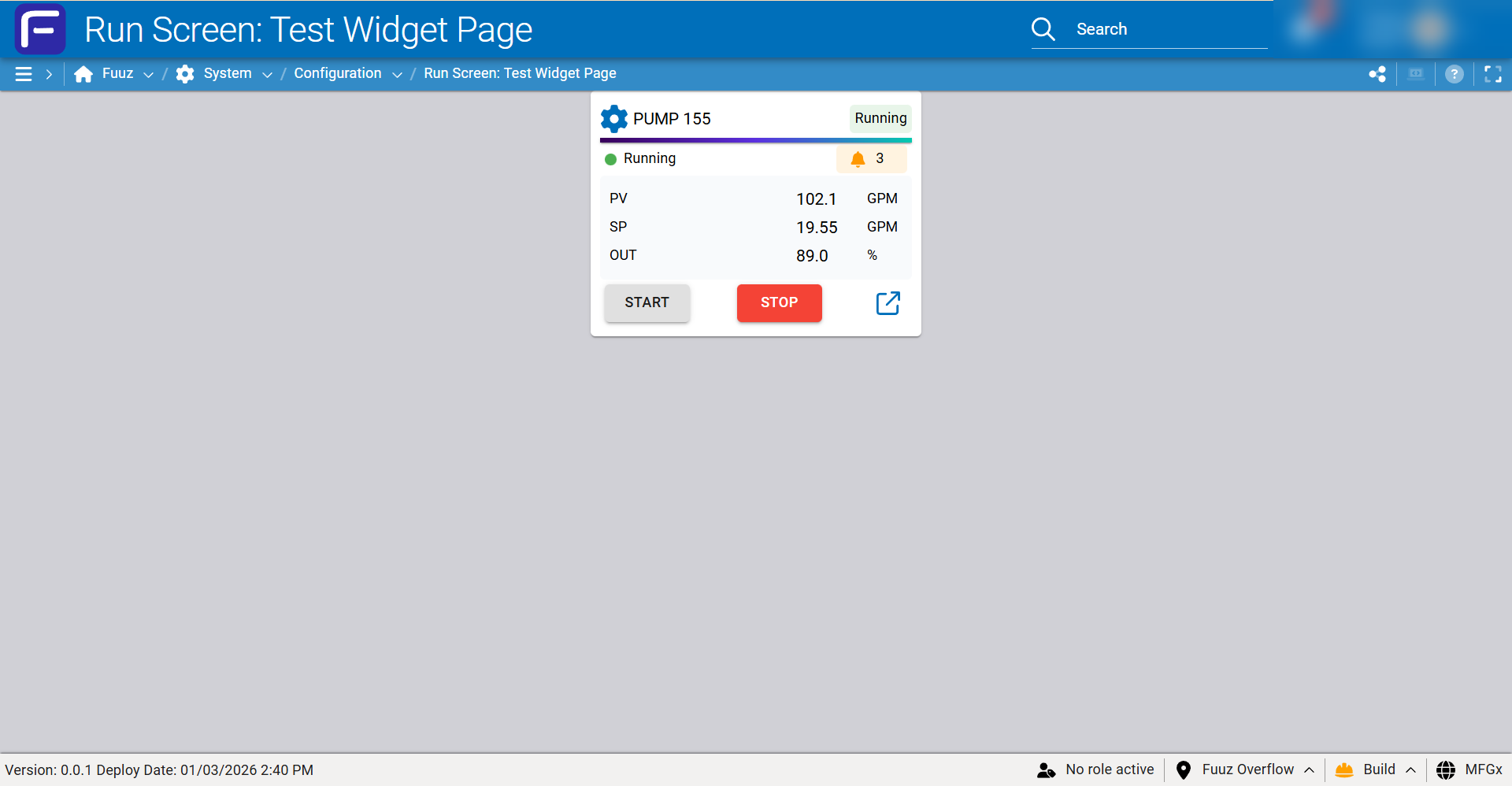
Asset Widget - Fixed Forms or Dynamic Cards
4. Screen Architecture Standards
Standard Container Hierarchy
All HMI screens shall follow a consistent container hierarchy for predictable user experience and ISA-101 compliance:
ROOT (Screen) └── ContainerOuter (Layout constraint) ├── ContainerHeader (Fixed height: 40px) │ ├── ScreenName (left-aligned) │ └── ContainerNavigation (right-aligned menu/actions) ├── BrandSeparator (4px gradient) ├── ContainerBody (Flexible, scrollable) │ └── [Content varies by screen type] ├── BrandSeparator (4px gradient) └── ContainerFooter (Fixed height: 60px - optional) ISA-101 Display Styles to Fuuz Screen Types
| ISA-101 Display Style | Description | Fuuz Screen Pattern |
|---|---|---|
| List | Rows of data with text/numeric values | Table Screen Standard |
| Process | Graphic representation of equipment/piping | Custom dashboard with SVG elements, Visualization components |
| Schematic Overview | Informational overview of operator's span | Dashboard screen with KPI widgets |
| Functional Overview (Dashboard) | Functional relationship of data | Visualization screen with Angular Gauge, Bar Charts |
| Graph | Chart-based representation of data | FusionCharts integration, Stimulsoft reports |
| Group | Task-based collection of faceplates | Multi-widget dashboard, embedded widget screens |
| Alarm List | Status information display | Table Screen with alarm data model, color-coded status |
| Health/Diagnostic | Infrastructure component status | Gateway status screens, integration health dashboards |
5. Human Factors Engineering Standards
ISA-101 mandates Human Factors Engineering (HFE) principles in HMI design. The following requirements shall be applied to all Fuuz HMI screens:
Color Standards
Important: Color shall not be used as the only method of differentiation. All color-coded elements must have redundant indicators (shape, text, position, or pattern).
| Category | Requirement | Fuuz Implementation |
|---|---|---|
| Background | Unsaturated or neutral (light gray) | Use rgb(248, 250, 252) for content areas |
| Alarm Colors | Reserved exclusively for alarms per ANSI/ISA-18.2 | Red: Critical, Yellow/Amber: Warning, never use for non-alarm elements |
| Process Normal | Minimal sensory stimuli when process normal | Gray/neutral colors for normal state, color only for deviations |
| Color Blindness | Account for red-green, green-yellow, white-cyan | Validate color combinations, use shape/text redundancy |
Visual Dynamics (Blinking/Flashing)
- Blinking: Reserved for unacknowledged alarms only. Must have operator-controllable stop mechanism.
- Flashing: Reserved for situations requiring operator attention. Should not persist after acknowledgment.
- Text/Numbers: Shall never blink or move as it impairs readability.
- Implementation: Use Fuuz conditional styling with
animationproperties via JSONata expressions tied to alarm acknowledgment status.
Typography Standards
| Element | Font Size | Notes |
|---|---|---|
| Screen Title | 18px bold | Prominent, consistent position |
| Input Labels | 15px | Clear but not overwhelming |
| Data Values | 24px | Readable without zoom (mobile: minimum) |
| Button Text | 24px | Easy to read at glance |
| Validation Messages | 12-14px | Smaller, auto-sized within fixed input height |
Touch Target Sizing (Accessibility)
- Minimum touch target: 44×44px (iOS) / 48×48dp (Android)
- Footer buttons: height fills 60px container
- Input fields: minimum height 80px (120px with validation)
- Minimum spacing between interactive elements: 8px
6. Navigation Standards
ISA-101 requires effective navigation that minimizes operator keystroke-equivalent actions and supports workflow for both normal and abnormal conditions.
Navigation Performance Requirements
| Metric | ISA-101 Target | Fuuz Implementation |
|---|---|---|
| Alarm Summary Access | 1 second | Persistent alarm widget on Level 1 screens |
| Critical Display Access | 1-2 clicks | Direct menu links, action menu shortcuts |
| Non-Critical Display Access | 3 clicks maximum | Hierarchical submenu structure |
| Display Call-up Time | 3-5 seconds | Optimize queries, use server-side pagination |
| Display Refresh Rate | 1-5 seconds | Configure query refresh intervals, use subscriptions for real-time data |
Route Configuration Standards
//Level1OverviewRoute{"title":"Plant Overview","path":"/overview","isMenuAccessible":true,"submenu":"Operations","isFullscreen":true}//Level2ProcessRoute{"title":"Reactor Control","path":"/reactor/:reactorId","isMenuAccessible":true,"submenu":"Operations/Process Areas","isFullscreen":false}//Level3DetailRoute{"title":"Equipment Detail","path":"/equipment/:equipmentId","isMenuAccessible":false,"isFullscreen":false}//Level4DiagnosticRoute(Widget){"title":"Point Faceplate","path":"/faceplate/:tagId","isMenuAccessible":false,"isFullscreen":false}Level 3 routes are typically accessed via table linkTarget rather than the menu.
7. Screen Configuration Reference
Core Screen Properties
| Property | Type | ISA-101 Application |
|---|---|---|
name | String! | Use consistent naming convention: [Level]_[Area]_[Function] |
description | String! | Document ISA-101 level, purpose, and intended users |
active | Boolean! | Set to false for screens under MOC review |
edgeScreen | Boolean! | Enable for field-operator displays (portable devices) |
forceFullscreen | Boolean | Enable for Level 1 overview displays |
isWidget | Boolean | Enable for Level 4 faceplates and popups |
substitutesScreenId | ID | Use for alternate operating mode screens (startup/shutdown) |
Standard Element Naming Conventions
| Element Type | Naming Pattern | Example |
|---|---|---|
| Outer container | ContainerOuter | ContainerOuter |
| Header container | ContainerHeader | ContainerHeader |
| Body container | ContainerBody | ContainerBody |
| Footer container | ContainerFooter | ContainerFooter |
| Brand separator | BrandSeparator[N] | BrandSeparator1 |
| Table | Table[N] | Table1 |
| Form | Form[N] | Form1 |
| Action buttons | Action[Purpose] | ActionSearch, ActionSave, ActionDelete |
| Visualization | Viz[Type][N] | VizGauge1, VizTrend1 |
8. Troubleshooting
| Issue | Possible Cause | Resolution |
|---|---|---|
| Screen not appearing in menu | Route isMenuAccessible: false | Set isMenuAccessible: true on Route record |
| Display call-up time exceeds 5 seconds | Large dataset with autoLoad: true | Set autoLoad: false for tables with >250 records, require filter before search |
| Colors too prominent for normal state | Saturated colors used for background/normal elements | Use neutral grays for normal state, reserve color for abnormal conditions |
| Navigation requires too many clicks | Deep menu hierarchy or missing shortcuts | Add direct action menu links, configure linkTarget on table columns |
| Widget screen not embedding properly | isWidget property not set | Set isWidget: true on Screen record |
| Layout shifts on mobile devices | Fixed heights not set, validation messages adding height | Set input height: 120px for validated fields, use fixed container heights |
| Edge screen not available at gateway | edgeScreen property not set | Set edgeScreen: true and ensure screen is deployed |
9. Related Resources
- ANSI/ISA-101.01-2015: Human Machine Interfaces for Process Automation Systems
- ANSI/ISA-18.2-2009: Management of Alarm Systems for the Process Industries
- ISO 11064: Ergonomic Design of Control Centres
10. Revision History
| Version | Date | Author | Changes |
|---|---|---|---|
| 1.0.0 | 7-12-2025 | Fuuz Documentation Team | Initial release — ISA-101 compliance mapping to Fuuz Screen Designer |
See Also
Related Articles
Fuuz Deployment Methodologies
Article Type: Concept Audience: Solution Architects, Enterprise Administrators, IT Infrastructure, Operations Directors, Integration Specialists Module: Platform Architecture & Infrastructure Applies to Versions: All Versions 1. Overview The Fuuz ...Fuuz Form Detail Screen Specification
Article Type: Standard Audience: Solution Architects, Application Designers, Partners Module: Fuuz Platform / Application Design Applies to Versions: 2025.12+ Template Reference: Form_Screen_-_Standard_System_Page_Design_0_0_1.json A unified ...Edge Gateway System Requirements & Deployment Best Practices
Article Type: Concept / How-To Audience: Solution Architects, OT/IT Engineers, Administrators Module: Fuuz Edge Gateway Applies to Versions: 2025.12+ Overview The Edge Gateway acts as a secure door between your facility and Fuuz Cloud. It is not a ...Historical Data Table Screen Design Standard
Article Type: Standard / Reference Audience: Solution Architects, Application Designers, Developers Module: Fuuz Platform - Application Designer Applies to Versions: 2025.12+ Template Reference: Table_Screen_Design_Template_-_History_0_0_1.json 1. ...Mobile Screen Design Standard
Article Type: Standard / Reference Audience: Solution Architects, Application Designers, Developers Module: Fuuz Platform - Mobile Application Design Applies to Versions: 2025.12+ Template Reference: mobile_screen_standard_template_0_0_1.json 1. ...