Managing API Keys
Article Type: Configuration / How-To Audience: Enterprise Administrators Module: Access Control Applies to Versions: All Versions Estimated Time: 15-20 minutes
API Keys provide secure, programmatic access to the Fuuz platform for external system integrations. Enterprise Administrators use API Keys to enable external systems, middleware platforms, and custom applications to authenticate and interact with Fuuz GraphQL APIs, Data Flows, webhooks, and other platform resources.
1. Overview
Each API Key is scoped to a single tenant and assigned to an API Access user with specific RBAC permissions.
Note: Before you begin, create an API Access user via the Enterprise Users interface. The user must have access to the target tenant. See Enterprise Users for detailed instructions on creating API Access type users.
Note: The current interface labels this feature as "User API Keys." This will be updated to "API Keys" in 2026.
Common Use Cases
- ERP Integration: External ERP systems pushing data to Fuuz via user interactions or automated processes
- Middleware & iPaaS: Integration platforms querying Fuuz data for synchronization or workflow automation
- Edge Systems: Industrial systems like Ignition pulling enterprise configuration or master data from Fuuz
- Custom Applications: Custom-built UIs, mobile apps, or frontline worker tools accessing Fuuz data and services
Key Concepts
- Tenant Scope: Each API Key is scoped to a single tenant. Multi-tenant integrations require multiple keys.
- API Access Users: API Keys are assigned to API Access type users that follow standard RBAC with Policy Groups.
- One-Time Visibility: API Keys are displayed only once at creation. If lost, a new key must be generated.
- Enterprise Admin Only: Only Enterprise Administrators can create, manage, and inactivate API Keys.
- Scope is baked in at generation: A key's effective access is determined when it is generated. If you later change the linked user's scope (policies, app membership, or access type), you must regenerate a new key — see the callout below.
- Direct policy assignment is the one exception: API access is granted by attaching a Policy or Policy Group directly to the API user at the app-user level. Roles cannot currently provision API access. Fuuz normally discourages assigning policies directly to users (use Roles) — API users are the single, deliberate exception.
Important: If you change the access scope of an API Key after it has been created — including changing the linked user's policies, app/tenant membership, or access type — you must regenerate a new API Key. An existing key does not pick up scope changes. Plan for this: regenerating means re-distributing the new key to every third-party endpoint that uses it.
2. Prerequisites
- Access Level: Enterprise Administrator with Enterprise Admin Home access
- Permissions: Access Control management permissions
- Resources: API Access user with access to target tenant must exist
3. Procedure Steps
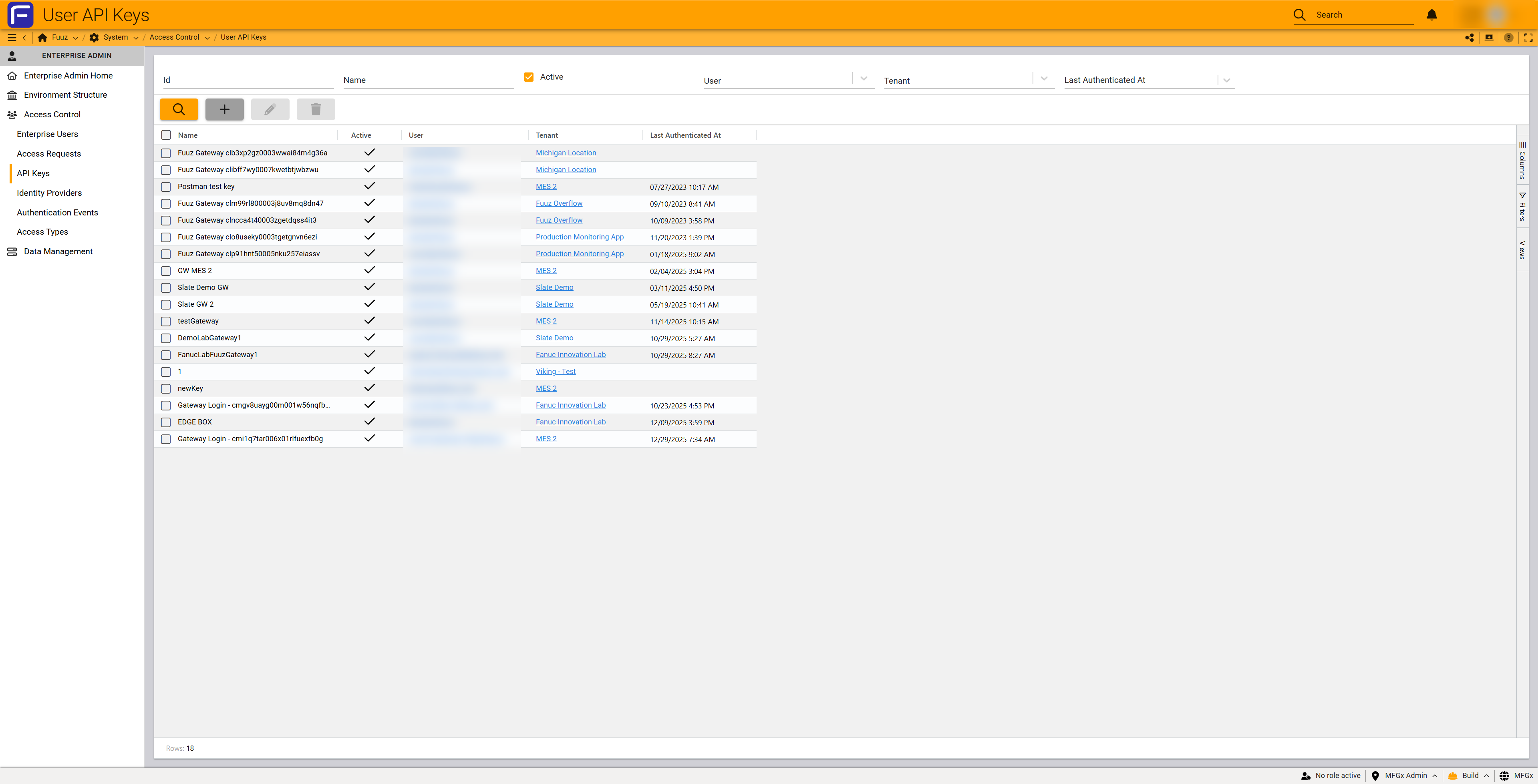
Step 1: Navigate to API Keys
Access the API Keys management interface to view existing keys and create new ones.
- Navigate to
Enterprise Admin → Access Control → API Keys - The API Keys table displays existing keys with columns: Id, Name, Active, User, Tenant, Last Authenticated At
- Review existing keys and their authentication status
Step 2: Create New API Key
Generate a new API Key and assign it to an API Access user.
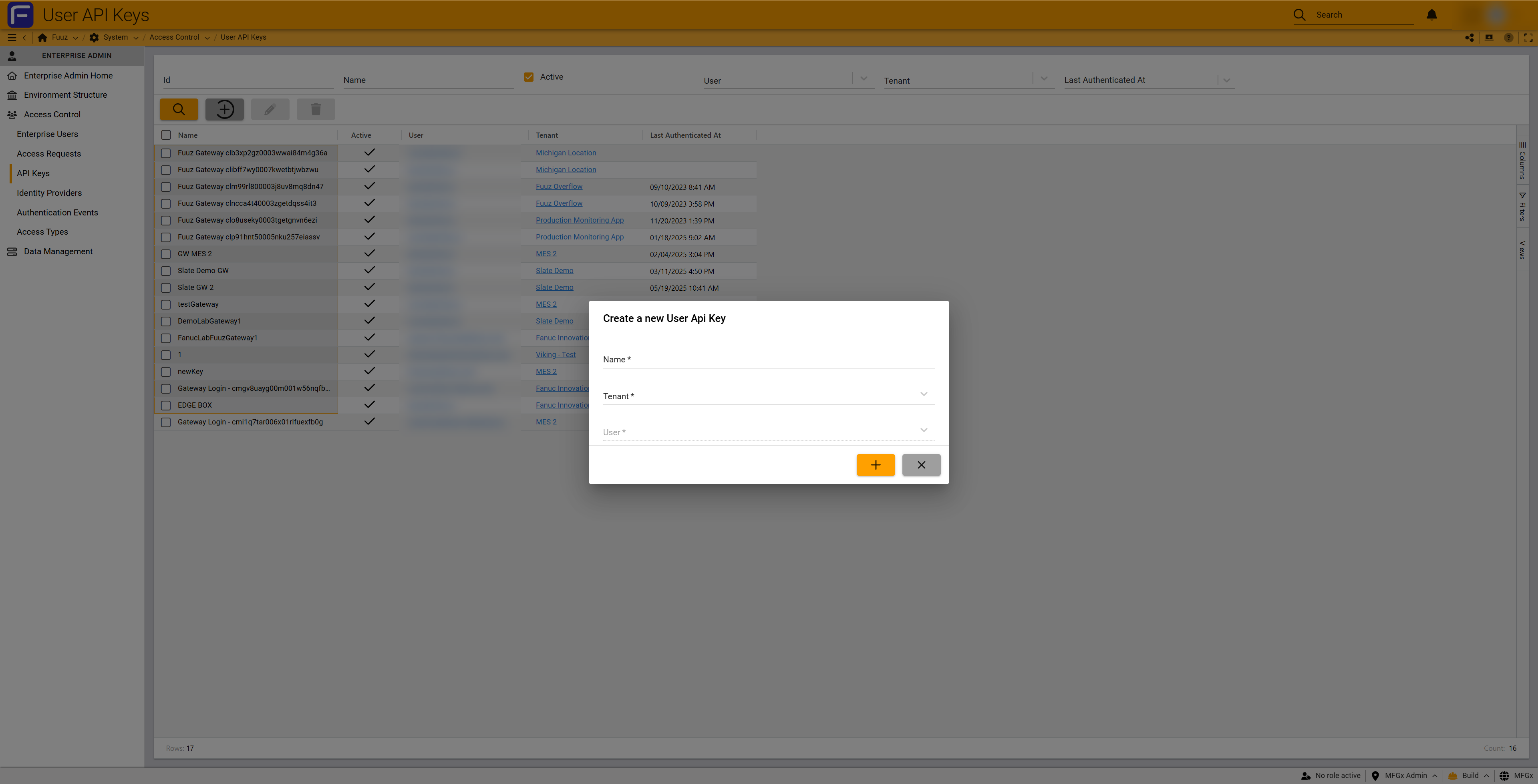
- Click the + (Add) button in the toolbar
- The Create a new User Api Key dialog opens
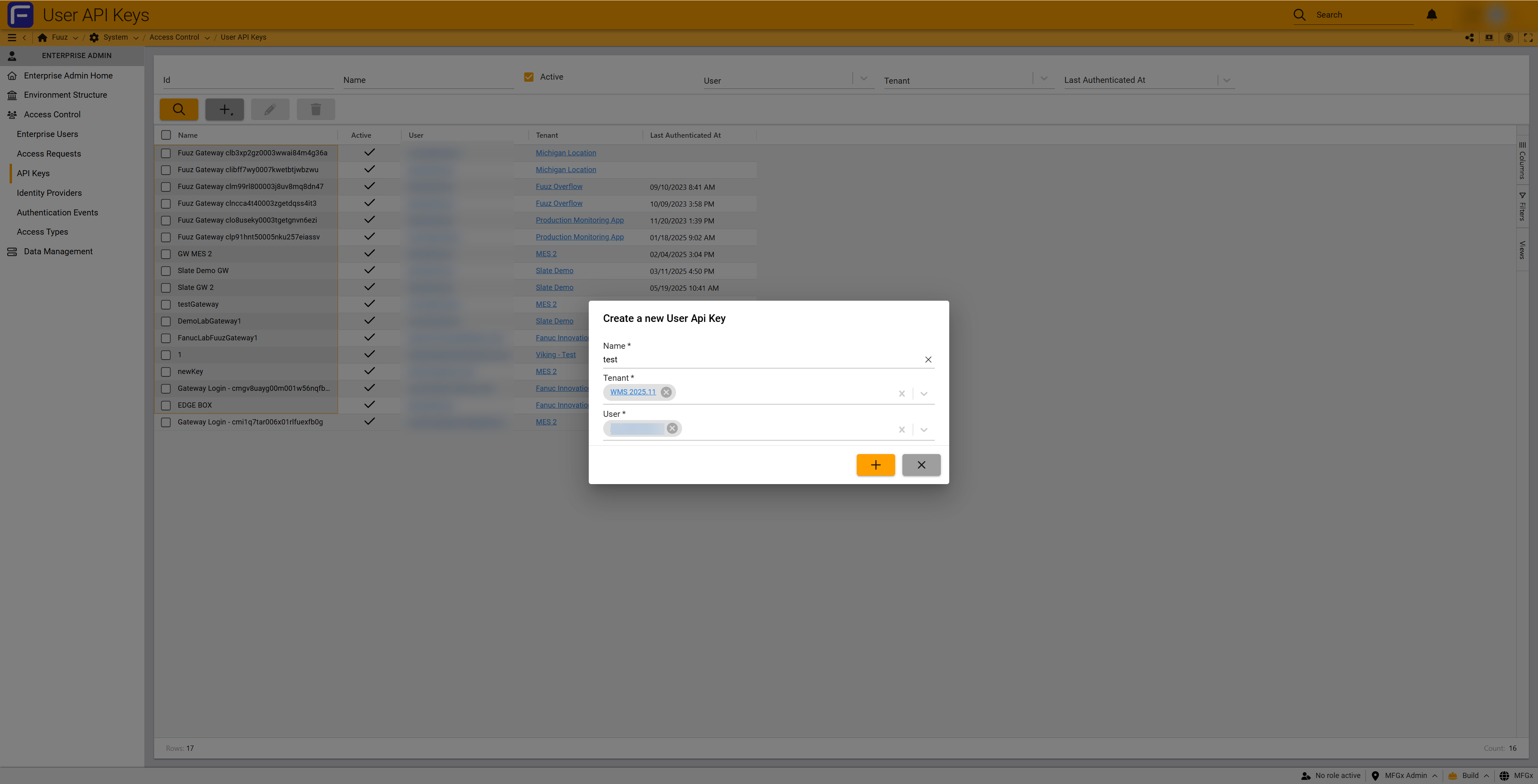
- Complete the required fields:
- Name (required): Unique identifier; use descriptive naming (e.g., "ERP-Production-Integration")
- Tenant (required): Select application; filters available users to those with tenant access
- User (required): Select API Access user from filtered list
- Click + (Submit) to generate the key
Step 3: Secure the Generated Key
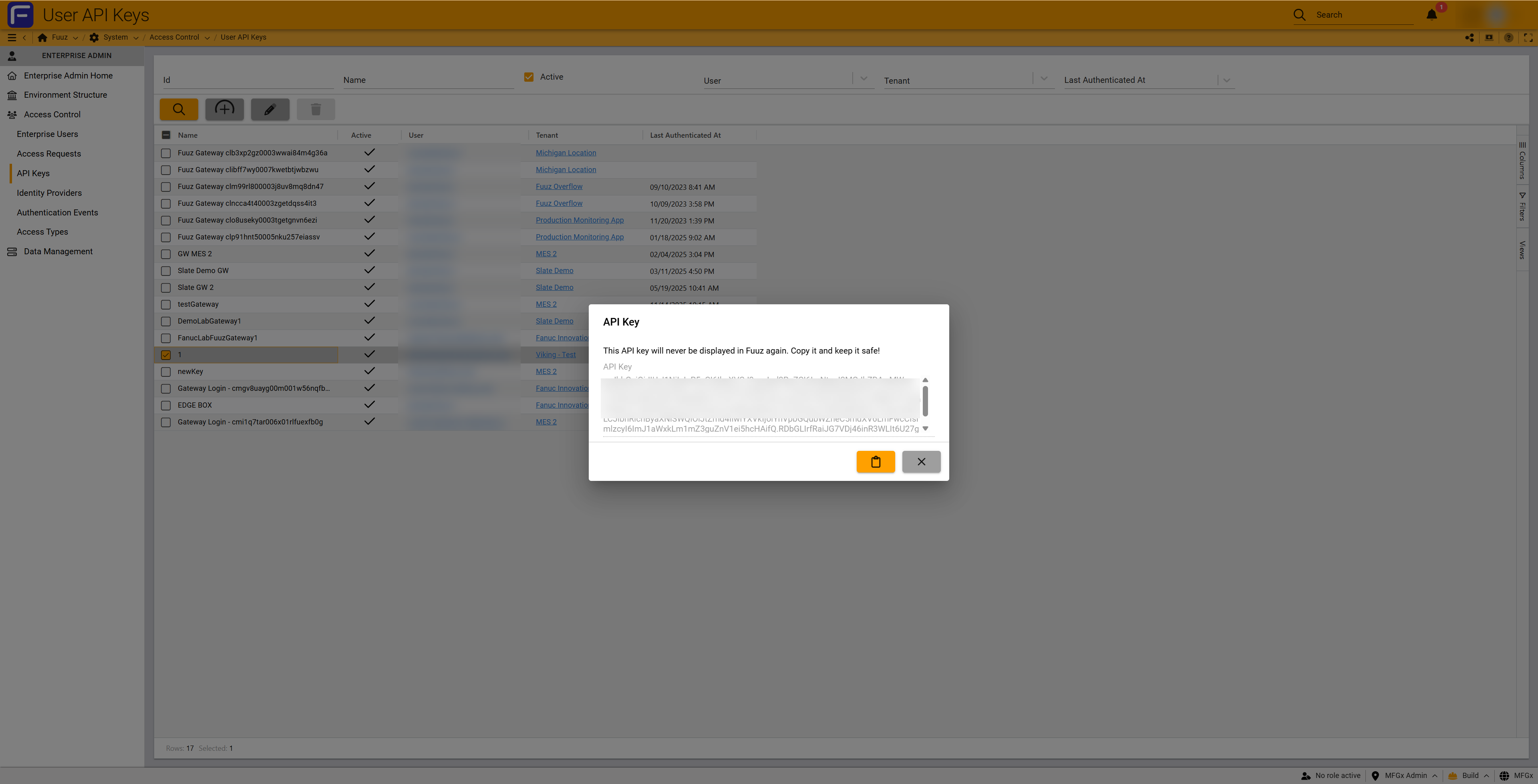
Copy and store the API Key immediately as it will never be displayed again.
- The API Key dialog displays with the generated key
- CRITICAL: Copy the API Key immediately
- Click the copy button or manually select and copy the entire key string
- Store the key in your organization's secure credential management system
- Close the dialog only after confirming the key is securely stored
Important: The key is displayed only once at creation. If you lose the key, you cannot retrieve it and must generate a new key. Store keys securely using your organization's credential management practices.
Step 4: Configure RBAC Permissions (Scoping the Key)
An API Key's access is controlled entirely by the user it is linked to. For that user to have any API access, all three of the following must be true:
- Access Type = API Access. The linked user's access type must be
API Access(set on the Enterprise User record). Other access types cannot authenticate via an API Key. - App / Tenant membership. The user must be added to the target Fuuz App(s) / Tenant(s) they need to reach. A user with no app membership has nothing to authorize against.
- A Policy or Policy Group granted directly at the app-user level. In the target tenant, go to Access Control → App Users, locate the API user, and attach a Policy or Policy Group directly to that user.
Important: You cannot use a Role to provision API-level access (current limitation). API access only works when a Policy or Policy Group is granted directly to the API user. This is the one sanctioned exception to the usual guidance of never assigning policies directly to users — for normal (web) users you should still use Roles.
When assigning the Policy / Policy Group:
- Grant access only to the specific API resources, data models, and Data Flows the integration needs.
- Avoid screen access; use separate, API-specific Policy Groups (don't reuse web-user policies).
- Prefer read-only policies if the integration only queries data.
- Add IP restrictions if the integration calls from known static addresses, and field-level permissions for sensitive data.
Reminder: If you adjust any of the above after the key was generated, regenerate a new API Key for the change to take effect.
Step 5: Multi-Tenant Integration Setup (If Needed)
For external systems requiring access to multiple applications, create separate keys for each tenant.
- Create separate API Access users for each tenant
- Generate separate API Keys for each tenant
- Configure RBAC independently within each application context
- External system manages multiple keys and routes requests appropriately
4. Configuration Reference
API Key Fields
| Field | Description | Notes |
|---|---|---|
| Id | System-generated unique identifier | Read-only; used internally |
| Name | Human-readable identifier | Must be unique |
| Active | Current status of the key | Unchecked = immediate auth failure |
| User | API Access user the key authenticates as | User's RBAC controls access |
| Tenant | Application the key provides access to | Cannot change after creation |
| Last Authenticated At | Timestamp of most recent use | Updates every time key is used |
API Capabilities
| Resource Type | Access Provided |
|---|---|
| GraphQL APIs | Query and mutate Fuuz data models |
| Data Flows | Trigger and monitor integration workflows |
| Webhooks | Receive event notifications from Fuuz |
| REST Endpoints | Access specialized platform services |
Licensing Model
- Licensing Level: API Integration capability at the integration level
- Multiple Integration Points: Single API Key may support multiple integration points
- Rate Limits: No technical rate limits on API Keys
- Soft Limits: Exceeding licensed integration points triggers billing update; service not interrupted
- Key Quantity: No system limit on number of keys per user or tenant
5. Validation & Testing
Success Criteria:
- ✓ API Key created and securely stored in credential management system
- ✓ API Access user has appropriate Policy Groups assigned
- ✓ External system successfully authenticates using the key
- ✓ Integration can access required Fuuz resources (GraphQL, Data Flows, etc.)
- ✓ Last Authenticated At timestamp updates when key is used
- ✓ Authentication Events report shows successful authentications
Testing Procedure
- Configure external system with the new API Key
- Attempt authentication from the external system
- Verify successful authentication in
Enterprise Admin → Access Control → Authentication Events - Test access to specific resources (e.g., query a data model, trigger a Data Flow)
- Verify proper authorization based on assigned Policy Groups
- Check that Last Authenticated At timestamp updated in API Keys table
Key Management Operations
Inactivating API Keys:
- Navigate to
Enterprise Admin → Access Control → API Keys - Select the API Key to inactivate
- Uncheck the Active checkbox
- Verify integrations using the key immediately fail authentication
Reactivating API Keys:
- Filter the API Keys table to show inactive keys
- Select the inactive key to reactivate
- Verify associated user, tenant, and user access are still active
- Check the Active checkbox
- Verify integrations can authenticate again immediately
Note: The Delete button in the API Keys toolbar is always disabled. API Keys cannot be deleted, only inactivated. This maintains audit history.
Best Practices
- One user per integration — scope narrowly. As a rule, never reuse a single API user for more than one API interaction. Give each API user access to only one Fuuz App and one very specific scope. Create as many API users as your integrations require. This keeps the blast radius small: when it's time to reissue a key, you only have to update the one third-party endpoint that used it, instead of hunting down many integrations that shared the same key.
- Naming Convention: Use pattern
[System]-[Environment]-[Purpose](e.g., "SAP-Production-OrderSync") so a key's purpose and owner are obvious. - Separate keys per environment: Use distinct API users and keys for Build, QA, and Production so promoting an app never mixes credentials across environments.
- Least privilege: Grant the minimum Policy/Policy Group needed; prefer read-only where the integration only reads.
- Key Rotation: Establish a rotation schedule. Rotating (and any scope change) currently means generating a new key and inactivating the old one — narrow scope makes this painless.
- Rotate immediately on risk: Regenerate a key right away if it may have been exposed, or when a person or vendor with access to it leaves.
- Monitoring: Review the Last Authenticated At column and the Authentication Events report monthly; inactivate keys that are no longer used.
- Security: Use IP restrictions for integrations from known static addresses; never commit keys to source control or paste them into tickets/chat.
- RBAC: Create separate API-specific Policy Groups; avoid reusing web-user policies.
- Documentation: Maintain external documentation mapping each key to the integration system and endpoint that uses it — this makes reissues fast.
Connecting an MCP / LLM Client
API Keys are also how you connect an MCP (Model Context Protocol) client — for example, an LLM assistant — to Fuuz.
- Use your enterprise domain with the
/mcppath as the MCP server endpoint — for example,build.mfgx.fuuz.app/mcp(substitute your own enterprise domain and the appropriate environment). - Create an API Key following the steps above.
- Give the linked API user a Policy or Policy Group scoped to only the resources you are comfortable exposing to the LLM.
Important: An MCP/LLM client can reach everything its API user is authorized for — treat it as an untrusted caller. Scope it to a single app and the narrowest possible Policy Group, and prefer read-only access unless the assistant genuinely needs to write. Create a dedicated API user for each LLM/MCP connection rather than reusing an existing integration's user.
6. Troubleshooting
| Problem | Cause | Solution |
|---|---|---|
| Cannot create API Key - no users in dropdown | No API Access users have access to selected tenant | Create API Access user via Enterprise Users; grant access to target tenant |
| Integration authentication failing | API Key inactivated or user disabled | Check key Active status and user status; reactivate if needed |
| Lost API Key after creation | Key not copied before closing dialog | Cannot retrieve; inactivate old key and generate new one |
| API calls return authorization errors | User lacks required RBAC permissions | Navigate to tenant's App Users; assign a Policy or Policy Group directly to the API user (Roles do not grant API access) |
| Permissions changed but key still has old access | Scope was changed after the key was generated | Regenerate a new API Key and re-distribute it; existing keys don't pick up scope changes |
| Assigned a Role but API access still denied | Roles cannot currently provision API-level access | Attach a Policy or Policy Group directly to the API user instead |
| API user not selectable / no access | User access type isn't API Access, or user isn't added to the target app | Set access type to API Access and add the user to the target Fuuz App/Tenant |
| Cannot reactivate API Key | User, tenant, or access no longer exists | Verify user status and access; restore or create new key |
| Multiple integrations stopped working | API Access user inactivated | Reactivate user in Enterprise Users interface |
| IP restriction blocking requests | External system IP changed | Update IP restrictions in user's Access Control Policy |
| Last Authenticated At not updating | Integration not authenticating successfully | Check Authentication Events report for failed attempts |
Using Authentication Events Report
To investigate API Key authentication issues:
- Navigate to
Enterprise Admin → Access Control → Authentication Events - Filter by the API Access user associated with the key
- Review failed authentication attempts for error codes
- Common failures: Invalid credentials, IP restriction violation, User inactive, Tenant access revoked
7. Revision History
| Version | Date | Editor | Description |
|---|---|---|---|
| 1.0 | 2025-12-29 | Fuuz Documentation Team | Initial Release |
| 1.1 | 2026-06-11 | Fuuz Documentation Team | Clarified that scope changes require regenerating a key; documented the three scoping requirements (API Access type, app/tenant membership, directly-assigned Policy/Policy Group — Roles cannot grant API access); added narrow-scope/blast-radius guidance and MCP/LLM connection steps |