Setting TTL on a Data Model / Table
Article Type: Reference Audience: Developers Module: Data Models
In designing solid applications, it is best practice to consider the data you'll be storing in Fuuz, and determine with your business users how long that data should be retained. In Fuuz you can do this by establishing appropriate TTLs on your data models using indices.
Instructions
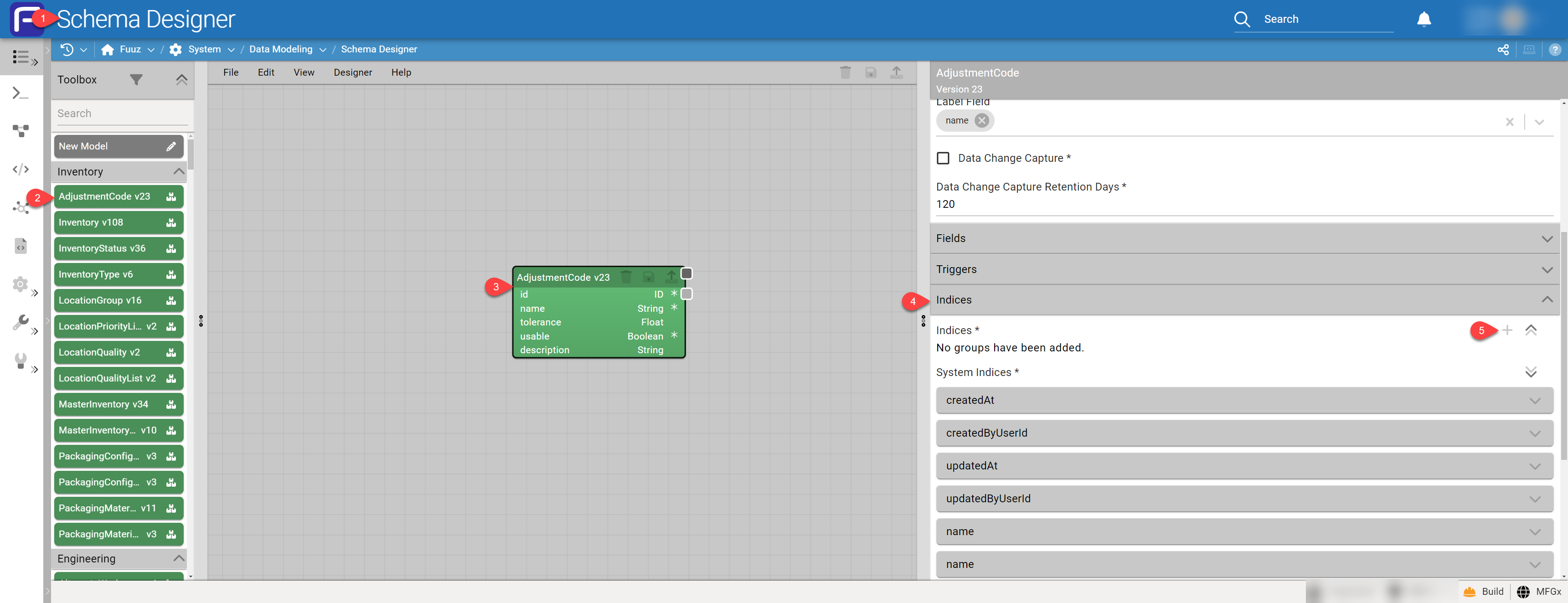
- Open the Schema Designer
- Locate the data model you wish to apply TTL to — drag it out to the canvas and select it by clicking on it to highlight and expose the configuration panel on the right side of the designer canvas
- Scroll the panel down until you see Indices — expand this panel
- Click the + option to add a custom index
- Within the custom index, define the date field you wish to use as your baseline
- Set the TTL value (in seconds)
- This is the amount of time, from the date/time in the date field you've selected, to effect the TTL
- Save and Deploy your changes
Note: You cannot set TTL on the pre-defined system indices; however, you can add your own custom indices (even for the same fields as the system-defined indices) and then set your TTL.
To recap:
- Open the Schema Designer
- Select the data model and drag it to the canvas
- Select the data model — expose the configuration panel — scroll to Indices
- Click +
Then:
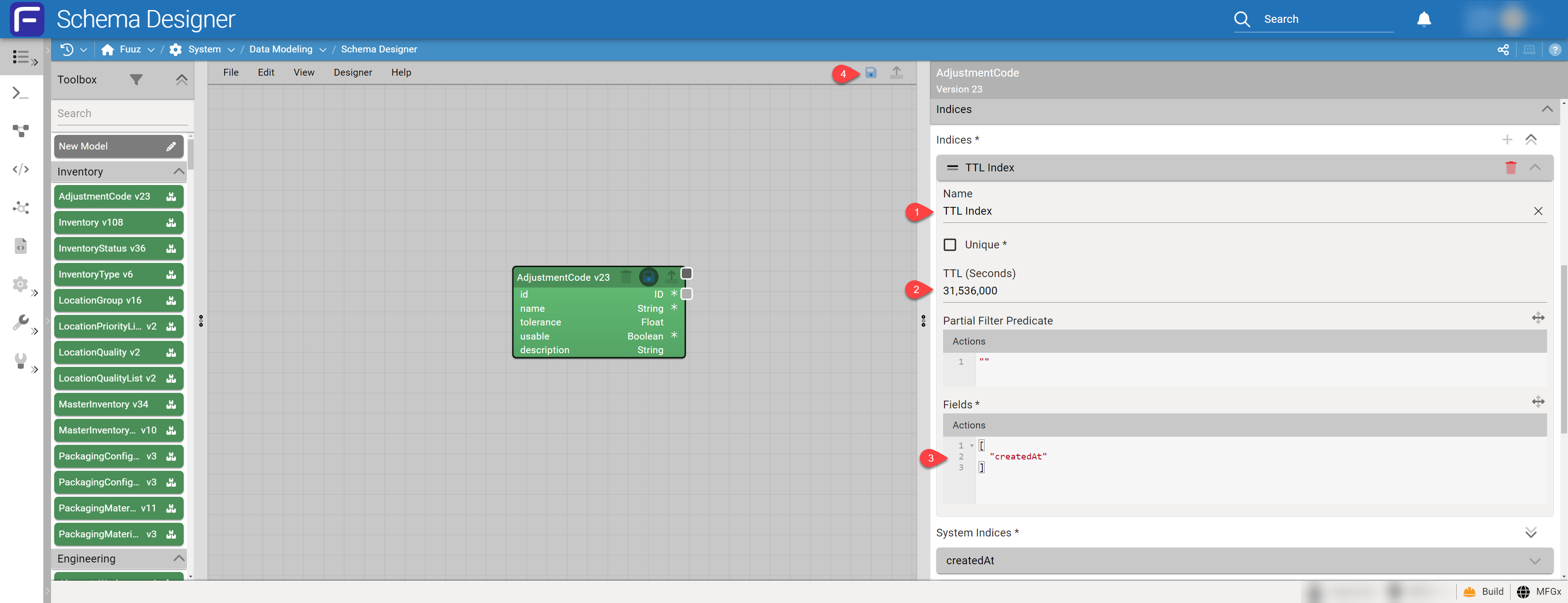
- Set the index name
- Set the TTL (seconds) — the example is 1 year
- Set the field to index on — the example is
["createdAt"] - Save/Deploy your updates